








Adding a Bitstamp Connection
To add a Bitstamp connection:
-
Click Connections in the left navigation panel.
-
Click +New Connection
-
Configure the settings in the General Settings section:
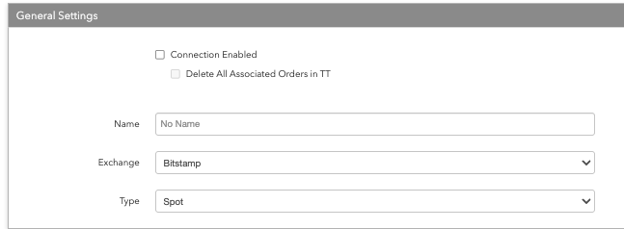
- Connection Enabled: Check this setting to activate the connection. Uncheck to deactivate the connection.
- Delete All Associated Orders in TT
- Name: This is a required field for creating a connection.
- Exchange: Select Bitstamp. Only one exchange is allowed per connection.
- Type: Define the connection as a SPOT or a Perpetual. Note: SPOT perpetual can only trade SPOT products. If a trader intends to trade both SPOT and Perpetuals, they need to create two connections.
-
Configure the settings in the Additional Settings section.
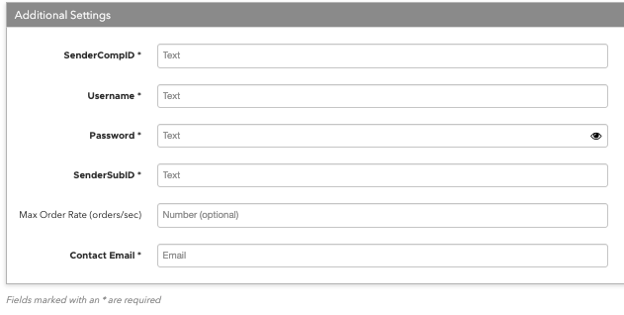
Configure the following Bitstamp settings per connection:
- Sender Comp ID – Identifies the name of your firm in FIX Tag 49 in all outbound messages sent via the connection. This is an exchange-provided credential that is required for connecting the session. This is a required setting.
- Username – Sets the exchange-provided session ID username for connecting to the exchange. Sent to the exchange as Tag 553. This is a required setting.
- Password – Sets the exchange-provided session ID password for connecting to the exchange. Sent to the exchange as Tag 554. This is a required setting.
- Sender Sub ID – Assigned value used to identify specific message originator (e.g. desk, trader, etc.)
- Max Order Rate (orders/sec) – (Optional) Sets the maximum number of orders per second that a user can enter per connection. This limit cannot exceed the exchange-defined order rate maximum.
- Contact Email – Optionally, add a best contact email that TT can use to contact your firm if needed.
-
Click Create. You can select the connection in the data grid and review the connection settings in the Settings tab.
-
Click the Accounts tab to assign an existing account to the connection. Multiple accounts can be added to a single connection.
Note: The connection will not become active until at least one account is assigned.
-
Click Save Changes.