


Context menu settings
Right-click in the widget to open the context menu and select the following settings:
- Fit all columns to content: Resizes all column widths to match the width of their content.
- Edit columns: Lets you display and order columns in the grid.
- Export Rows: Exports data to a .csv or .xlsx file for the rows you select. Use Shift-click to select multiple rows.
- Copy — Copies the contents of the selected row(s). This option only available when right-clicking on one or more rows.
- Print — Sends the contents of the selected row to your printer.
- Clear all filters: Turns off all filters you may have set for each column.
- Open… — Shows a list of the following widgets that you can open from the Hedge Manager. This option only available when right-clicking on a row.
- Zoom… — Opens a slider control that you can use to scale the size of the Hedge Manager display.
- Settings: Hedge Manager…: Allows you to customize settings for the widget.
Available settings
These settings affect only the selected Hedge Manager widget. To update the default settings with these value for newly-opened Hedge Manager widgets, or to apply them to existing opened widgets, click Defaults.
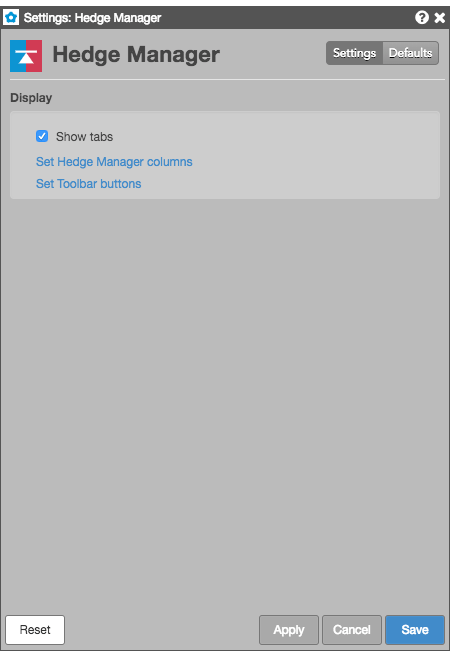
Display settings
| Setting | Description |
|---|---|
| Grid font size | Adjust the font size to suit your preferences and use bold text, if desired. |
| Show tabs | Set whether to display the tab bar at the bottom of the widget |
| Set Hedge Manager columns | Select the columns you want shown in the Hedge Manager. |
| Set Toolbar buttons | Select the buttons you want shown in the Hedge Manager. |
Hedge Manager column descriptions
| Column | Description |
|---|---|
| % Filled | The percent of the total order quantity that has been filled. |
| Account | Account number associated with the transaction. |
| AcctType | Account type code that defines the trader’s relationship with a clearing house |
| Algo | Shows a symbol to launch an OMA algo for an order. |
| AlgoName | For TT synthetic and algorithm orders, the name of the algorithm controlling the order. |
| Avg Price | Average fill price. |
| B/S | Whether the transaction represents a Buy or Sell order |
| Child Orders | Number of child orders currently working for a parent order |
| ConnectionID | ID of the connection used to route the order or fill. |
| Contract | The name and contract expiry for the instrument or strategy. |
| Cross | Button to change the order price to cross the inside market. |
| Current User | TT user name of the trader associated with the transaction or owns a staged order. |
| CXL | Cancel button for this order |
| Date | Date the order was legged. |
| Exch | Name of the exchange. Note: For parent TT order type orders, an asterisk “*” is appended to the exchange name in this column (e.g., CME *) to indicate the intended destination of the submitted parent order. No asterisk appears in the Exch column for the related child orders sent to the exchange. |
| ClearingAcct | Shows the value sent to the exchange as the clearing account. |
| ExchDate | The date the trading host received/sent the message. The date is displayed based on the timezone of the user’s workstation. |
| ExchOrderID | ID of the order, supplied by the exchange. |
| ExchTime | The time at which a fill is received by the exchange host or exchange gateway, depending on the practice of the exchange. The time is displayed based on the timezone of the user’s workstation. |
| ExeQty | Executed quantity (sum of fills) of an order |
| Expander | Button to expand or collapse parent orders |
| Fill w/ Limit | Button to change the order price to a price level with sufficient liquidity to fill the entire order quantity. |
| Give Up | Account of the give-up party |
| MDT | Button to launch the contract in the MD Trader widget. |
| Modifier | The modifier applied to the order. Example: Stop, If Touched, Trailing Stop, Trailing IT, Trailing Limit, Machine Gun |
| O/C | Type of position you are establishing with the order. |
| OMAOrderID | ID that uniquely identifies the OMA (Order Management Algo) order associated with the transaction. |
| OrdQty | Total order quantity |
| Originator | TT User ID of the person who submitted the order or staged order. |
| Parent ID | TT-generated ID that uniquely identifies a parent order. The ID is also associated with all of its child orders. For example, if you submit a TT Iceberg order, the ParentID of each child order will contain the TTOrderID of the parent Iceberg order. |
| Payup | Button to change the order price one tick closer to the inside market. |
| Price | Price of the order or fill. |
| Product | Name of the product being traded. |
| ProductType | Type of product (e.g. Futures, Options). |
| Route | Routing destination for the order, such as TT SIM or Algo SE. |
| Select | checkbox to select specific hedge orders. |
| StageMsg | Text message, typically execution instructions, included with the staged order. |
| Status | The current status of the exchange:
|
| SynthStatus | The status of the parent synthetic order. |
| TextA | Displays an optional, user-defined text value from the Setup app, Order Profiles, or entered in the TextA free-form text field in the Order Ticket. This value remains on the order in the TT system. If accepted or required by an exchange, the value in this column may be routed to the exchange for clearing and back office purposes. |
| TextB | Displays an optional, user-defined text value from the Setup app, Order Profiles, or entered in the TextB free-form text field in the Order Ticket. This value remains on the order in the TT system. If accepted or required by an exchange, the value in this column may be routed to the exchange for clearing and back office purposes. |
| TextTT | Displays an optional, user-defined text value from the Setup app or entered in the TextTT free-form text field in the Order Ticket. The value displayed in this column remains on submitted orders for tracking purposes in the TT system, but is not routed to the exchange. You can show or hide the Text TT text box for a selected working order in the Order Toolbar. You can add or modify the text that displays in the TextTT column for the selected order. In the Position Manager widget, you can now edit the TextTT column for Local Fills and Admin Fills. However, this is not available for Admin SODs. Note: For Autospreader orders submitted by an ADL algo, the value is populated with the order tag of the parent algo order. |
| TicksAway | Number of ticks the order is currently away from the inside market. |
| TIF | Time In Force for the order. |
| Time | Time the order was legged. |
| TrigPrice | Price at which to enter an order (Shown only when an order has an associated Trigger price, such as a TT Stop or TT If-Touched order) |
| TTOrderID | TT-generated ID that uniquely identifies the order associated with the transaction. |
| Type | The type of instrument or options strategy. |
| UndQty | Undisclosed quantity of a disclosed quantity order (e.g. Iceberg. TT Iceberg, Time Sliced) |
| WrkQty | Working quantity of the order |
Hedge Manager toolbar buttons
| Button | Description |
|---|---|
| <space> | Provides optional visual spacing between two buttons |
 | Deletes the selected orders, or all visible Buys, Sells, or orders. Orders hidden due to filters are not deleted. |
 | Removes all rows containing non-working filled or deleted orders. |
 | Sends a Limit order for the total size of the working hedge order to cross at the best inside market price. If market liquidity is less than the size of the working hedge order, you can still send the hedge. When this occurs, the order fills as much as possible and remains resting at the price level the order was sent. |
 | Sends a Limit order to for the total size of the working hedge order at the price level that would sweep the market of available liquidity. Note that the price level could be one or more ticks away from the inside market, depending on the number of levels needed to fulfill the full quantity. |
 | Selects an OMA algo to launch for the selected order. |
 | Adds a button to launch an available OMA algo. |
 | Completes a block order transaction. |
 | Reprices the selected order downward one tick. |
 | Removes an order (native or synthetic) from the market but stores it on the TT order server for later execution. Held orders are stored in short-term memory. If the order server process goes down, the held order information is lost. Until you click the Submit button the order remains held and out of the market. |
 | Sends an inquiry to the exchange for a block order. |
 | Launches a custom algo for the selected order |
 | Indicates the type of position you are establishing with the selected order. |
 | Pauses a working algo. |
 | Opens an Order Ticket with a replica of the selected order. You can send the same order or alter it as desired. |
 | Resumes a paused algo. |
 | Submits held orders to the exchange. When you submit a held order, it receives a new order number. The Audit Trail indicates if a submit fails. |
 | Reprices the selected order upward one tick. |
 | Displays the history of activity for the selected order. |
 | Claims a staged order. The user who claims the staged order is the owner. |
 | Unclaims a staged order. The user who unclaims the staged owner gives up ownership and the order is available to be claimed by another user. |