





As an administrator, you can assign custom fields to a user employed or managed by your company using the Users | Custom Fields tab.
Note: Custom fields are added to your company on the Company | Company Settings | Custom Fields tab.
To assign custom fields to a user:
- Click Users in the left navigation pane.
- Select a user in the data grid and click the Custom Fields tab.
The Custom Fields section is displayed.
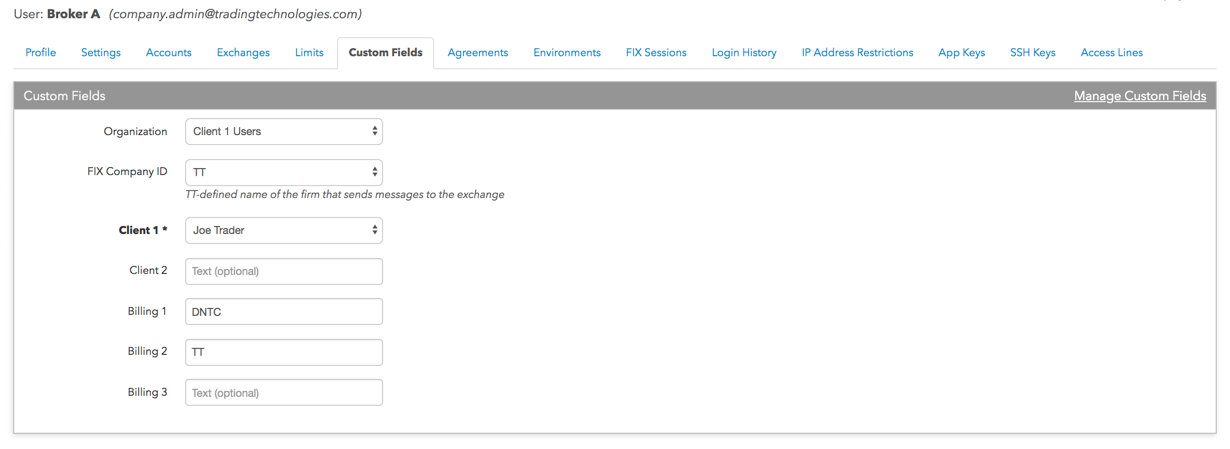
- Select or enter a value for each field.
Tip: To create a new value for a “list” field (e.g., Organization), select Add New and create the new value in the dialog box that appears (e.g., New Organization Value).
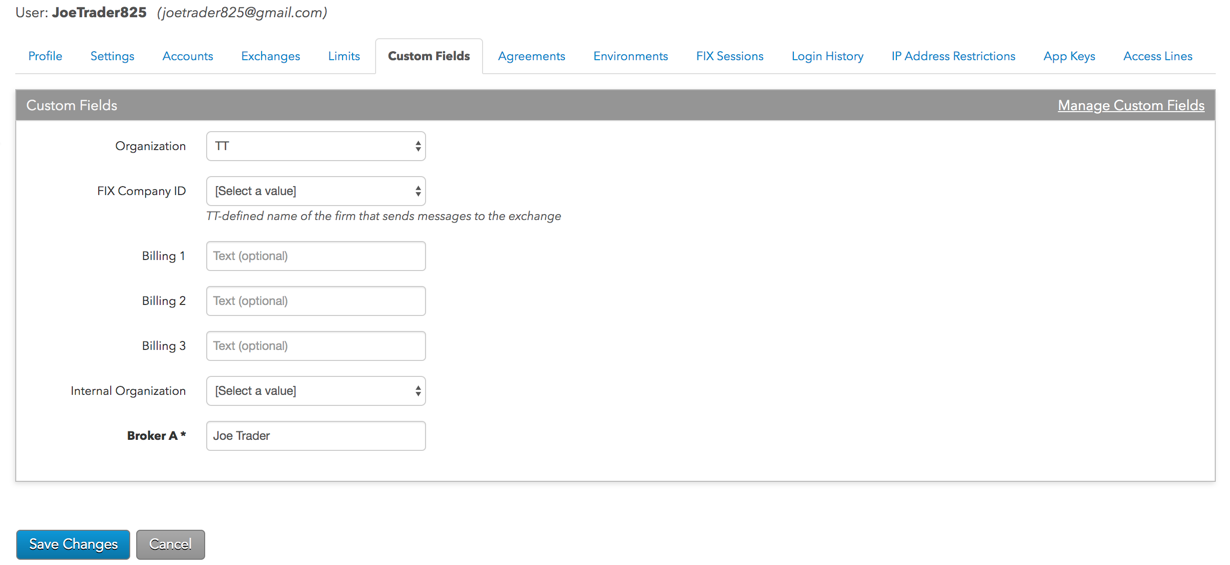
Note: To add or modify custom fields, click Manage Custom Fields in the upper right corner of this section.

- Click Save Changes.