






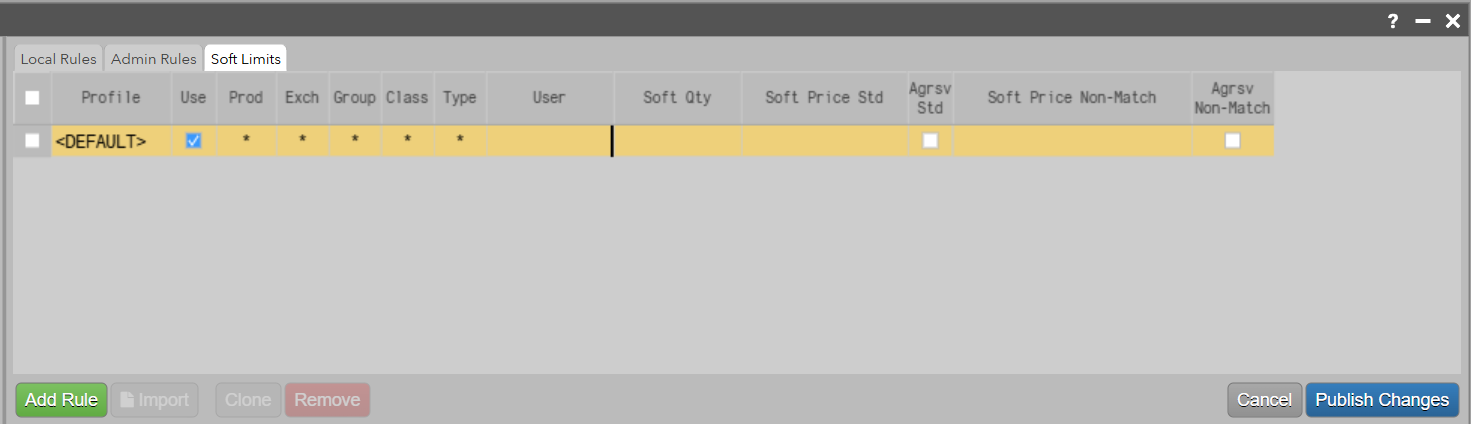
Soft limit pre-trade risk settings are user-defined thresholds configured in the Soft Limits tab of the Order Profiles widget for native order types (excluding TT Order Types). These limits are used to monitor and manage risk prior to trade execution.
Soft limits can be created and configured by an end user within the local Order Profiles’ Soft Limits tab in the Order Profiles widget. Users can set soft limits on the “Default” order profile, or on order profiles that were created.
Soft Limits are only applied to Native Order Types.
Descriptions for each column are detailed in the Order profile columns section.
Unlike hard limits, soft limits generate notifications when specified risk thresholds are reached, but they do not prevent order submission or execution.
Soft limits can be applied to the Default order profile or to any custom order profiles created by the user.
Order Entry Warnings
Order Ticket
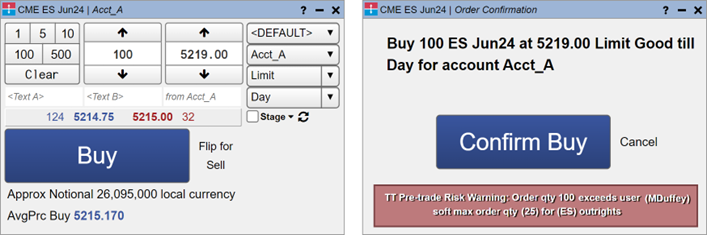
When you place an order that exceeds the soft pre-trade risk setting, the order ticket will display a warning message. You can override the warning and submit the order, or exit from the warning message and close the order ticket without submitting the order.
Order Book
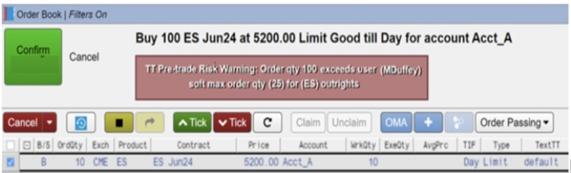
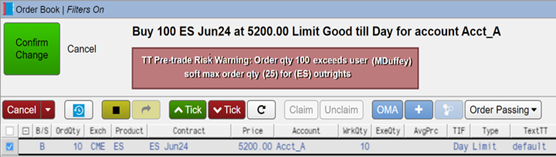
After clicking the Change button, the Order Book will display the soft limit warning when an order change request requires a confirmation.
Note: The soft limit warning will only appear when one order is selected.
The Status column will show the current status as “Pending Approval”. Click the Confirm Change button to update.
Floating Order Book
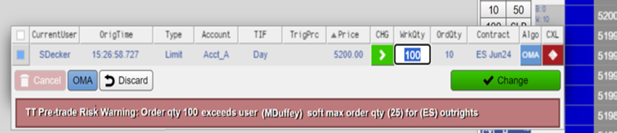
After clicking the Change button, the Floating Order Book will display the soft limit warning when an order change request requires a confirmation.
Order Book Pending Approval Orders
Orders that are in Pending Approval will be visible in the Order Book. Click the Confirm button to confirm the order, or the Cancel button to cancel the order.