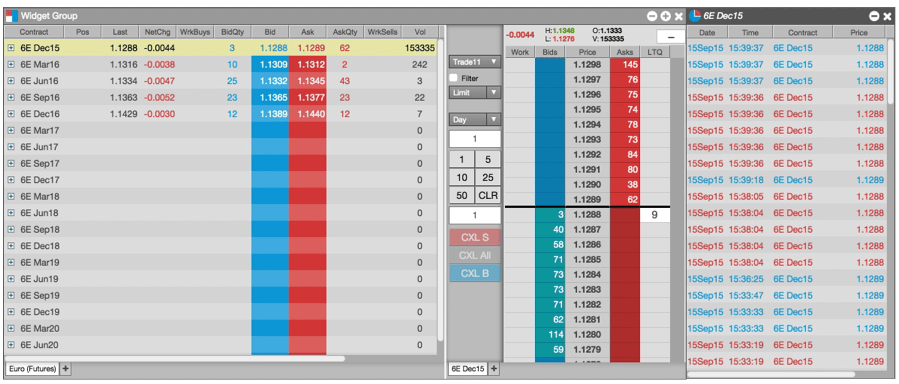

After you create a widget group, you can use tabs within the group as well as minimize the group like it was a single widget.
Creating a widget group
To create a widget group:
-
Open the widgets you want to put into a group.

-
Right-click in the title bar of a widget, and select Create group widget.

-
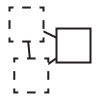
Drag the widget next to another widget, matching the edge color.

The two widgets are combined into a single widget.

-
Move the new grouped widget to the desired location.
Saving a custom widget
To save a custom widget:
-
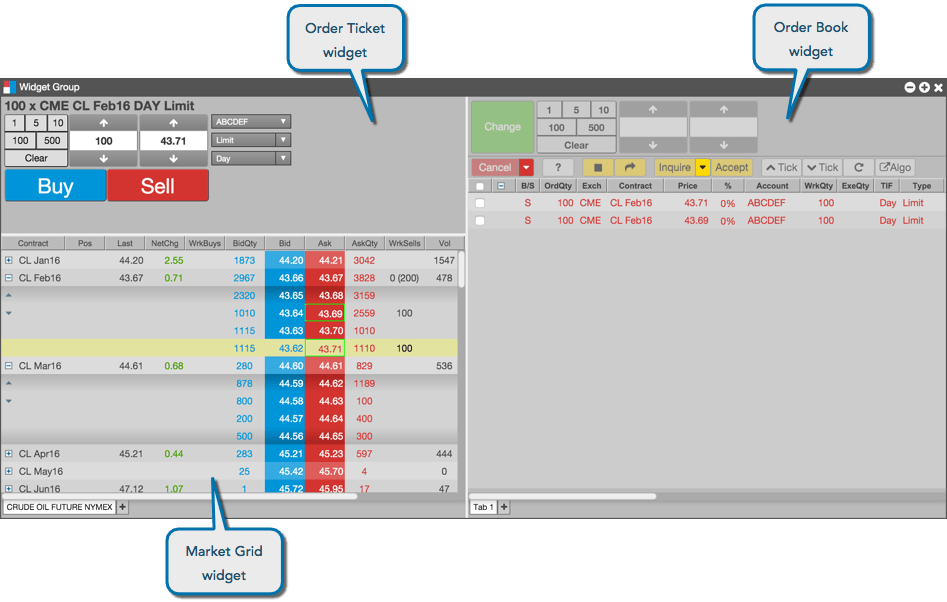
Create a widget group with the desired widgets. In this case, you create a group from the Market Grid, Order Ticket, and Order Book widgets, as shown.
-
In the custom widget, right-click in the title bar and select Save as custom widget from the menu.

-
In the Save Custom Widget dialog, enter the following information for your custom widget:
- Name for the widget, which is used in the widget title bar and in the Widgets menu.
- In which search results you want the custom widget to appear.
- Which icon you want to represent your custom widget.

-
Click Save Widget.
-
If you want this widget to appear as an icon in search results, set it as a favorite in the Widgets menu.
Minimizing widgets in a widget group
In the widget group, right-click in the widget you want to minimize, and select Minimize Panel from the menu.

The selected widget collapses into a bar.

To restore the widget, click on the minimized widget bar.
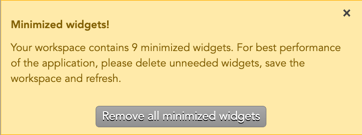
| Note: | Minimized widgets remain open and run until they are deleted. For best application performance, delete any unneeded widgets before saving your workspace. When you open a saved workspace containing more than 10 widgets, a pop up with a warning will appear, showing the count of minimized widgets and a message warning that running unused widgets may affect performance.
Clicking Remove all minimized widgets will clear the workspace of any widgets not showing onscreen. |
Removing a widget from a widget group
In the widget group, right-click in the widget you want to minimize, and select Pop-out Panel from the menu.
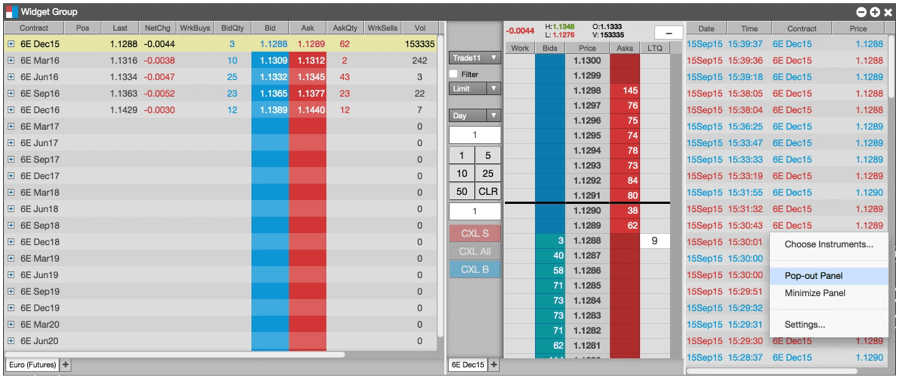
The selected widget reverts to a separate widget, leaving the rest of the widget group intact.