



On the Optiq platform, all wholesale trades supported by Euronext are managed via a single interface. Reporting of Against Actuals, Exchange for Swaps, and Large in Scale trades are combined into a single technical facility.
On TT, you can submit wholesale trades for all Euronext instruments and markets, as well as submit orders for Large in Scale trades using a single Blocktrader widget. Trades can be entered as a single-side trade, dual-side trade, or multi-leg transaction.
When submitting wholesale trades on Euronext via Optiq OEG, consider the following:
- Multi-leg strategies with prices and quantities per leg and supported strategy types can be submitted.
- The available Wholesale Trade types are configurable per contract.
Supported wholesale trade types on Euronext Optiq
The following Euronext Optiq Wholesale trades are supported on TT:
- Against Actual — Strategies for commodities markets that incorporate a futures leg and an underlying commodity leg.
- Exchange For Swap (EFS)/Exchange for Option (EFO) — Allows trades to offset a specific OTC swap transaction for a similar commodity or a direct product of that commodity.
- Large-in-Scale Transactions: Allows users to submit Large-in-Scale trades with one or more counterparties and/or strategies. Transactions for single or multiple instruments, including Delta Neutral strategies, can be submitted.
- Large in Scale – 1 sided — Pre-negotiated trades between two parties that take place outside the central order book. Each trader enters one side of the trade and the LIS Transaction ID must correctly match to complete the transaction.
- Large in Scale – 2 sided — High volume trades in any outright or strategy product.
- Request for Cross — A cross order submitted for a specific duration of time to allow price improvement and matching based on responses to the request from other traders.
Blocktrader display for Euronext Optiq
Blocktrader consists of the components needed for submitting wholesale trades on Euronext.
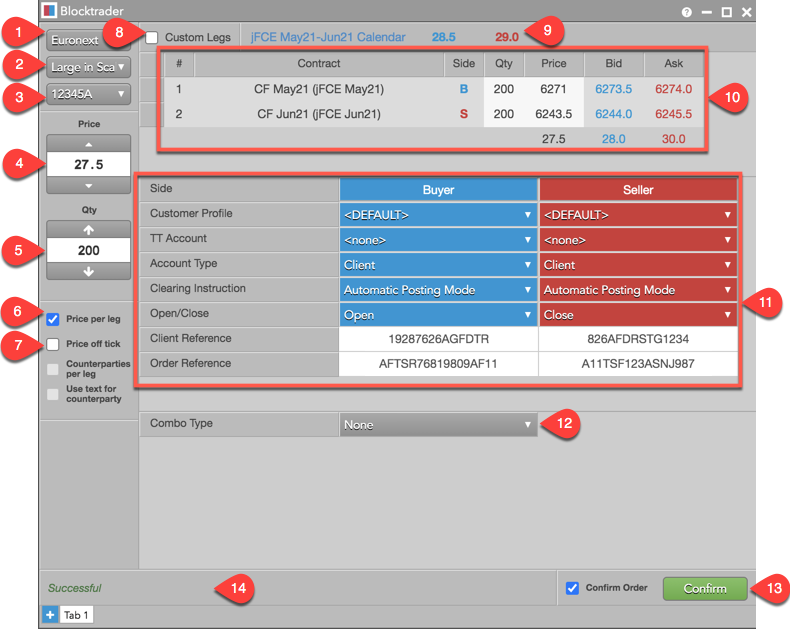
The image shows the following:
- Exchange selector — Lists the exchanges with OTC trade reporting supported on TT®
- Trade type selector — Lists the OTC trade types supported for the selected exchange.
- Account selector — Sets the account used to submit the trade using Blocktrader.
- Price — Sets the price for 1 sided or 2 sided transactions. Prices can also be set per leg for multi-leg instruments.
- Quantity — Sets the quantity for the transaction. Quantities can also be set per leg for multi-leg instruments.
- Price per leg — When checked, allows you to enter a price per leg for multi-leg instruments.
- Price off tick — When checked, allows you to enter an off tick price per leg for instruments that support tick sizes smaller than what is displayed.
- Custom Legs — Allows you to configure and submit multi-leg strategy transactions for Large in Scale trades.
- Instrument explorer — Allows you to search for and select the instrument being traded.
- Leg definition grid and instrument picker — Allows the initiator to set the “Symbol Index” of each instrument that is part of the transaction. Instrument picker allows you to search for and select the instrument being traded per custom leg. Individual instruments or multi-leg instruments can be selected based on the trade type, and you can set a price and quantity for each leg. For multi-leg strategies, the grid displays the net sum of the best bid and ask prices for each leg of the transaction. For custom legs, click “+” to add a leg or X” to remove a leg as needed.
- Euronext Wholesale Trade common fields — Allows you to complete the fields required by the exchange. Fields are displayed based on the trade type.
- Euronext Wholesale Trade additional fields — Fields that are unique per trade type (e.g., Large in Scale trades).
- Confirm Order and Submit — Allows you to confirm the order before submitting. When Confirm Order is checked, clicking confirm will allow the user to check the details of the trade before clicking Submit.
- Message indicator — Indicates whether the trade was successfully sent to the exchange. Also shows if the order needs to be confirmed before submitting.
Common Wholesale Trade Fields for Euronext Optiq
The following list shows the fields that are common when submitting wholesale trades on Euronext.
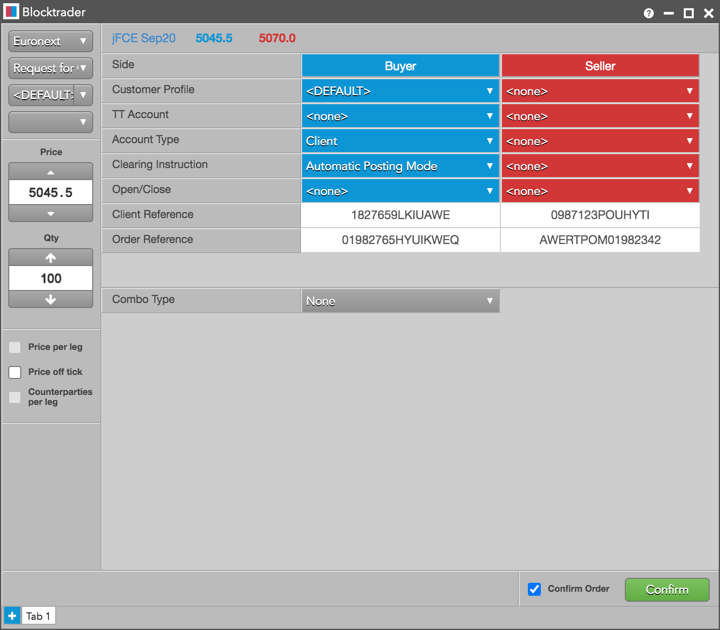
- Side — Sets the Buyer or Seller. Click a cell to determine the Buyer or Seller in each side of the trade.
- Customer Profile — A drop-down list of available customer order profiles. This is an optional field. Only customers with Order Profiles defined in Setup appear in the Customer Profile list.
- TT Account — Sets a specific account for the Buyer or Seller. This account will be used for the Buyer or Seller instead of the account selected in the order panel. All accounts assigned to the user are listed in the drop-down menu. The TT Account value is sent to the exchange API as ClientInfo.
- Account Type — Sets the exchange wholesale account code for the trade. Valid values are: Client, House, or none. Sent to the exchange API as AccountCode.
- Open/Close — Sets whether the trade opens or closes a position.
- Clearing Instruction — Sets whether the trade must be posted to a specific account in the clearing system. Valid values are:
- None
- Automatic Give-up mode
- Automatic Posting mode
- Manual
- Undefined / Process Normally
The selected value is forwarded to the exchange API in the ClearingInstructions field.
- Client Reference — Sets an additional, user-defined client identifier. This is a free-form text field that supports up to 14 characters. This field is only required when the Account Type is set to “Client”. Sent to the exchange API in the Account field.
- Order Reference — This field is optional and may equal any unique value to represent either the trader or order reference. This is a free-form text field that supports up to 16 characters. This value, if present, is forwarded to the exchange API in the SecondaryClOrdID field.
Submitting Wholesale Trades on Euronext Optiq
For multileg wholesale trades on Euronext, Blocktrader submits the quantity and price of each leg of the trade instead of just submitting the spread price.
The legs of the strategy have to be submitted separately in Blocktrader. You can select a template for an exchange-defined strategy to seed the legs or enter a user-defined strategy.
Note: Strategies must be submitted in the sequence required by Euronext and must always be created from the Buy perspective.
To submit a Wholesale Trade on Euronext:
- Open the Blocktrader widget and select Euronext from the exchange selector.
- Select a Wholesale trade type from the trade type selector.
- Find and select an instrument.
Use the Explorer at the top of the widget to find an instrument for Against Actual or Exchange for Swap/Option trades.
For Large in Scale trades, click Custom Legs and use the instrument picker in the leg definition grid.
- Set the quantity and price for the trade.
For Large in Scale and Request for Cross transactions, use the leg definition grid and instrument picker to select an instrument and set an order quantity.
Note: For multi-leg strategies, you are required by the exchange to set a price and quantity for each leg.
- Select an account from the account selector.
- Complete the required fields in Blocktrader for both sides of the trade.
These fields are common for all supported Euronext wholesale trades unless otherwise noted.
Additional fields in Blocktrader vary depending on the type of wholesale trade you select:
- Click the Submit button.
If Confirm order is checked, confirm the order before submitting it to the exchange.
Request for Cross trades: Upon receiving the order, the exchange broadcasts a request to cross message that appears in the Audit Trail. After the exchange-defined time period (e.g., 10 seconds), the order is submitted.
Euronext Optiq Against Actual Trades
Note: Against Actual trades can be submitted only for futures contracts on Euronext.
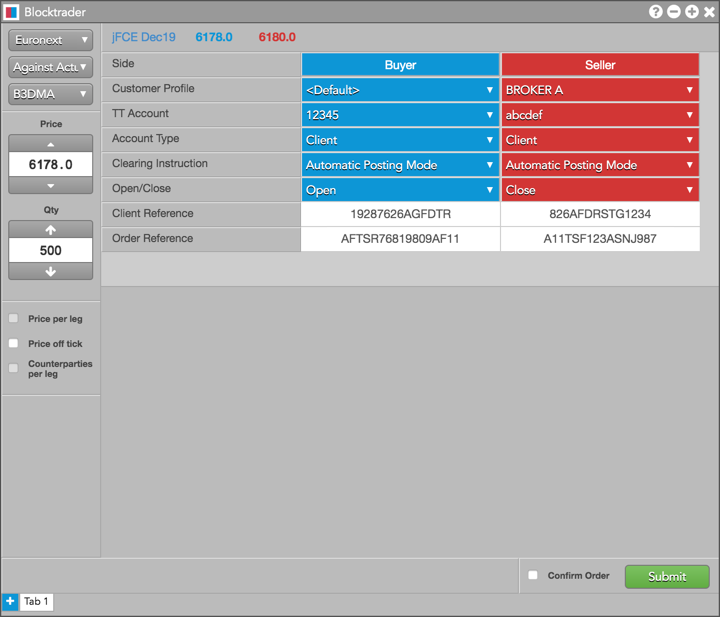
To submit Against Actual trades, you must first complete the fields listed in Common Wholesale Trade Fields for Euronext for both sides of the trade.
The following figure shows Against Actual trades in Blocktrader.
Euronext Optiq Exchange For Swap/Option Trades
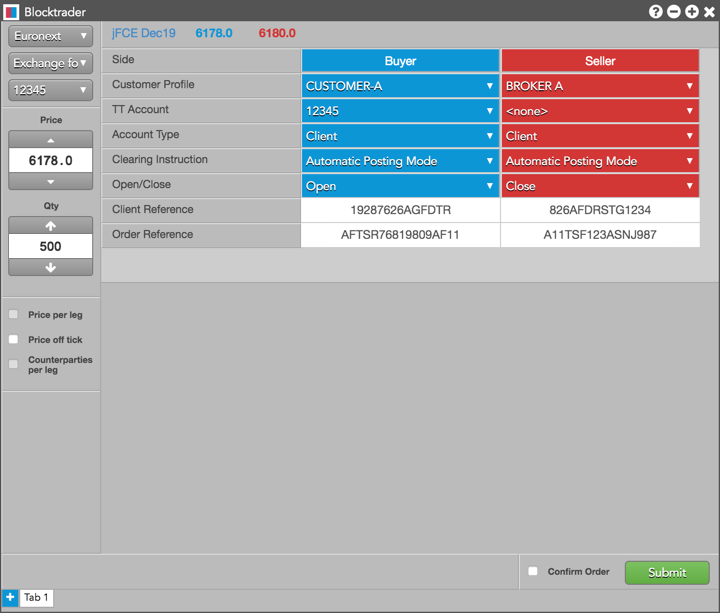
To submit an Exchange For Swap/Option trade, you must first complete the fields listed in Common Wholesale Trade Fields for Euronext for both sides of the trade.
The following figure shows an EFS trade in Blocktrader.
Euronext Optiq Large in Scale – 1 Sided Trades
To submit Large in Scale – 1 Sided trades, you must first complete the fields listed in Common Wholesale Trade Fields for Euronext.
In addition, you must populate the following additional fields:
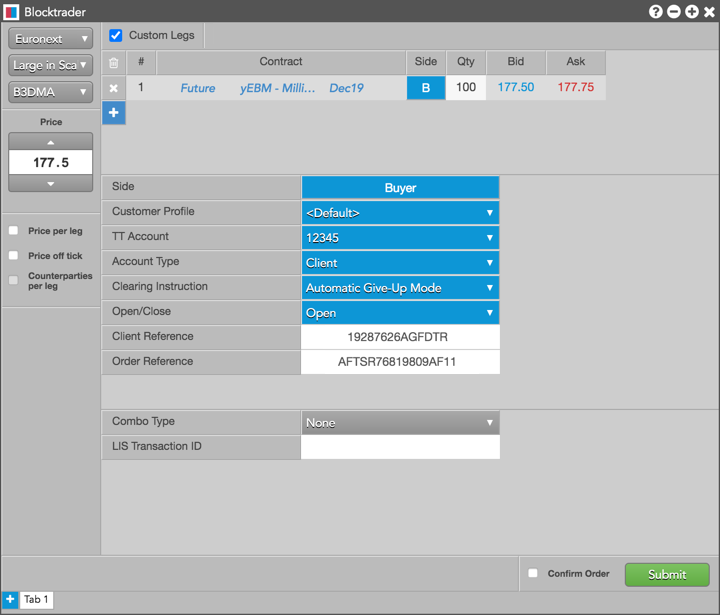
- Combo Type: Select a strategy type or set the type to “none”. If submitting a Large in Scale trade for an exchange supported strategy, set the type of multi-leg transaction being submitted.
Note: When accepting an LIS trade as a Reactor, ensure that you submit your side of the transaction using the same Combo Type.
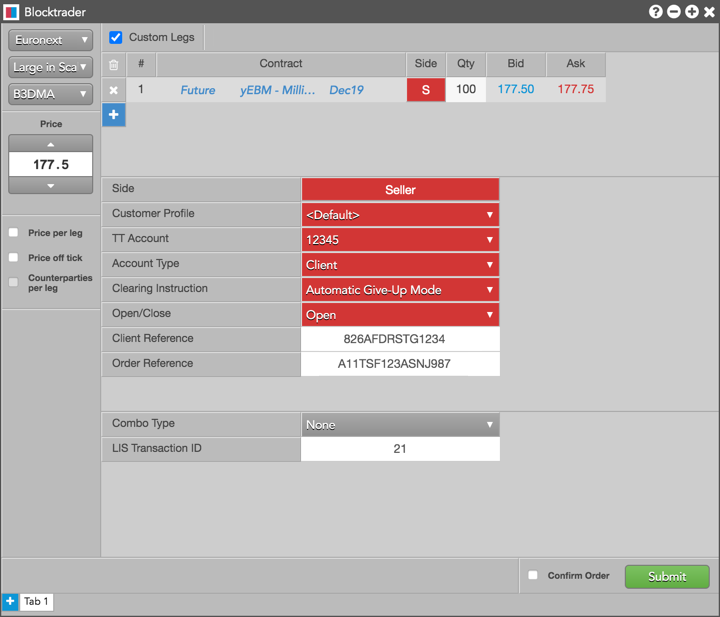
- LIS Transaction ID — Sets the order identifier for submitted Large in Scale (LIS) trades and is used for associating order executions belonging to the same LIS transaction. The LIS Transaction ID is required for the Reactor accepting the trade. The ID value is sent to the exchange API as package_ID.
As an Initiator of an Large in Scale – 1 Sided, leave the LIS Transaction ID field blank in Blocktrader. The exchange will provide you with the ID after you submit the trade.
Note: After submitting a Large-in-Scale – 1 sided trade as an Initiator, record the LIS Transaction ID provided by the exchange in the Message column in the Audit Trail widget on TT and send this value to the counterparty.

If submitting a single LIS trade to multiple counterparties, manually split the trade into separate Large in Scale – 1 Sided transactions, and ensure that each counterparty receives their respective LIS Transaction ID after you submit each trade.
As the Reactor (counterparty), submit the opposite side of the trade by entering the LIS Transaction ID provided by the Initiator.
The following figure shows additional fields for a Large in Scale – 1 Sided trade (Buy side).
The following figure shows additional fields for a Large in Scale – 1 Sided trade (Sell side).
Euronext Optiq Large in Scale – 2 Sided Trades
To submit Large in Scale trades, complete the fields listed in Common Wholesale Trade Fields for Euronext.
In addition, populate the following field:
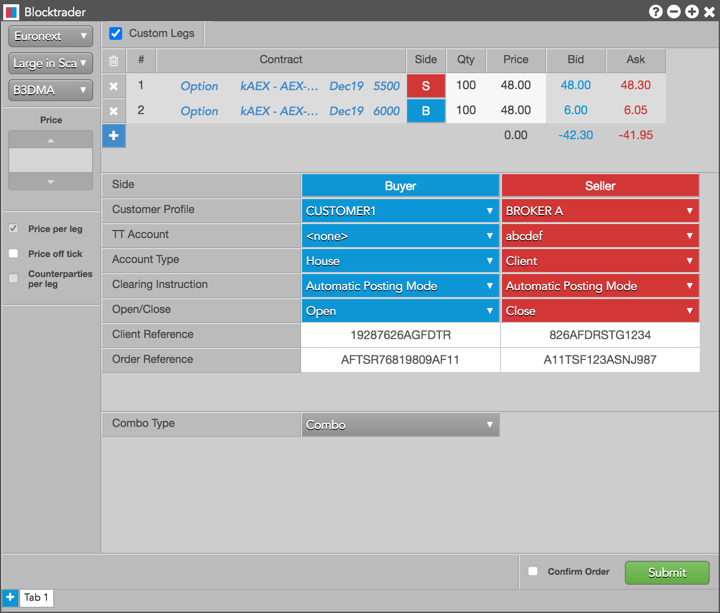
Combo Type: Select a strategy type or set the type to “none”. If submitting a Large in Scale trade for an exchange supported strategy, set the type of multi-leg transaction being submitted.
The following figure shows a Large in Scale 2 – sided trade in Blocktrader.
Euronext Optiq Request for Cross (RFC) Trades
An RFC provides an alternative to submitting an RFQ for both the member who initiates the RFC and the crossing member. Both the Buy and Sell side of the RFC must be entered in the Blocktrader widget.
Per exchange rules, an RFC can only be submitted for strategies created at the exchange. If the strategy is not yet available, it must be created first prior to submitting the RFC.
Note: RFCs can be submitted in all options products and supported strategies except currency pairs.
Blocktrader supports submitting Request for Cross (RFC) on Commodity Option Strategies without the need to specify the individual leg prices.
To submit Request For Cross trades, complete the fields listed in Common Wholesale Trade Fields for Euronext.
The following figure shows a Request For Cross trade in Blocktrader.