









Creating an algo template
To create an algo template:
- Click Choose an algo, and select the desired algo from the list of deployed algos.
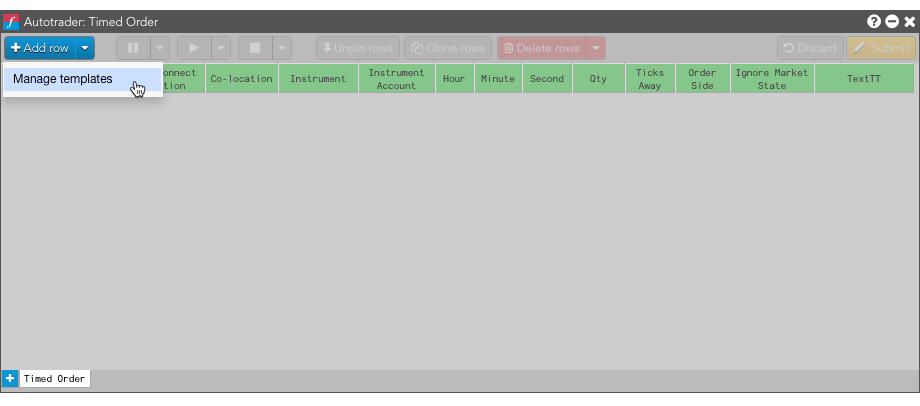
- Select Manage templates from the + Add row drop-down menu.
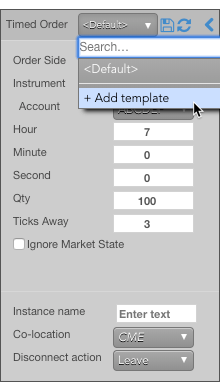
- In the Add template dialog, specify values for the desired algo instance parameters; then select + Add template from the Templates drop-down.
- In the Add template dialog, enter a name for the template; then click Save.
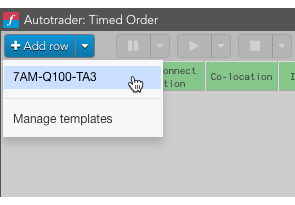
The template is added to the drop-down.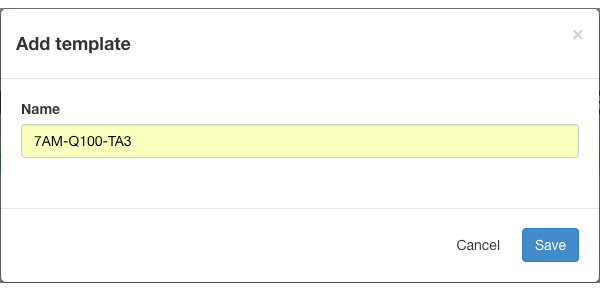
Using an algo template
To use a template for an algo:
- Select an algo in the Autotrader widget.
- From the + Add row drop-down menu, select the template to use.
An instance is added populated with the values defined in the template.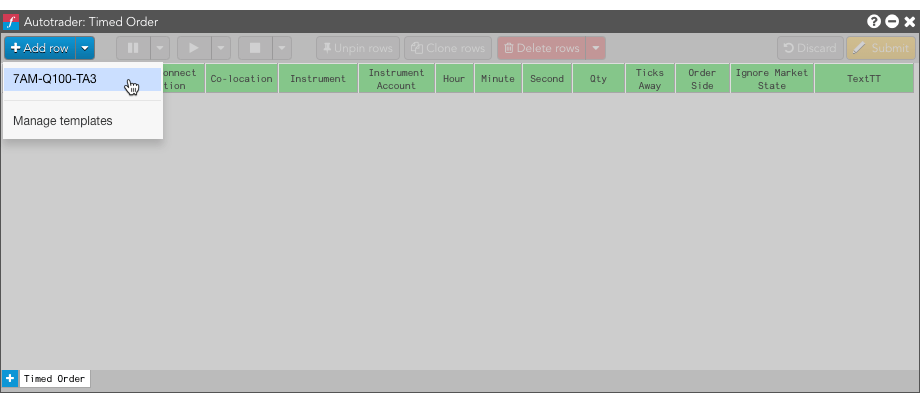
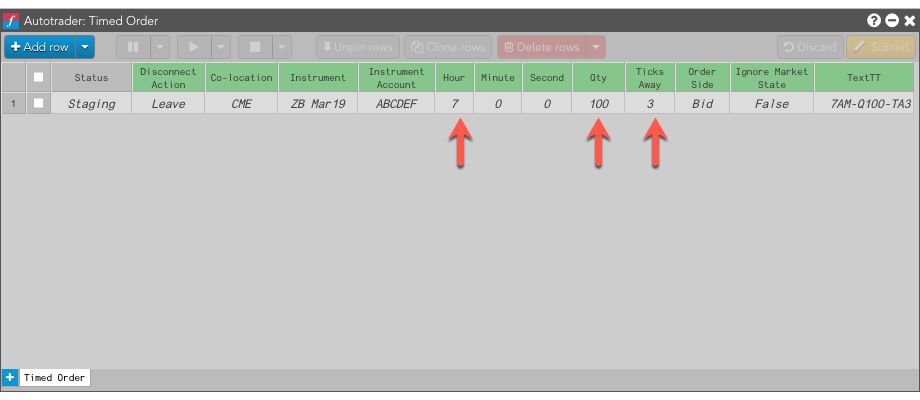
- Make any desired changes to the algo parameters.
- Click
 to start the algo instance with the selected template.
Modifying an algo template
To modify an algo template:
- Select Manage templates from the + Add row drop-down menu. An instance is added populated with the values defined in the template.
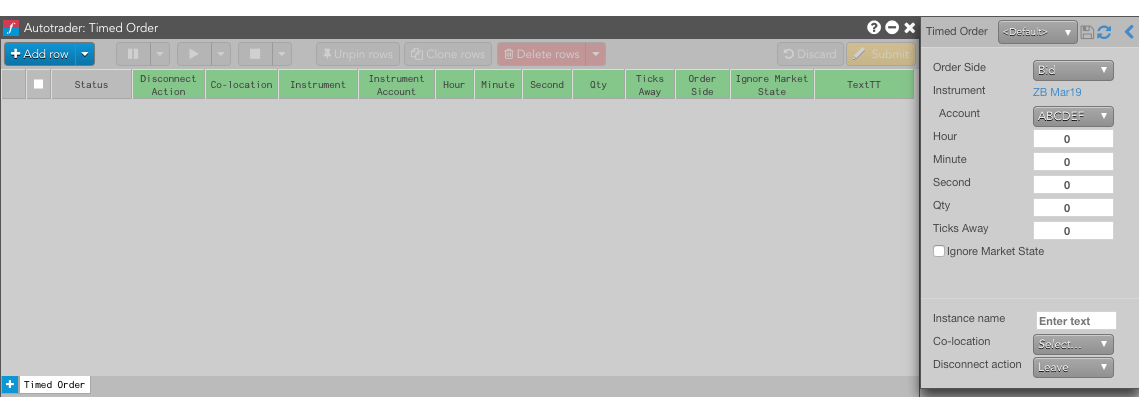
- In the template flyout:
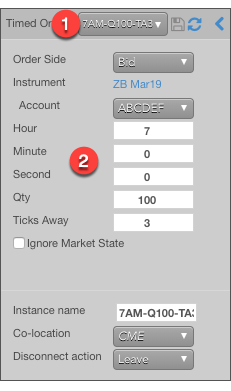
- From the Templates drop-down, select the template you want to modify.
- Update the desired values for the selected template.
- Click the
 icon to save the changes.
Setting a default algo template
To set a default template for an algo in Algo Dashboard:
- Open an algo in Autotrader.
- Select Manage templates from the + Add row drop-down menu.
- Click the Templates drop-down menu.
- Click the
 icon for the template you want to make the default.
Note: You can also click the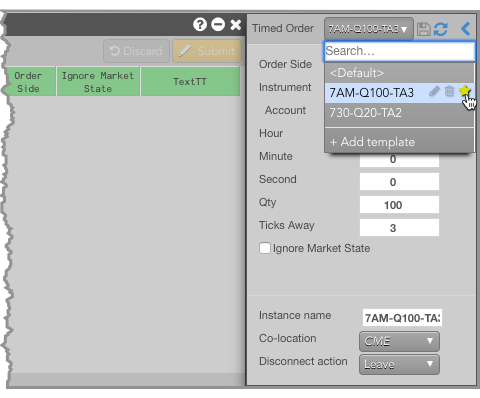
 icon to change the template name.
Deleting an algo template
To delete an algo template:
- Open an algo in Autotrader.
- Select Manage templates from the + Add row drop-down menu.
- Click the Templates drop-down menu.
- Click the
 icon for the template you want to delete.