


Context menu
Right-click in the widget to open the context menu and select the following actions:
- Open: Open the selected contract in an MD Trader, Order Ticket, Time and Sales, or Charts widget.
- Grouping: Groups positions based on view mode. In aggregate view mode, sets whether to display positions grouped by “Risk Group”, Account,” “Exchange,” “Product,” or “Contract”. To display the positions with no grouping hierarchy by selecting “None”. You can also set whether to automatically display the grouped columns in front of the grid by checking the Auto-arrange group columns checkbox.
In matrix view mode, the following options are available:
- Create Group: Creates a custom product grouping based on selected product rows in the widget.
- Add to Group: Adds selected products to a product grouping.
- Remove from Group: Removes selected products from a product grouping.
- Rename Group: Renames a product grouping.
- Delete Group: Deletes a product grouping.
- View Mode — Sets how positions are displayed in the widget. Select one of the following:
- Aggregate: Shows accounts and contracts that have positions in TT. Use the “Grouping” setting to filter and diplay how positions are displayed. This is the default setting for viewing positions.
- Matrix: Shows positions based on user-defined custom product groups.
- Create Manual Fill: Opens the Position Manager widget to create manual fills.
- Export rows: Exports data to a comma-separated values (CSV) file for all rows or selected rows in the Positions widget. Use Shift-click to select multiple rows. You can export either a grouped or flat view of positions in the widget.
- Clear all filters: Turns off all filters you may have set for each column.
- Settings: Allows you to customize settings for the widget.
Available settings
These settings affect only the selected Positions widget. To update the default settings with these value for newly-opened Positions widgets, or to apply them to existing opened widgets, click Defaults.
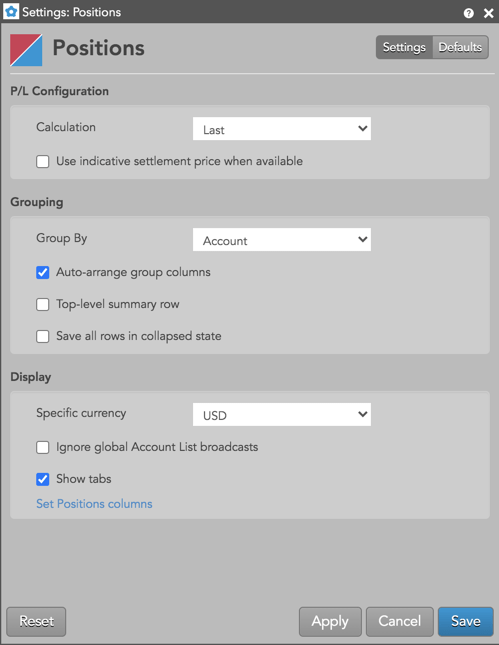
P/L Configuration
| Setting | Description |
|---|---|
| P/L Calculation | Sets the price type used for calculating your P/L per contract. Select one of the following P/L price types:
|
| Use indicative settlement price when available | Sets whether to use indicative settlement prices (IndSettle column in the Market Grid) instead of settlement prices when calculating P&L If the indicative settlement price is not available, the calculation will use the settlement price. (Applies only when the P/L Calculation setting is Settle or LTP Waterfall) |
Grouping
| Setting | Description |
|---|---|
| Group by | Sets whether to display positions grouped by Risk Group, Account, Exchange, Product, Contract or to display no grouping hierarchy. |
| Auto-arrange group columns | Automatically arranges columns in the Positions widget based on the “Group by” selection. |
| Top-level summary row | Shows overall position in the first row based on the “Group by” selection. |
| Save all rows in collapsed state | Shows all rows and nested rows as collapsed (rolled up) in the widget. Uncheck to expand all rows. |
Display
| Setting | Description |
|---|---|
| Specific currency | Select a currency to use in calculating and displaying your P/L. |
| Ignore global Account List broadcasts | Configures the widget to ignore account selections made in an Account List. When checked (enabled), the widget ignores account selections broadcast by an Account List widget. |
| Show tabs | Sets whether to display the tab bar at the bottom of the widget. |
| Set Positions columns | Click to select the columns you want to show. Click the Sort checkbox to sort the columns alphabetically. There are also options to Select All columns or Clear All column selections. Use the Reset option to restore the default column settings. |
Positions column descriptions
| Setting | Description |
|---|---|
| Account | Account number associated with the transaction. |
| AvgBuy | Average Buy price. |
| AvgOpen | Average price of your open position. It changes only when an open position is increased (i.e. built up), remains the same as the position is partially closed, and goes blank when net position is 0 (zero). |
| AvgSell | Average Sell price. |
| AutoLiq % | Shows the credit loss percentage set for the account with auto-liquidate enabled. Shown when positions are grouped by account. |
| Balance | The account’s daily credit limit plus or minus any current P/L. Margin may be considered based on how the credit limit is configured. Displays only in the account summary row and if the account’s credit check is enabled with a Daily Limit value in Setup. |
| BalanceUsed % | Shows what percentage of the daily credit limit is used. |
| BalanceType | Shows how the daily credit limit is calculated: Apply P/L, Apply Margin, or Apply P/L and Margin. |
| BalToLiq | Shows the positive balance before the liquidation threshold is reached or the negative balance after the threshold is breached: (credit loss % * credit limit) + P/L. |
| BuyQty | Total quantity of Buys. |
| Contract | The name and contract expiry for the instrument or strategy. |
| CurrLiq % | Shows the current credit loss percentage based on P/L updates for the account. Shown when positions are grouped by account. |
| Exch | Name of the exchange. Note: For parent TT order type orders, an asterisk “*” is appended to the exchange name in this column (e.g., CME *) to indicate the intended destination of the submitted parent order. No asterisk appears in the Exch column for the related child orders sent to the exchange. |
| Margin | The amount of money required to have an open position and working orders in a futures contract. |
| Net Liquidation | The account balance for the current session without considering margin. Calculated as: Starting Balance +/- (P/L Open + P/L Realized). Displays only in the account summary row and if the account’s credit check is enabled with a Daily Limit value in Setup. |
| NetPos | Your net position. Calculated using your position from the previous trading session. |
| NetQty | The net quantity bought and sold for the session (BuyQty – SellQty). |
| Product | Name of the product being traded. |
| SellQty | Total quantity of Sells. |
| SOD | Your net position from the previous trading session. |
| SOD Price | The settlement or manually entered contract price for the start of the trading session. |
| SOD PriceType | Shows whether the SOD price is the exchange’s settlement price (Settlement) or a manually entered SOD price (Manual). May be displayed per contract or parent account. |
| TotQty | The total quantity bought and sold for the session (BuyQty + SellQty). |
| P/L | Total profit or loss. Calculated as P/L Realized + P/L Open. |
| P/L AvgOpen | Shows P/L based on net position, current market price, and average price of your open position: P/L AvgOpen = NetPos * P/L Price – (NetPos * AvgOpen). | P/L Realized | Profit or loss from closed positions. Calculated using the P/L price type selected in the Position widget settings. Refer to How P/L is Calculated. Note: Realized P/L is blank for parent accounts with child sub-accounts. Parent accounts only display total P/L. | P/L Realized AvgOpen | Profit or loss from closed positions, and calculated using the average price of your open position (AvgOpen value). The “AvgOpen” price changes only when an open position is increased (i.e. built up), remains the same as the position is partially closed, and goes blank when net position is 0 (zero). Note: This column is blank for parent accounts with child sub-accounts. Parent accounts only display total P/L. | P/L Open | Profit or loss from open positions. Calculated using the P/L price type selected in the Position widget settings. Refer to How P/L is Calculated. Note: Open P/L is blank for parent accounts with child sub-accounts. Parent accounts only display total P/L. |
| P/L Price | The current price used when calculating the P/L for each contract row. |
| P/L PriceType | The type of price used when calculating P/L for the contract row. One of the following values will be displayed based on which price was selected for calculating P/L:
|
| Rho | Shows the change in options value per change in interest rate. |
| Vega | Shows the change in options value per change in volatility. |
| Theta | Shows the change in options value per change in time. Also known as time decay. |
| Gamma | Shows the change in delta per change in the underlying. |
| Mark to Theo | Open P/L calculated with the theoretical options value. |
| Delta | Open P/L calculated with the theoretical options value. |
| Volatility | Open P/L calculated with the theoretical options value. |
| Theo | Open P/L calculated with the theoretical options value. |
| TextTT | Displays an optional, user-defined text value from the Setup app or entered in the TextTT free-form text field in the Order Ticket. The value displayed in this column remains on submitted orders for tracking purposes in the TT system, but is not routed to the exchange. You can show or hide the Text TT text box for a selected working order in the Order Toolbar. You can add or modify the text that displays in the TextTT column for the selected order. In the Position Manager widget, you can now edit the TextTT column for Local Fills and Admin Fills. However, this is not available for Admin SODs. Note: For Autospreader orders submitted by an ADL algo, the value is populated with the order tag of the parent algo order. |
| WrkBuy | The total quantity of working buy orders for an instrument. If market depth is displayed, the working quantities are displayed for each price. Columns display the quantities of and floating order book access to working orders. If market depth is displayed, the working quantities are displayed for each price. |
| WrkSell | The total number of working orders at the ask price. At the best ask price, the total number of working sell orders for all levels of depth is also displayed. Columns display the quantities of and floating order book access to working orders. If market depth is displayed, the working quantities are displayed for each price. |