



Available settings
These settings affect only the selected Order Book widget. To update the default settings with these values for newly-opened Order Book widgets, or to apply them to existing opened widgets, click Defaults.
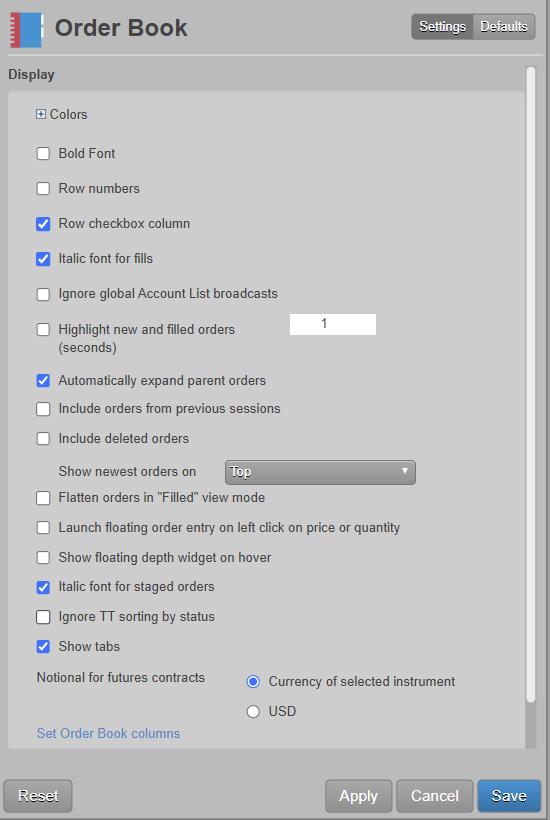
Display
| Setting | Description |
|---|---|
| Colors | Allows you to customize or change the cell and column colors available in the widget. There are separate settings for text and background colors. |
| Grid font size | Adjust the font size to suit your preferences and use bold text, if desired. |
| Bold font | Sets the use of bold text in the widget. |
| Row numbers | Displays the row numbers column. |
| Row checkbox column | Shows/Hides the checkbox selection column. |
| Italic font for fills | Sets italic font on all fill rows. |
| Ignore global Account List broadcasts | Configures the widget to ignore account selections made in an Account List. When checked (enabled), the widget ignores account selections broadcast by an Account List widget. |
| Highlight new and filled orders (seconds) | Highlights new and filled order rows. The highlight color displays for the set number of seconds. Setting the value to zero (0) seconds retains the highlight color until you select the right-click menu option Mark all as seen. |
| Automatically expand parent orders | Set whether to display child orders for a parent order automatically. |
| Include orders from previous sessions | Set whether to display orders from only the current session or whether to include orders from previous sessions as well. |
| Include deleted orders | Set whether to display deleted orders from only the current session or from previous sessions as well. To include deleted orders from previous sessions, also check the “Include orders from previous sessions” checkbox. |
| Flatten orders in “Filled” view mode | Enables filled child orders to be displayed in the order in which they were filled when using “Filled” view mode. When this setting is unchecked, filled child orders are displayed as nested underneath their parent order. Unchecked by default. |
| Launch floating order entry on left click on price or quantity | Enables the floating order entry preference to be launched when clicking on price and quantity cells in the grid. |
| Italic font for staged orders | Displays staged orders in italics in the Order Book. |
| Ignore TT sorting by status | By default, the Order Book sorts records by fill time, but includes logic to group order types and status types in a specific order. When this setting is enabled, sorting on a time-based column (Time, OrigTime, ExchTime, Date, OrigDate, ExchDate) bypasses TT’s logic for a purely chronological sort result. |
| Show tabs | Set whether to display the tab bar at the bottom of the widget |
| Set Order Book columns | Select the columns you want shown in the Order Book. |
| Set Order Toolbar buttons | Select the buttons you want shown in the Order Book. |
Orders and Fills
Note: The Orders and Fills section is only displayed when opening the Order Book settings from the Order and Fills widget.

| Setting | Description |
|---|---|
| Only show current session fills | When enabled, selected orders in the Order Book panel display fills only from the current trading session (including overnight fills) in the lower Fills and Positions panels. |
Order Toolbar buttons
Note: To reorder the toolbar buttons, click and hold a button title and move it to a different location in the list.
| Button | Description |
|---|---|
| <space> | Provides optional visual spacing between two buttons |
 | Completes a block order transaction. |
 | Deletes the selected orders, or all visible Buys, Sells, or orders. Orders hidden due to filters are not deleted. |
 | Deletes all visible working Buy and Sell orders. Orders hidden due to filters are not deleted. |
 | Reprices the selected order downward one tick. |
 | Removes an order (native or synthetic) from the market but stores it on the TT order server for later execution. Held orders are stored in short-term memory. If the order server process goes down, the held order information is lost. Until you click the Submit button the order remains held and out of the market. |
 | Sends an inquiry to the exchange for a block order. |
 | Launches a custom algo for the selected order |
 | Modifies the parameters for an algo parent order. |
 | Selects an OMA algo to launch for the selected order. |
 | Updates selected orders with the UserID of the trader currently managing the orders. |
 | Adds a button to launch an available OMA algo. |
 | Indicates the type of position you are establishing with the selected order. |
 | Pauses a working algo. |
 | Repeat order feature. Opens either an Order Ticket or the Blocktrader widget, depending on the type of order. All values are automatically seeded from the selected order. Clones and seeds the order profile applied to an order as part of creating the new one. Submit the same order or modify it as needed. The Order Ticket closes or remains open after order entry based on the floating order entry preference. |
 | Resumes a paused algo. |
 | Submits held orders to the exchange. When you submit a held order, it receives a new order number. The Audit Trail indicates if a submit fails. |
 | Reprices the selected order upward one tick. |
 | Displays the history of activity for the selected order. |
 | Claims a staged order. The user who claims the staged order is the owner. |
 | Unclaims a staged order. The user who unclaims the staged owner gives up ownership and the order is available to be claimed by another user. |
 | Henge Manager attempts to fill an order immediately by repricing the order at the opposite inside market price. If there is insufficient liquidity at that price level, unfilled quantities will remain at the resting level unfilled. |
 | Similar to Cross Inside, Henge Manager attempts to fill an order immediately by repricing the order at the opposite inside market price. However, if there is insufficient liquidity at that price level, remaining quantities will continue to work in the market at the original limit price. |
 | Passes an open working trade to another trader or group of traders. Order Passing allows a trader to assign a trusted “caretaker” for an order, one who will ensure it is executed and managed correctly. |
 | The optional Execute button submits selected “care” orders with a single-click. Child orders are submitted based on the parameters of the care order. |
 | Assigns existing Orders or Fills to a Care order. |
 | Unassigns existing Orders or Fills from a Care order. |
 | Child order fills are withheld until a later time. |
 | Fills are “released” and immediately sent to the customer. |
 | Releases fills for a child care order. |
 | Allows you to preview suitable combine actions, such as bulk or stitch, for multiple care orders. |
 | Submits multiple care orders with the same algo. |
 | Combines two or more care orders (of the same instrument and side) into a single, larger parent order. |
 | Allows you to combine care orders for different instruments. |
 | Allows you to manage a claimed care order by splitting it into into two equally sized orders that can be executed separately. |
Order Book column descriptions
| Column | Description |
|---|---|
 | The Watch column. Used for selecting orders in an Order Book grouped with other widgets (e.g., Fills, Positions) and viewing the orders in those widgets. Note: This column is only available when the Order Book is grouped with another widget. To show/hide this column in a widget group, right-click in the Order Book pane and select Show/Hide Watch column. For more details, refer to Displaying Positions for Selected Fills. |
| % Filled | The percent of the total order quantity that has been filled. |
| Account | Account number associated with the transaction. |
| AcctType | Account type code that defines the trader’s relationship with a clearing house |
| Algo | Shows a symbol to launch an OMA algo for an order. |
| AlgoName | For TT synthetic and algorithm orders, the name of the algorithm controlling the order. |
| Alloc % | The exchange-provided id for the instrument. |
| Allocated | Shows whether the selected fill has been allocated to a different account. |
| AllocQty | Shows the quantity of the total fill that was allocated in this account. |
| AltExchAcct | Shows the value of Tag 440 sent to ICE and ICE_L exchanges. |
| AskPrc | The best market ask price. |
| AvgPrc | Average fill price. |
| BBG | Displays the Bloomberg product symbol when this symbology is enabled in the workspace preferences. When the exchange’s symbology is enabled, this column is blank. Note: Bloomberg codes are for display only and are not included in downloads from the Fills widget. Filtering of historical data does not work on the BBG column. |
| BidPrc | The best market bid price. |
| B/S | Whether the transaction represents a Buy or Sell order |
| Broker | The broker ID that is associated with the order. |
| Caretaker | Identifies the user group monitoring an order. If no order was passed, this column is blank. For the caretaker’s group, this column shows the group that passed the order to them. Their group name is highlighted until the order is accepted. After accepting a passed order, the Caretaker column displays the name of the current group that is managing the order. The value in this column is visible to both the group passing the order and the group accepting the order. |
| C.D.I. | Commodity Derivative Indicator. Indication of whether the order is for hedging purposes to reduce risk. |
| CXL | Cancel button for this order |
| Child Orders | Number of child orders currently working for a parent order |
| ChildTIF | Shows the time-in-force applied to the child order. |
| ClearingAcct | Shows the value sent to the exchange as the clearing account. |
| Client | Client. Identification of the customer (Short Code). |
| ClientSecondary | Secondary customer identifier associated with the order. This field can be used for trading on behalf of clients and used for internal reporting purposes. Enter the customer’s legal entity identifier (LEI/Short Code). |
| ClOrderID | Unique identifier for the order assigned by the client and sent to the exchange. |
| Compliance Text | Text field available to include additional values for compliance. |
| Confirmed | Contains the Confirm button used for confirming fills. Note: Risk Administrator must enable permissions for you to confirm fills in the account. Users with view-only account permissions cannot confirm fills. See User Account Permissions. If this option is not enabled, the Confirm button remains hidden. |
| ConnectionID | ID of the connection used to route the order or fill. |
| Contract | The name and contract expiry for the instrument or strategy. |
| Counterparty | Shows the Participant ID and account number of the counterparty that you submit the order on behalf of. |
| CurrentUser | TT user name of the trader associated with the transaction or owns a staged order. |
| CustOrderHandlingInstr | The “Customer Order Handling Instruction” value set on the account in Setup and sent to the exchange in Tag 1031, which identifies the execution method and source of derivatives trades. |
| Date | Date the transaction occurred or the message was sent.
|
| D.E.A. | Direct Electronic Access. Shows whether or not the order is sent from direct/sponsored access, or from another source. |
| Description | The full name of the product for each contract. |
| Dest Group | Identifies the target order passing group that you are passing the order to. When shown, this column is blank until an order is passed. |
| EchoDC_1 | Customer-defined text field that can be populated by FIX client applications. The value is not sent to the exchange, but is visible in the Order Book, Fills, and Audit Trail widgets and on FIX Drop Copy records. |
| EchoDC_2 | Customer-defined text field that can be populated by FIX client applications. The value is not sent to the exchange, but is visible in the Order Book, Fills, and Audit Trail widgets and on FIX Drop Copy records. |
| EchoDC_3 | Customer-defined text field that can be populated by FIX client applications. The value is not sent to the exchange, but is visible in the Order Book, Fills, and Audit Trail widgets and on FIX Drop Copy records. |
| EchoDC_4 | Customer-defined text field that can be populated by FIX client applications. The value is not sent to the exchange, but is visible in the Order Book, Fills, and Audit Trail widgets and on FIX Drop Copy records. |
| EchoDC_5 | Customer-defined text field that can be populated by FIX client applications. The value is not sent to the exchange, but is visible in the Order Book, Fills, and Audit Trail widgets and on FIX Drop Copy records. |
| EchoDC_6 | Customer-defined text field that can be populated by FIX client applications. The value is not sent to the exchange, but is visible in the Order Book, Fills, and Audit Trail widgets and on FIX Drop Copy records. |
| EchoDC_7 | Customer-defined text field that can be populated by FIX client applications. The value is not sent to the exchange, but is visible in the Order Book, Fills, and Audit Trail widgets and on FIX Drop Copy records. |
| EchoDC_8 | Customer-defined text field that can be populated by FIX client applications. The value is not sent to the exchange, but is visible in the Order Book, Fills, and Audit Trail widgets and on FIX Drop Copy records. |
| EchoDC_9 | Customer-defined text field that can be populated by FIX client applications. The value is not sent to the exchange, but is visible in the Order Book, Fills, and Audit Trail widgets and on FIX Drop Copy records. |
| EchoDC_10 | Customer-defined text field that can be populated by FIX client applications. The value is not sent to the exchange, but is visible in the Order Book, Fills, and Audit Trail widgets and on FIX Drop Copy records. Also displays “MTL” to indicate Market-to-Limit orders submitted on TT and natively supported on OM Gateways for HKEX, OSE, SGX and TOCOM. |
| End | Shows the end date and time parameter setting for TT Order Types or ADL algos. |
| Exch | Name of the exchange. Note: For parent TT order type orders, an asterisk “*” is appended to the exchange name in this column (e.g., CME *) to indicate the intended destination of the submitted parent order. No asterisk appears in the Exch column for the related child orders sent to the exchange. |
| ExchDate | The date the trading host received/sent the message. The date is displayed based on the timezone of the user’s workstation. |
| ExchExecID | Assigned by the exchange as a unique identifier for a fill. |
| ExchOrderID | ID of the order, supplied by the exchange. |
| ExchTime | The time at which a fill is received by the exchange host or exchange gateway, depending on the practice of the exchange. The time is displayed based on the timezone of the user’s workstation. |
| ExcludeImplieds | Indicates if the price shown does not include implied prices. |
| ExecDec | Execution Decision. A Short Code as an indication of who or what algo submitted the order. |
| ExecDecQ | Execution Decision Qualifier. The Order Tag Default qualifier for the ExecDec field as part of MiFID compliance. |
| ExeNotional | The executed notional value of the order as it partially fills (e.g., submit an order for 1 CL contract: 1 contract traded * $50/barrel * 1,000 barrels/contract = executed notional value). |
| ExeQty | Executed quantity (sum of fills) of an order |
| Expander | Button to expand or collapse parent orders |
| FillQty | The quantity filled in the order. This column tracks and displays fill quantities for the current session and onward if you do not refresh the Trade application. Upon refresh or start up, this column only shows fill quantities for the current session. |
| Fixing Date | Allows users to query/filter by Fixing Date. Note: This value will only be populated for FX Spot instruments. |
| GiveUp | Account of the give-up party |
| InstrumentID | A unique code generated by TT to identify the instrument in the TT system. |
| InvestDec | Investment Decision. A Short Code as an indication of who made the trading decision. |
| InvestDecQ | Investment Decision Qualifier. The Order Tag Default qualifier for the InvestDec field as part of MiFID compliance. |
| LimitPrcType | The type of limit price to be used for a native child order (e.g., Ask, Bid, Last Traded Price [LTP], etc.) |
| LiqProv | Liquidity Provision. Indication of market making. |
| LTP | The last traded price. |
| Message | Message received from the exchange, if sent |
| Modifier | The modifier applied to the order. Example: Stop, If Touched, Trailing Stop, Trailing IT, Trailing Limit, Machine Gun |
| MDT | Button to launch the contract in the MD Trader widget. |
| O/C | Type of position you are establishing with the order. |
| OMAOrderID | ID that uniquely identifies the OMA (Order Management Algo) order associated with the transaction. |
| OptBid | Displays the best bid of the underlying option. |
| OptBidQty | Displays the best option bid quantity. |
| OptAsk | Displays the best ask of the underlying option. |
| OptAskQty | Displays the best option ask quantity. |
| OrdQty | Total order quantity |
| Organization | The value of the “Organization” custom field included on the order or configured for the user in Setup. Typically used for identifying traders that are managed by your firm but are not direct employees. |
| OrigDate | Date the order was originally submitted. |
| Original Group | Identifies the order passing group that initiated the order pass. When shown, this column is blank until an order is passed. |
| Originator | TT User ID of the person who submitted the order or staged order. |
| OrigTime | Time the order was originally submitted. |
| ParentID | TT-generated ID that uniquely identifies a parent order. The ID is also associated with all of its child orders. For example, if you submit a TT Iceberg order, the ParentID of each child order will contain the TTOrderID of the parent Iceberg order. |
| Pass State | Shows the state of a passed order. Two states are possible:
|
| P/C | Indicates whether an options contract is a Put (P) or a Call (C). |
| Pct from LTP | Shows the percentage that each limit order’s price is relative to the last traded price (LTP). A positive value for this specified percentage would mean away from the market and a negative value for this specified percentage would mean into the market. Note: This column supports a maximum of two (2) decimal places of precision. In addition, negative values appear in parentheses. For example, (18.45) equals -18.45. |
| PIQ | Shows your position in queue (PIQ) for each of your orders at a given price level. The column is hidden by default. The PIQ value is displayed when you enable PIQ in your workspace preferences. |
| PayupTicks | The number of ticks that the child order was submitted away from the parent order’s price. |
| Price | Price of the order or fill. |
| Previous Group | Shows the name of the user group that previously accepted, rejected, or worked the order and passed it to another group. When shown, this column is blank until an order is passed. |
| Prod Type | Type of product (e.g. Futures, Options). |
| Product | Name of the product being traded. |
| ProfileName |
Displays the applied order profile for the order or fill. Only profiles that were configured in Setup will populate in this column. Locally created profiles will not appear. Note: The “ProfileName” column in the Order Book displays the order profile ID (e.g., <109>) when the profile name is not available to the user. In Setup, Profile IDs for your company are listed in the data grid “ID” column on the More | Profiles tab. The column is hidden by default and can be shown using the “Grid Options”. |
| Release | Shows if the allocated fills were released into the TT trading system. |
| RemAlloc | Shows the amount of fills remaining to allocate. |
| Reprice Hgd Ord | To select a TT Uncovered order that has a “legged” hedge order and reprice it to the inside futures market. |
| RemQty | Shows the total remaining unfilled quantity of an order (OrdQty – ExeQty = RemQty). |
| Route | Routing destination for the order, such as TT SIM or Algo SE. |
| Source | Displays the name of the widget or application that originally placed an order. For child orders, this column displays the origin of the child order itself and not the parent. |
| Settlement Date | The official settlement date for FX products. For some exchanges this value may differ from the Trade Date depending on the trading session which the contract settles. |
| Staged | Shows “Staged” to identify parent staged orders and fills. This column is blank on other orders and fills. |
| StagedOrderID | Shows the staged order identifier on the parent care order and all related child orders and fills. |
| StageMsg | Text message, typically execution instructions, included with the staged order. |
| Start | Shows the start date and time parameter setting for TT Order Types or ADL algos. |
| Status | The current status of the exchange:
|
| SynthStatus | The status of the parent synthetic order. |
| Strike | Displays the strike price of the options contract. |
| Term | Shows the contract month for a strategy. If all contracts in a strategy are in the same month, that month is listed in the Term column. If not, then just the front month of the strategy is listed. |
| TextA | Displays an optional, user-defined text value from the Setup app, Order Profiles, or entered in the TextA free-form text field in the Order Ticket. This value remains on the order in the TT system. If accepted or required by an exchange, the value in this column may be routed to the exchange for clearing and back office purposes. |
| TextB | Displays an optional, user-defined text value from the Setup app, Order Profiles, or entered in the TextB free-form text field in the Order Ticket. This value remains on the order in the TT system. If accepted or required by an exchange, the value in this column may be routed to the exchange for clearing and back office purposes. |
| TextC | Displays a read-only, customer-defined text value set by FIX client applications. The value is not sent to the exchange. |
| TextTT | Displays an optional, user-defined text value from the Setup app or entered in the TextTT free-form text field in the Order Ticket. The value displayed in this column remains on submitted orders for tracking purposes in the TT system, but is not routed to the exchange. You can show or hide the Text TT text box for a selected working order in the Order Toolbar. You can add or modify the text that displays in the TextTT column for the selected order. In the Position Manager widget, you can now edit the TextTT column for Local Fills and Admin Fills. However, this is not available for Admin SODs. Note: For Autospreader orders submitted by an ADL algo, the value is populated with the order tag of the parent algo order. |
| Ticks From Inside | The number of ticks between the price of the order and the inside market. For example, a Buy order working one tick below the best bid price will display “1”, or a Sell order working at the best ask price will display “0”. |
| Ticks Away | Number of ticks the order is currently away from the inside market. |
| TIF | Time In Force for the order. |
| TotNotional | The total notional value of the order (e.g., submit an order for 1 CL contract: 1 contract traded * $50/barrel * 1,000 barrels/contract = total notional value). |
| TrdgCap | Trading Capacity. Indication of a user dealing on own account, trading in a matched principal trading capacity, or trading in any other trading capacity. |
| TrdMatchID | Assigned by the exchange as an identifier of the match event of a trade. |
| TTOrderID | TT-generated ID that uniquely identifies the order associated with the transaction. |
| Time | The time the order action occurred. This value is updated after each order action.
|
| Trade Date | The official trade date for FX products. For some exchanges, this value may differ from the Settlement Date depending on the trading session which the contract settles. |
| TrdgCap | Trading Capacity. Indication of a user dealing on own account, trading in a matched principal trading capacity, or trading in any other trading capacity. |
| TrigPrc | Price at which to enter an order (Shown only when an order has an associated Trigger price, such as a TT Stop or TT If-Touched order) |
| TriggerQty | The trigger quantity of the algo or TT order type (TT Stop or TT If Touched). |
| TriggerPrcType | Shows the trigger price type: LTP, Bid, Ask, Same Side, Opposite Side. |
| TT SMP ID | Displays the value of the TT Self Match Prevention ID used to conduct a match within the TT Platform. Note: This differs from the exchange self match prevention ID provided in the SMP ID field. For an overview of TT’s support for self match prevention and the Avoid Orders That Cross (AOTC) functionality, refer to the Order Cross Prevention section of the Setup help. |
| TT SMP Instruction | Instruction provided to the TT platform as to whether to cancel the resting or incoming (aggressing) order in the event of a self-match. Note: This field only applies to the TT Platform Self-Match Prevention (TT SMP) functionality. It does not contain information related to exchange-provided self-match prevention. For an overview of TT’s support for self match prevention and the Avoid Orders That Cross (AOTC) functionality, refer to the Order Cross Prevention section of the Setup help. |
| Type | Type of order associated with the transaction (e.g. Limit or Market). |
| UndQty | Undisclosed quantity of a disclosed quantity order (e.g. Iceberg. TT Iceberg, Time Sliced) |
| UnHgdQty | The fill quantity of futures allocations minus the fill quantity of the hedging orders. |
| UniqueExecID | TT-generated execution ID for fills. Sent in the form of a short-form GUID, no more than 22-characters in length. |
| WrkQty | Working quantity of the order |
Filtering columns
If a column is filterable, a drop-down arrow appears when you hover on the column header.
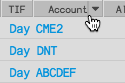
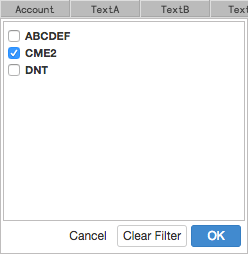
To filter the column, click the arrow to select one or more values and click OK.
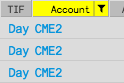
When a column is filtered, the column header is highlighted and the filter icon is displayed. To clear a filter, click the icon and select Clear Filter.
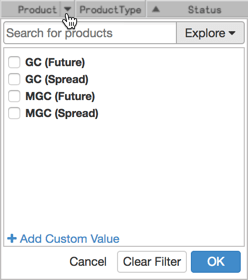
When filtering the Product column, you have the option to use Search or Market Explorer to select products. The product type is displayed in parentheses next to each product in the list.
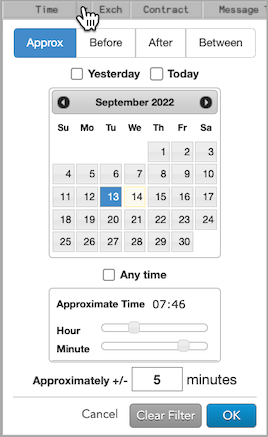
When filtering the Date or Time column, you can specify a date or date range and a time or time range. The changes you make set the filtering criteria for both columns. You can use the following modifiers for more precise filtering:
- Approx: Filters based on a single date and for a number of minutes around a specified time.
- Before: Filters based on a single date before a specified time.
- After: Filters based on a single date after a specified time.
- Between: Filters based on a range from a specific date and time to a specific date and time.
- Yesterday: Sets the date to the previous day.
- Today: Sets the date to the current day.
- Anytime: Removes the time window limitation set by Approximate Time.
Care Order Status
Refer to the following table for a description of each staged order status that may appear in the Status column.
| Status | Description |
|---|---|
| Available | An unclaimed care order without a currently assigned execution trader (owner). |
| Claimed | A care order claimed by an execution trader (owner), but with no child orders submitted. |
| Working | Working care order and child order(s) without any fills |
| Partially Filled | Working care order that is partially filled |
| Filled | Filled care order |
| Pending Cancel Approval | The care order is pending approval or rejection of a cancellation request by the originator. No related child orders can be submitted. |
| Pending Change Approval | The care order is pending approval or rejection of a change request by the originator. No related child orders can be submitted. |