


The Preferences tab is available on the TT Trade Surveillance Dashboard and allows you to specify how cluster data is displayed for surveillance models, manage company preferences, and configure cross product monitoring.
User Preferences:
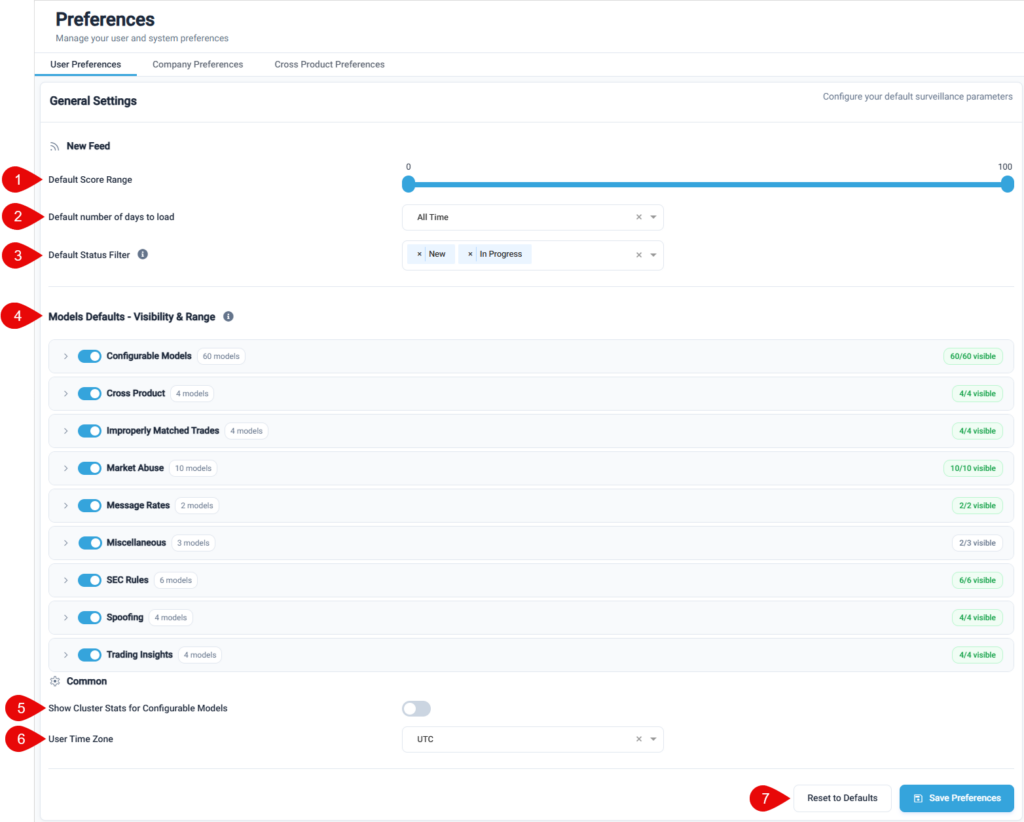
Under User Preferences, you can tailor the New Feed, set timezone preferences, and select whether you want to show the cluster stats for configurable models.
New Feed
- Default Score Range — Sets the range of cluster scores to display for each model.
- Default number of days to load — Sets a default date range for scoring and displaying cluster data per model. Options include: “2 days”, “4 days”, “Last week”, or “All Time”
- Default Status Filter — Sets a default filter on status for displaying clusters in the New Feed page.
- Models Defaults – Visibility & Range — Determines which models are visible by default in the New Feed page on the Surveillance tab and sets the default range of cluster scores to include for each model. Use the slider to set a range per model. By default, all models are selected and visible on the data selection panel with a “Score Range” of 1-100.
Note: These settings only determine which models are visible on the panel. Your company’s data continues to be processed and scored for all models and is included in all reports, alerts, and trends regardless of these display preferences.
Common
- Show Cluster Stats for Configurable models — Allows you to hide/display the cluster stats for configurable models
- User Time Zone — Sets the time zone under all dates/times in Trade Surveillance. Note: This does not apply to text descriptions within configurable model results or exports as the raw data will always be maintained in UTC.
- Reset to Defaults/Save Preferences — Allows you to restore the default preferences settings or save and apply your changes.
Company Preferences:
This section is only visible to TT Trade Surveillance Admins and allows them to set company wide preferences. These include switching SLAs on/off and managing Tags and Predefined comments.
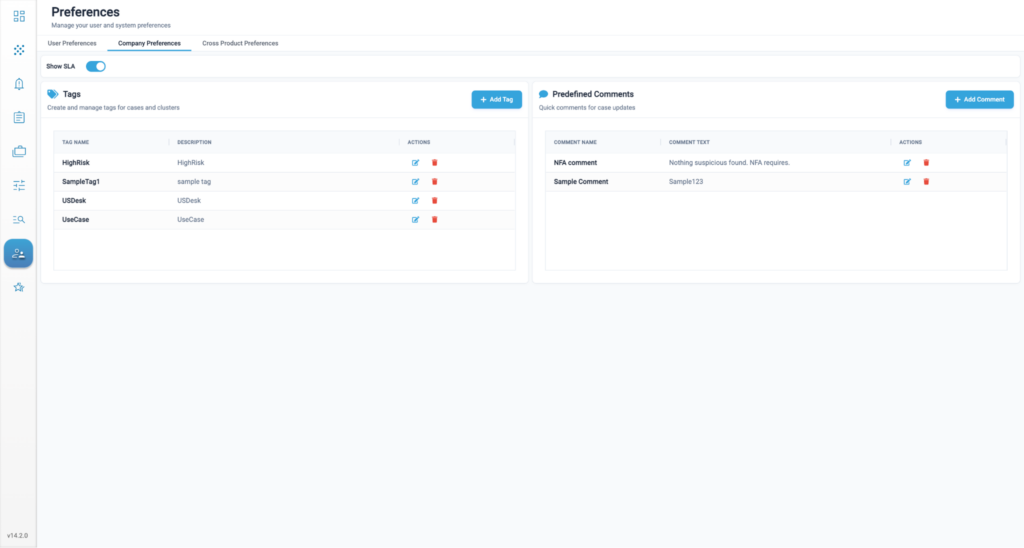
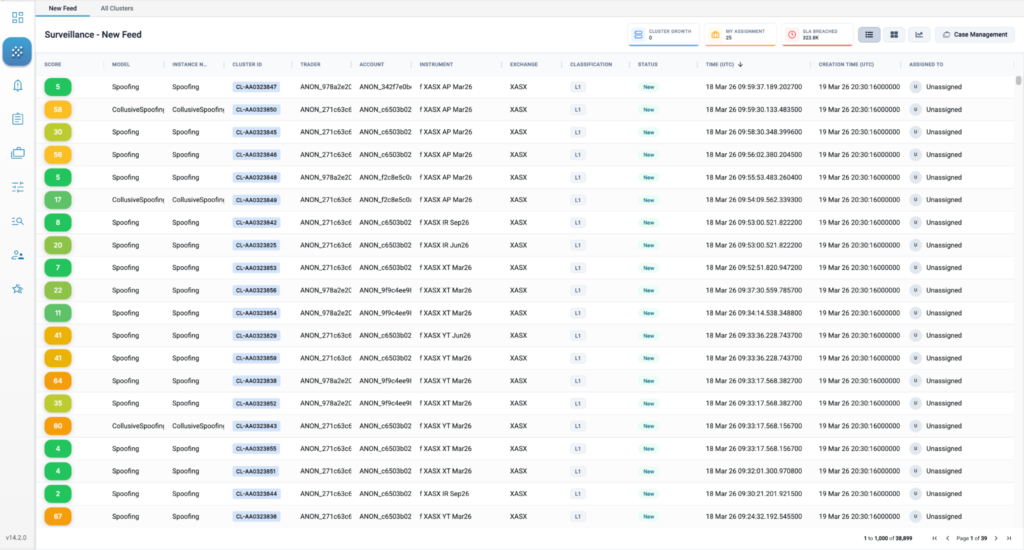
Show SLA: This toggle allows administrators to turn SLAs on/off. When toggled on, this shows the number of clusters that have breached the SLA (default 24 hours) in the New Feed page:
Tags
This section allows administrators to manage Tags. Tags can be used for both Cases or Clusters and are a useful tool to help categorize the same. They can be used to quick search or filter for certain items and are helpful in day to day workflows.
- Add Tags – allows users to create new tags. Simply click on the “Add Tags” button, enter a name and description and click Create.
- Edit Tags – allows users to edit existing tags.
- Delete Tags – allows users to remove tags.
Predefined Comments
This section allows administrators to manage Predefined Comments. Predefined comments are snippets of text that can be saved and used during adding comments on Clusters and Cases. It helps maintain consistency and saves time for analysts managing the clusters.
- Add Predefined Comments – allows you to create new Predefined Comments. Click on the “Add Comment” button, enter a name and text and click Create.
- Edit Predefined Comments – allows you to edit existing Predefined Comments.
- Delete Predefined Comments – allows you to remove Predefined Comments.
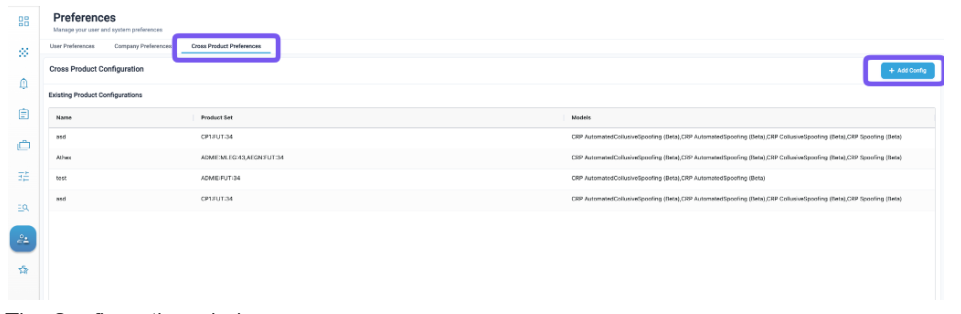
Cross Product Preferences
You can easily create product combinations in the Preferences section of TT Trade Surveillance. The Cross Products functionality supports product combinations across multiple exchanges.
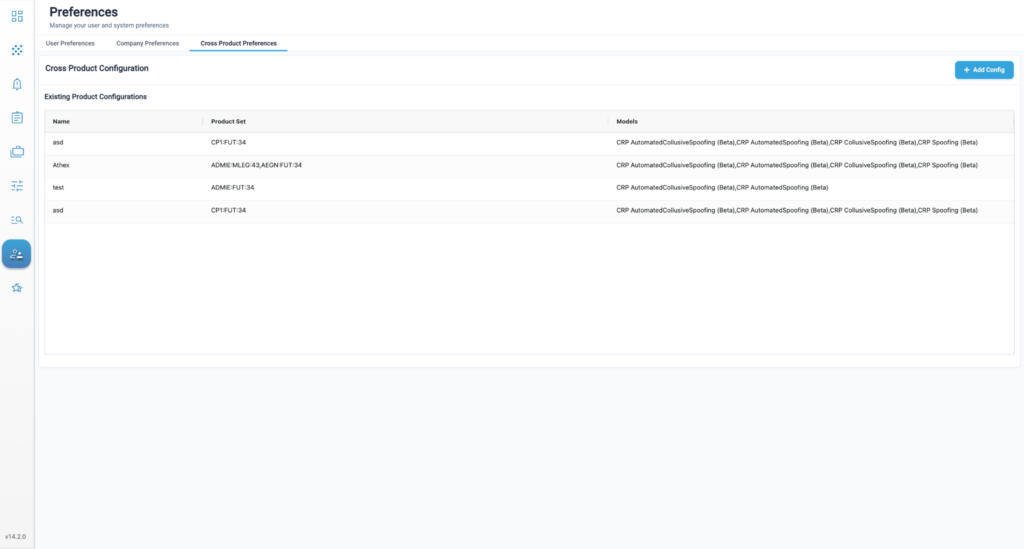
- Click the Add Config button.
- The Configuration window opens.
- Populate the Name fields with a title for your product combination. In this example, we use Treasuries.
- In the Select Market dropdown, select the first exchange whose products you wish to add.
- In the Select Instruments field, begin searching for the product by entering the exchange’s product code then click on the desired product when it appears. You can select either the futures, spreads, or options associated with the product.
Note Selecting a product includes all expiries automatically. - You can add additional products from the first exchange or select a new exchange in the Select Market dropdown.
- You can remove models from this product grouping by pressing the X next to the model’s name.
- Press the Save button to add this product combination to the Existing Product Configurations pane.