






After analyzing the trading activity, you are ready to begin reviewing the clusters to determine whether additional investigation is needed. During the review process, TT Trade Surveillance lets you attach notes to individual clusters and to daily cluster groups to record your dispositions. To provide traceability, TT Trade Surveillance maintains a historical record of all notes that are added to a cluster or cluster group.
Reviewing an individual cluster
In TT Trade Surveillance, you can review clusters or cluster groups and provide disposition comments of your review. For clusters with higher risk scores, you can examine the behavior more closely and create notes of your findings. When reviewing clusters with lower scores, you can simply add a note that the cluster has been reviewed.
To review clusters:
Display the Cluster List view under the New Feed or the All Clusters page:
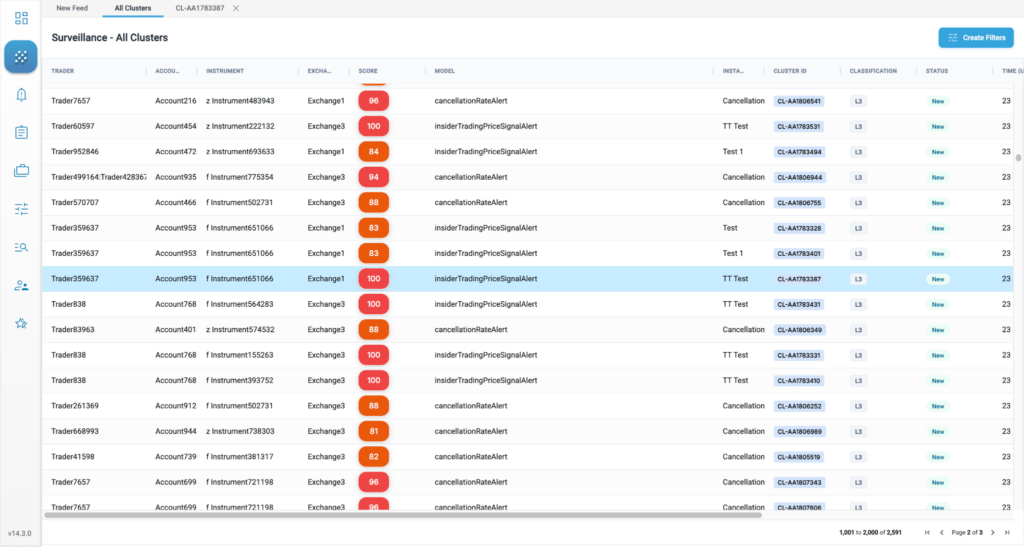
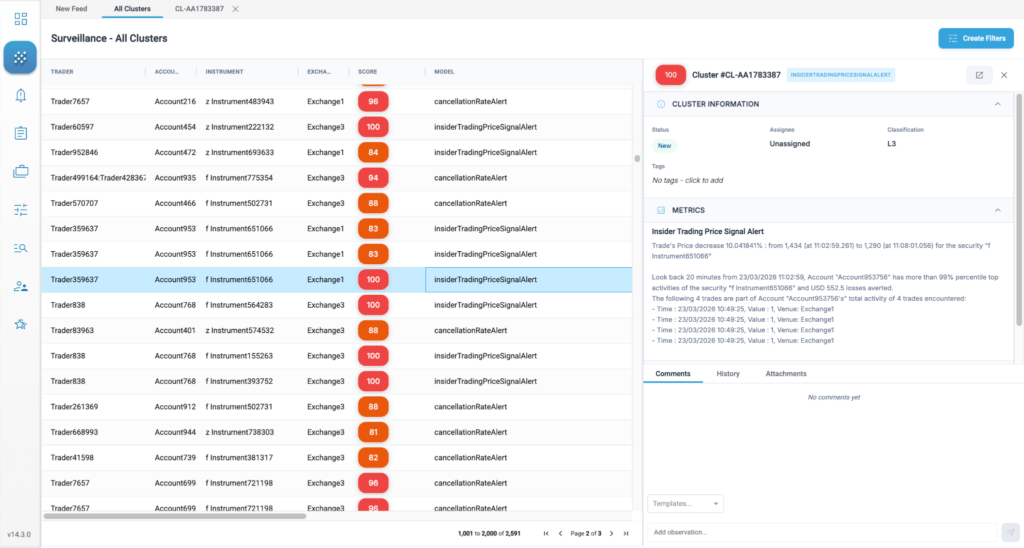
Click anywhere in the cluster row to view the in-line quick review:
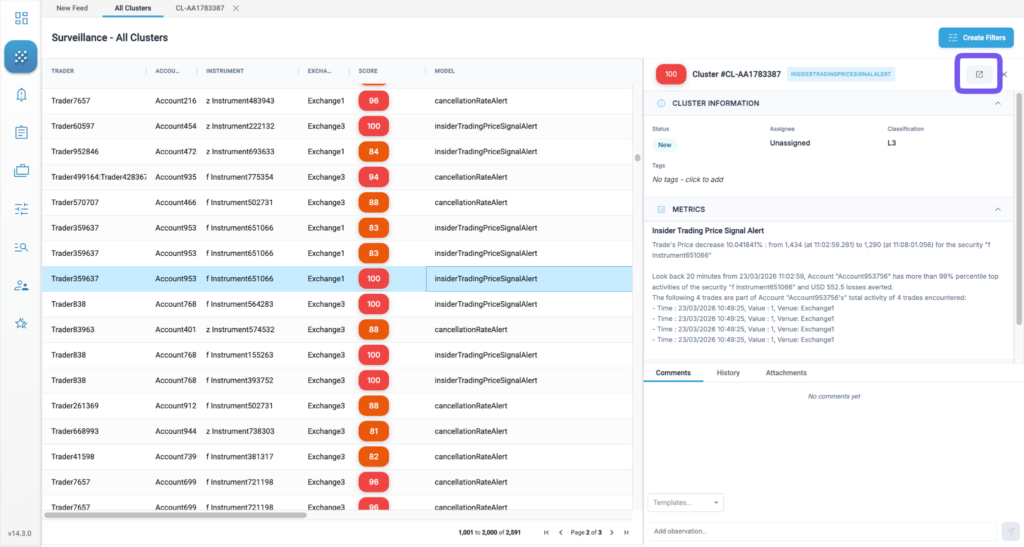
Click on the open cluster button to view the full Cluster Scorecard view:
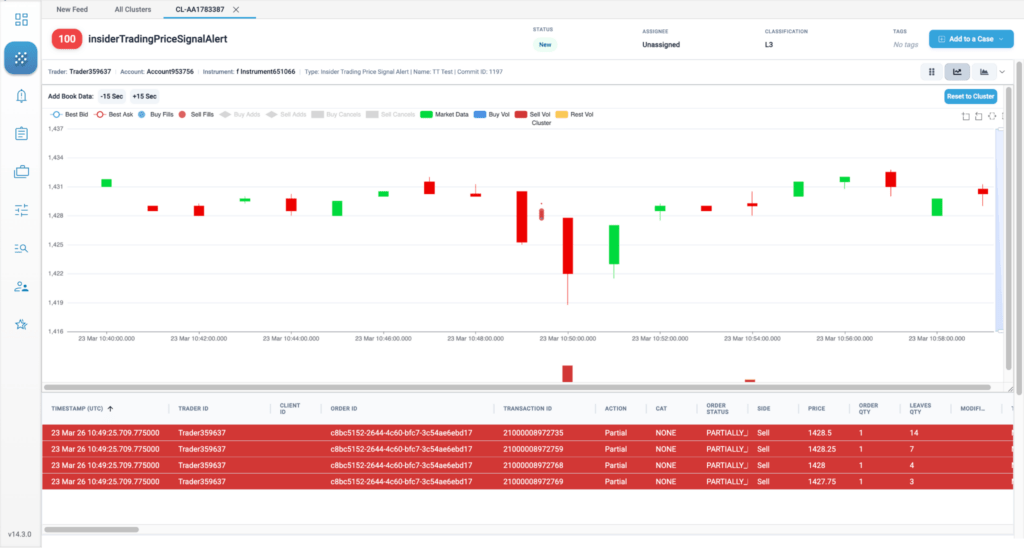
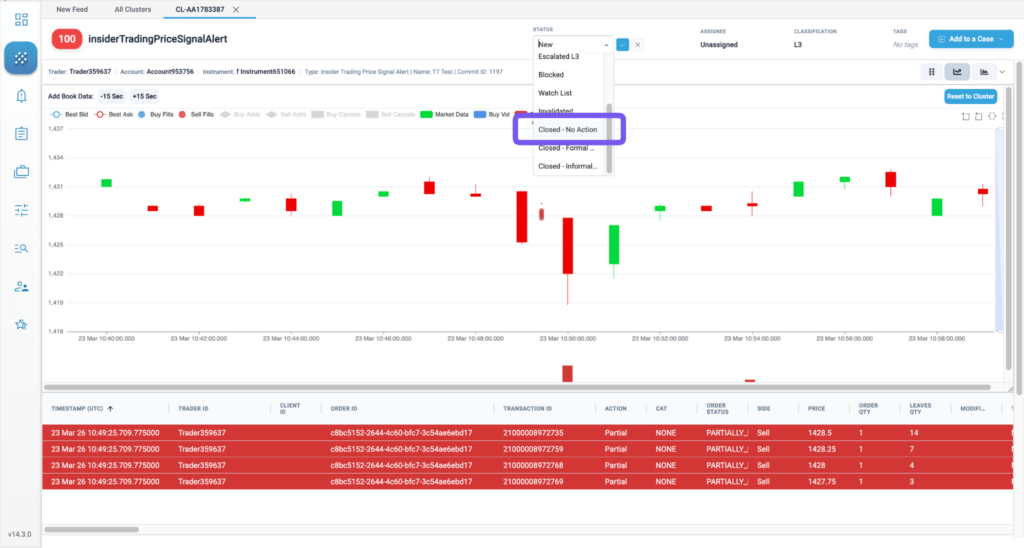
Evaluate the cluster details in the scorecard view and then choose your actions for a path forward. If you find the cluster activity to not requiring any further investigation or escalation, you can simply open the Status dropdown and change the status to “Closed – No Action”:
Any time a user concludes a cluster review by setting the status to Closed (including Closed – No Action, Closed – Informal Action, and Closed – Formal Action), the system mandates a closing comment to be entered:
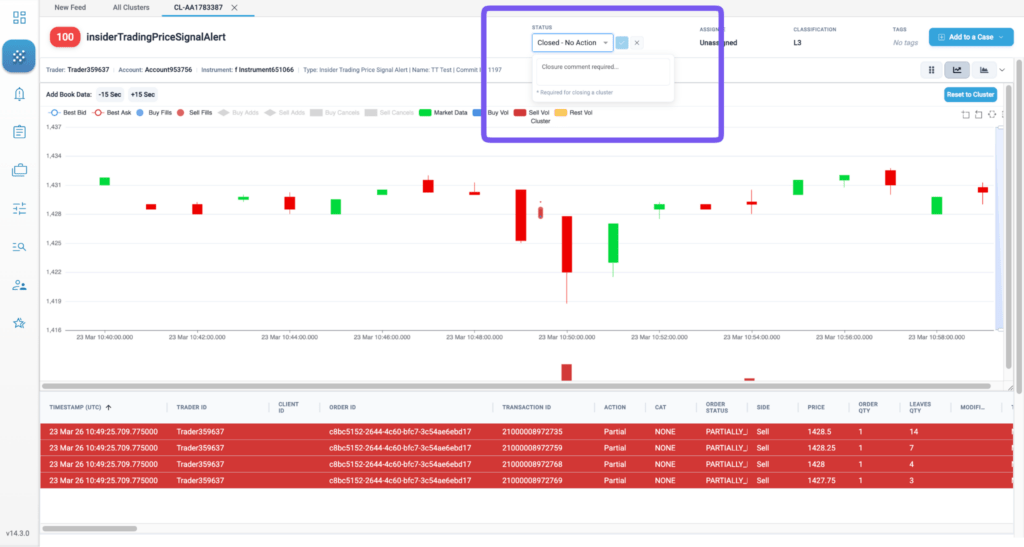
The system records the Closed By user ID and Closed Timestamp for the final audit record.
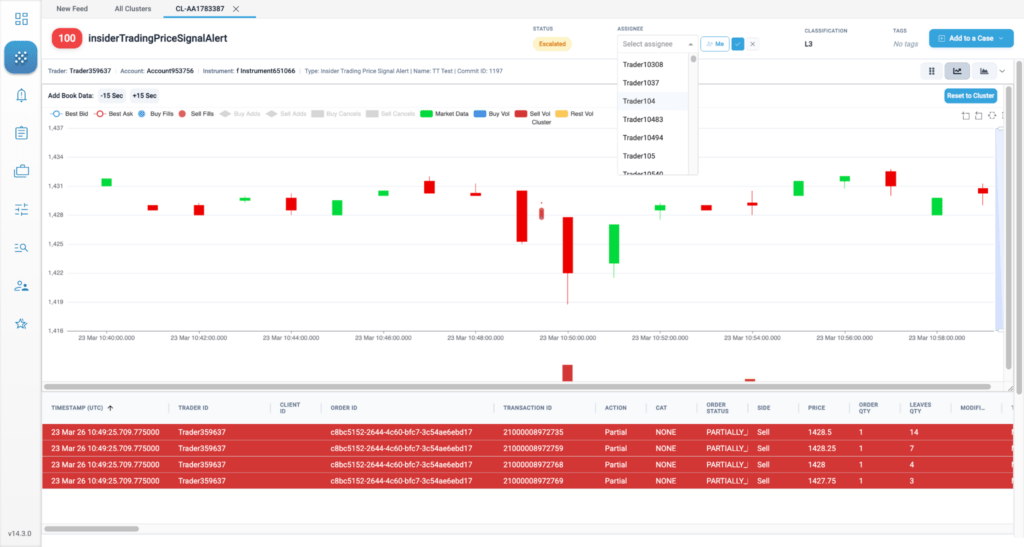
Alternatively, if you find the activity in the cluster to be requiring further investigation or escalation, you can change the status to “Escalated” and assign this cluster to your senior team for review:
Adding clusters to a Case
After reviewing various clusters, you might determine that more investigation or follow-up is required. If so, you can open a Case from a review or add Clusters to an existing Case. Using Cases lets you create dispositions for problematic trading activity that occurs across multiple clusters or even across multiple traders and accounts.
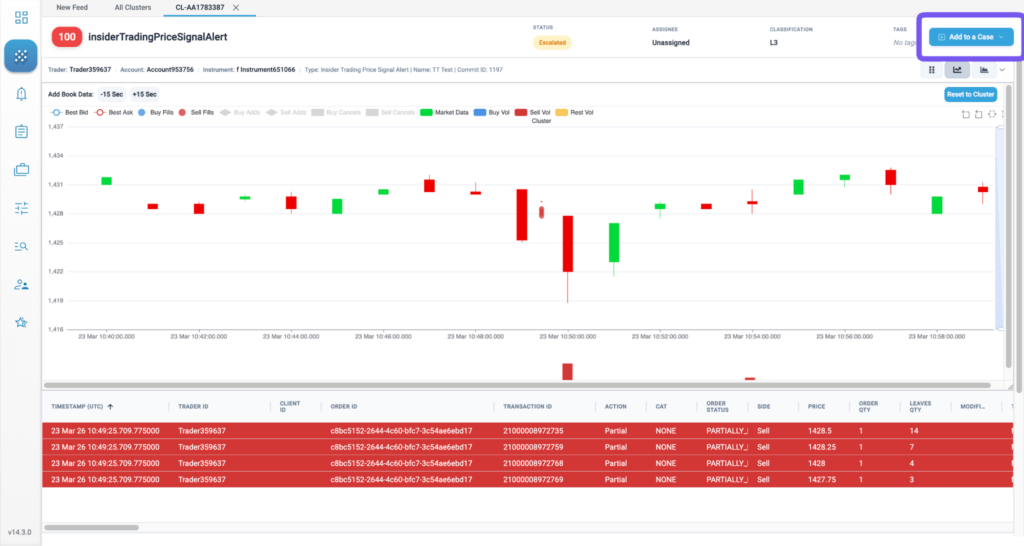
To add a Cluster into a Case, click on the “Add to a Case” button on the top-right corner:
This will bring up two options: Add to Existing Case or Create New Case
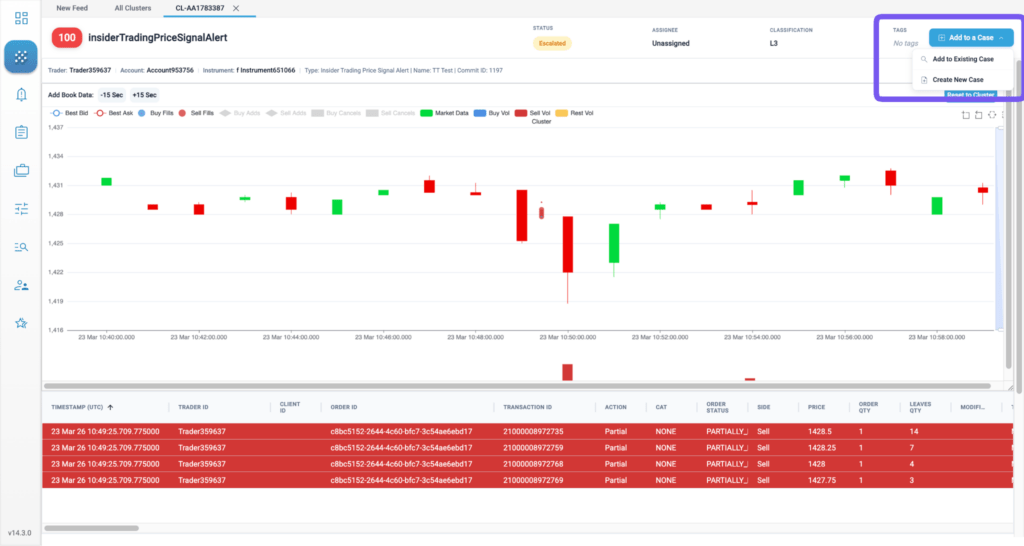
If you wish to add this cluster to an existing case, simply click on “Add to Existing Case”. This will bring up a dialog box with a list of existing cases:
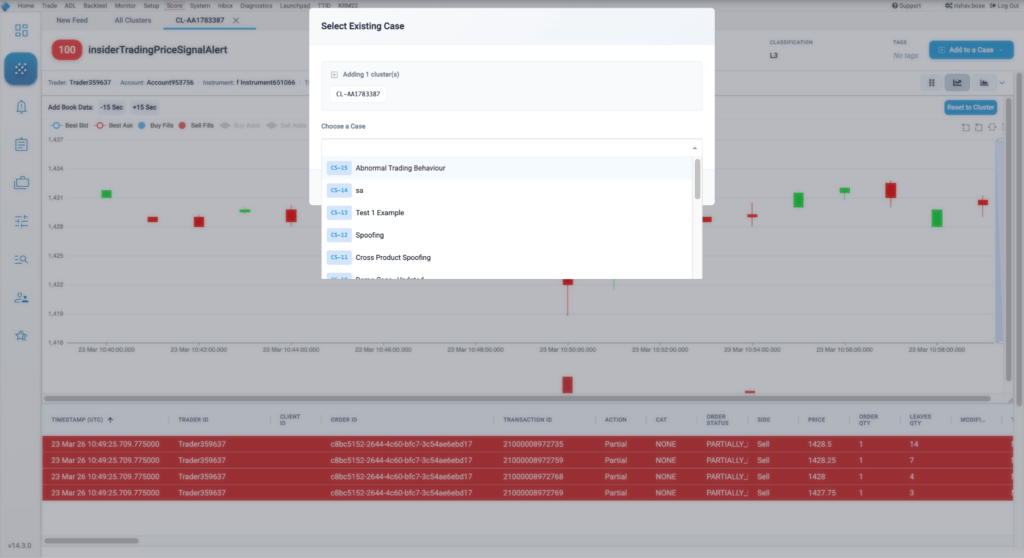
Simply select the case you wish to add this cluster to and click “Confirm”.
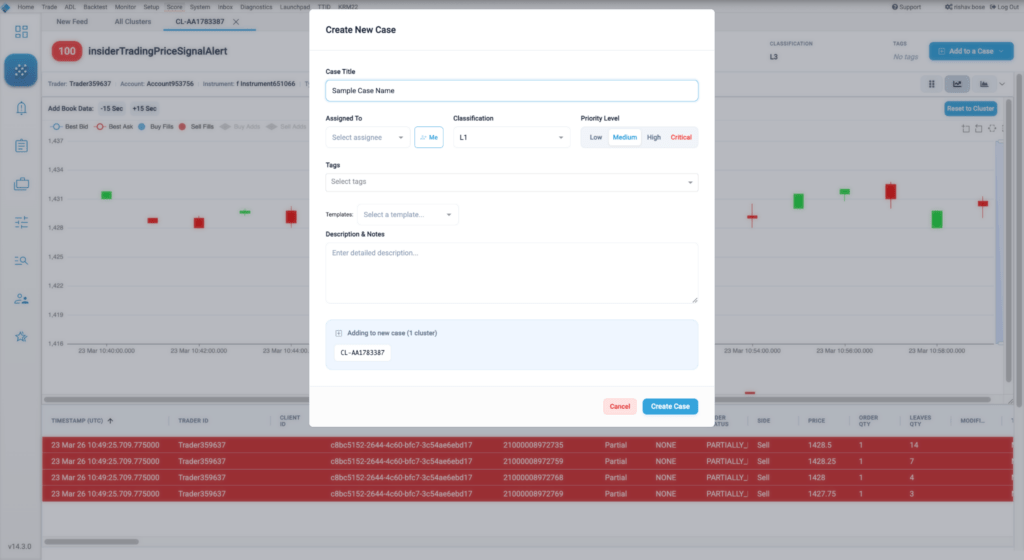
Alternatively, you can choose to add this cluster to a new case, in which case select “Create New Case”. This will bring up the following dialog where you can give this new case a name and set a few other attributes such as description, Assignee, Classification, Priority Level, Tags etc.
Once you are ready, simply click on “Create Case” and this will create this new case with the selected attributes.
Executing Bulk Updates
Process dozens of clusters simultaneously to improve triage efficiency. To Bulk review clusters:
Display the Cluster List view under the New Feed or the All Clusters page:
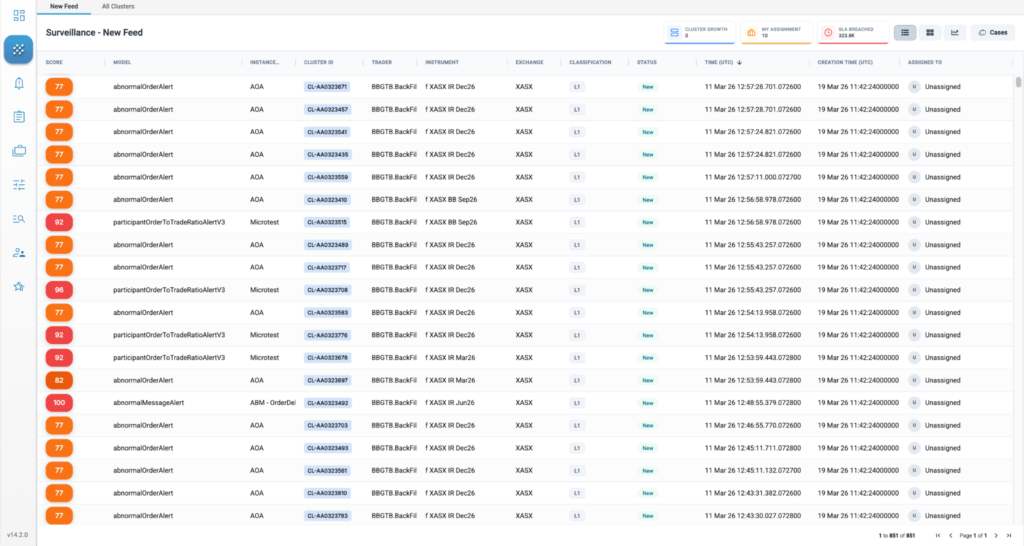
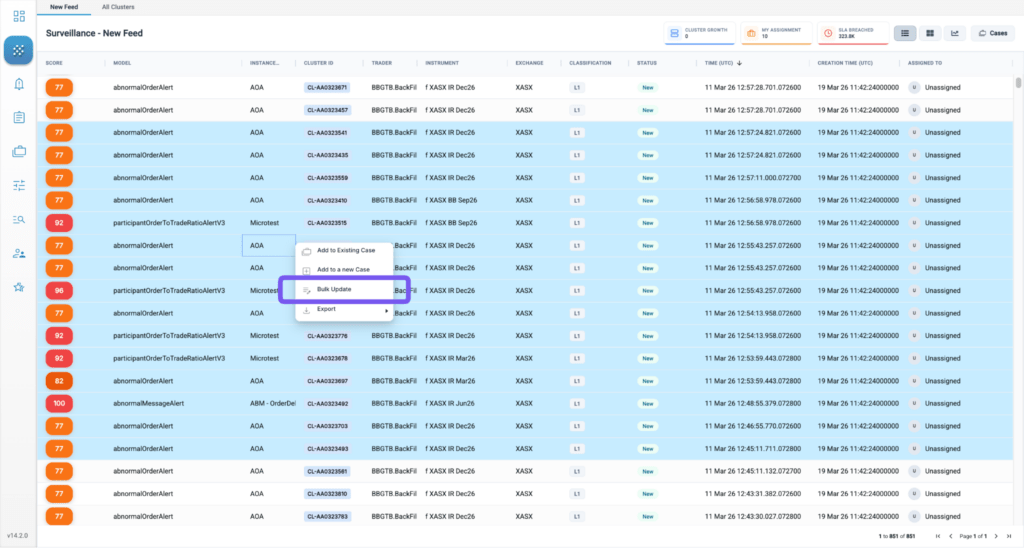
Use Multi-Select to highlight a batch of clusters in the list view. This can be achieved by either pressing Command/Ctrl and clicking to select specific clusters, or by clicking while pressing Shift to select a range:
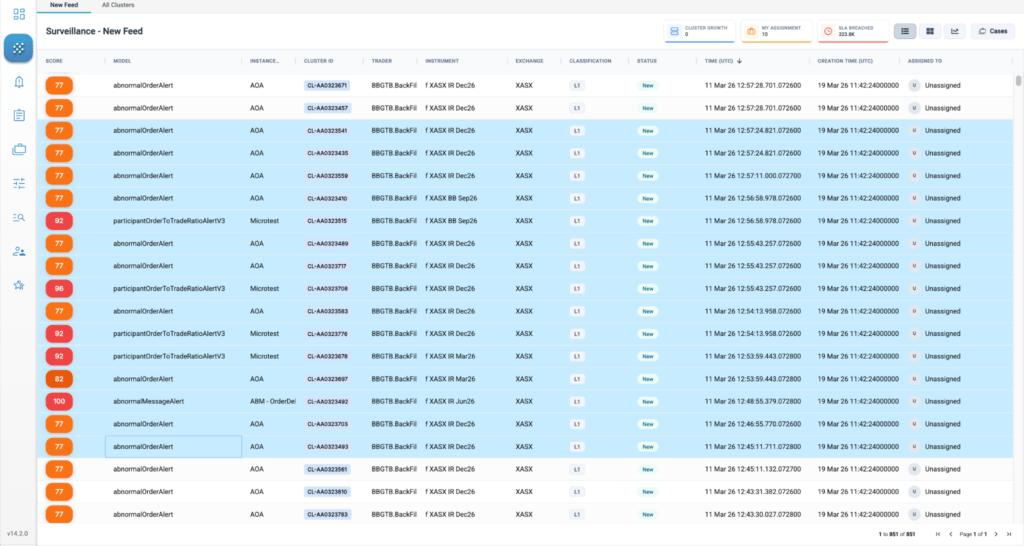
Open the Bulk Update Clusters window by right-clicking on the selected area and selecting Bulk Update option:
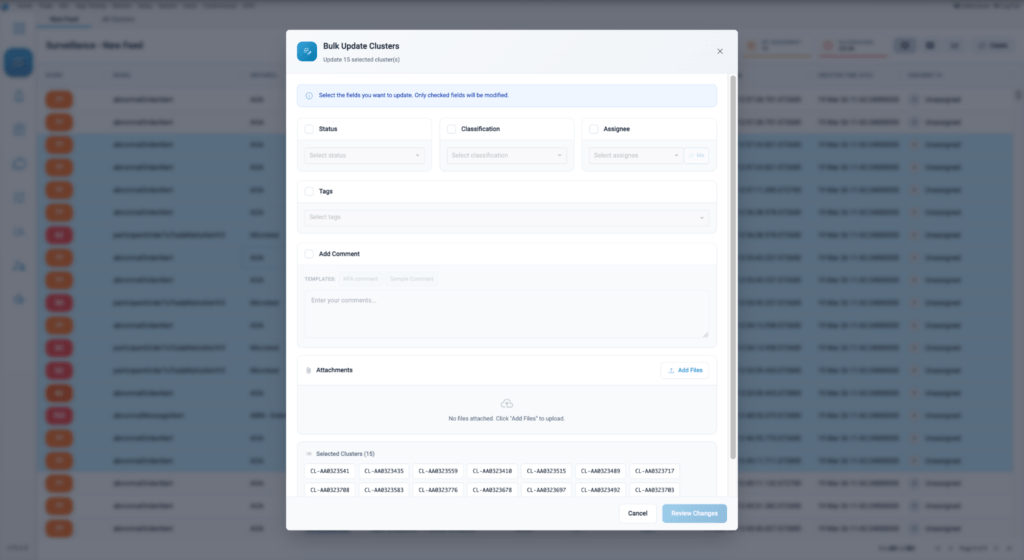
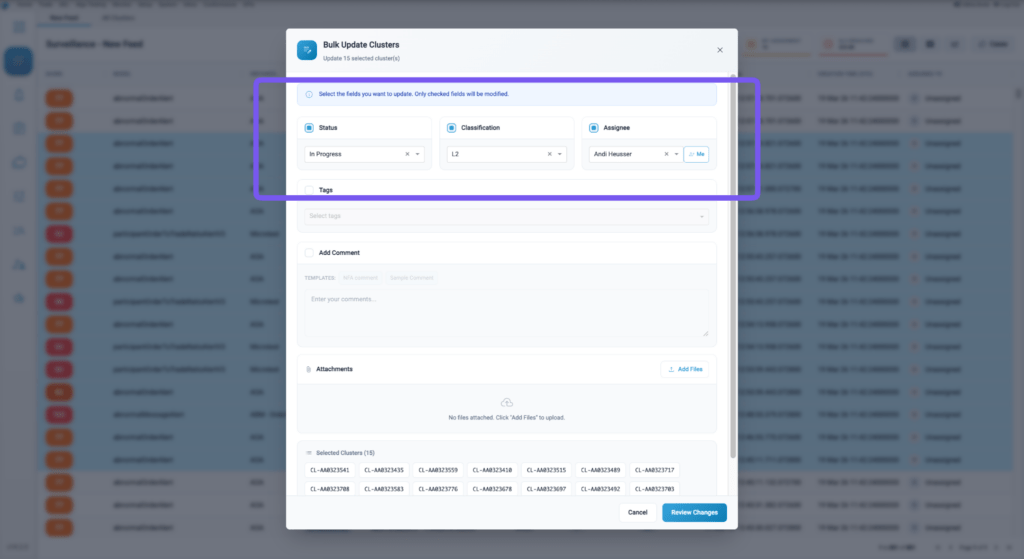
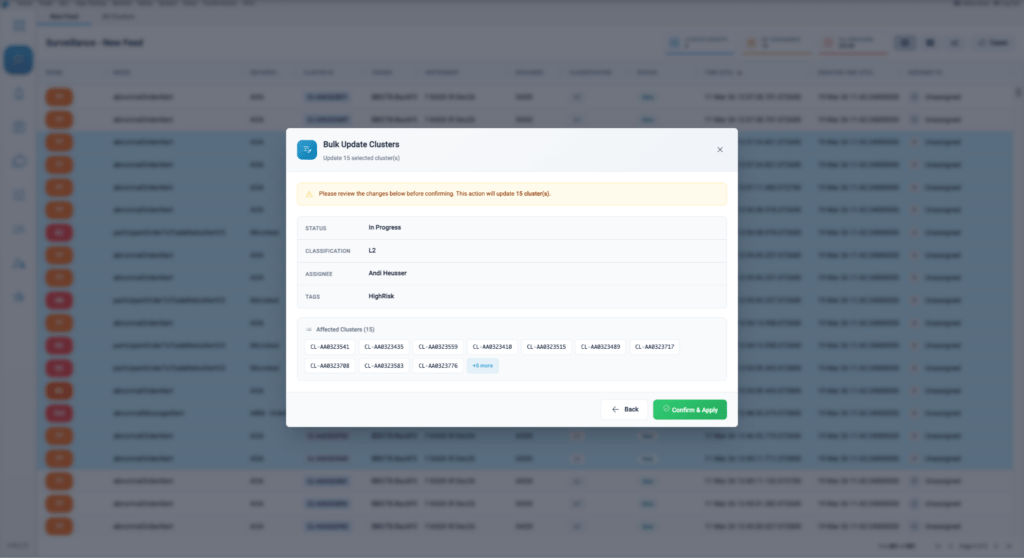
Simultaneously update the Status, Classification (L1, L2, L3), and Assignee for the entire batch.
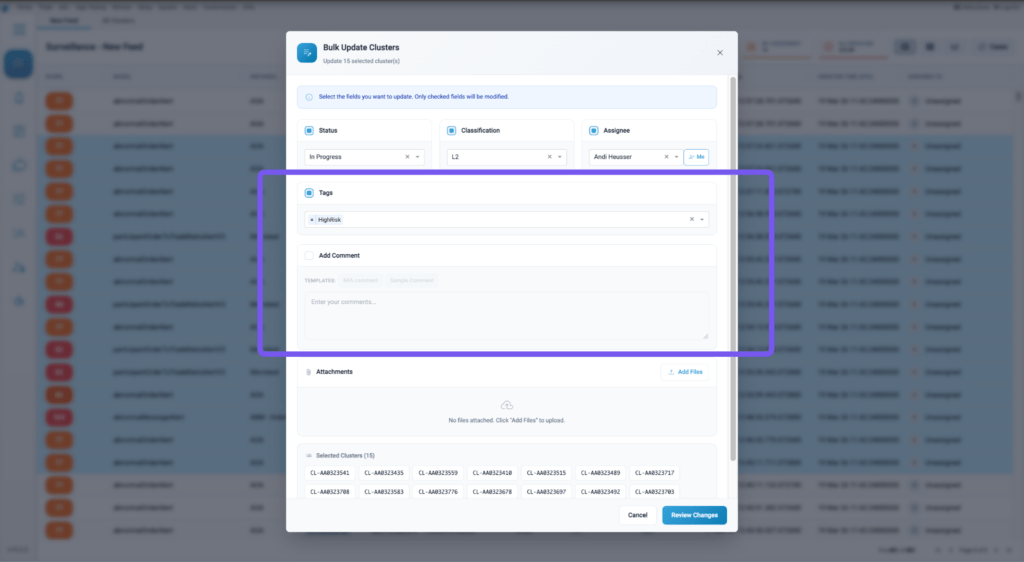
Apply specific Tags (e.g., #HighRisk, #US-Desk) or add comments for advanced categorization across the batch.
Users can also attach files to multiple clusters at once using this bulk update functionality.
Once ready, simply click “Review Changes”. This will bring up a pop-up detailing all the changes that will be made and all the clusters that this will affect. Once reviewed, click “Confirm and Apply” to make these changes.
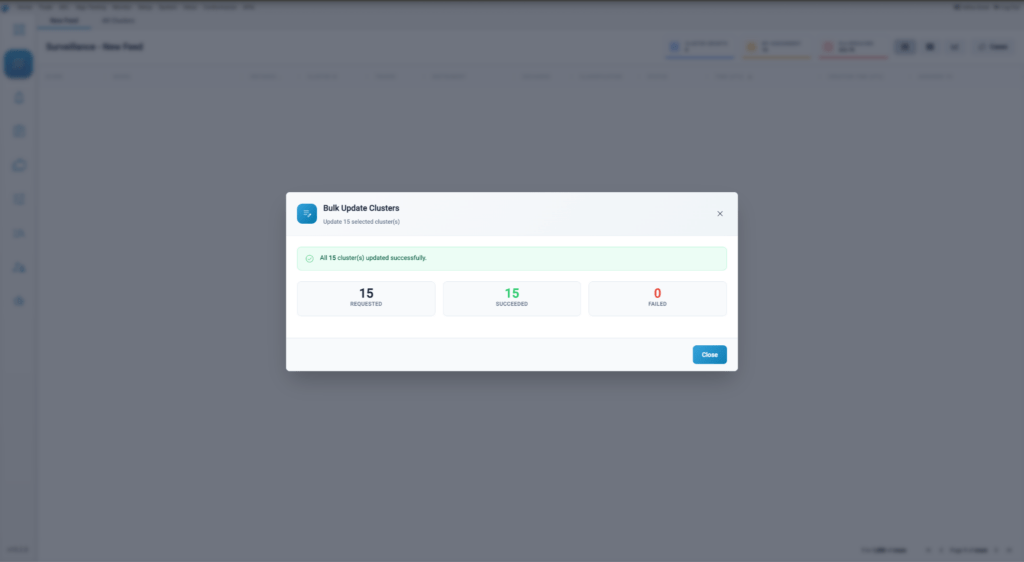
If successful, you should see a confirmation message as such:
Viewing and managing Cases
Navigate to the Cases tab to view and manage all your cases.
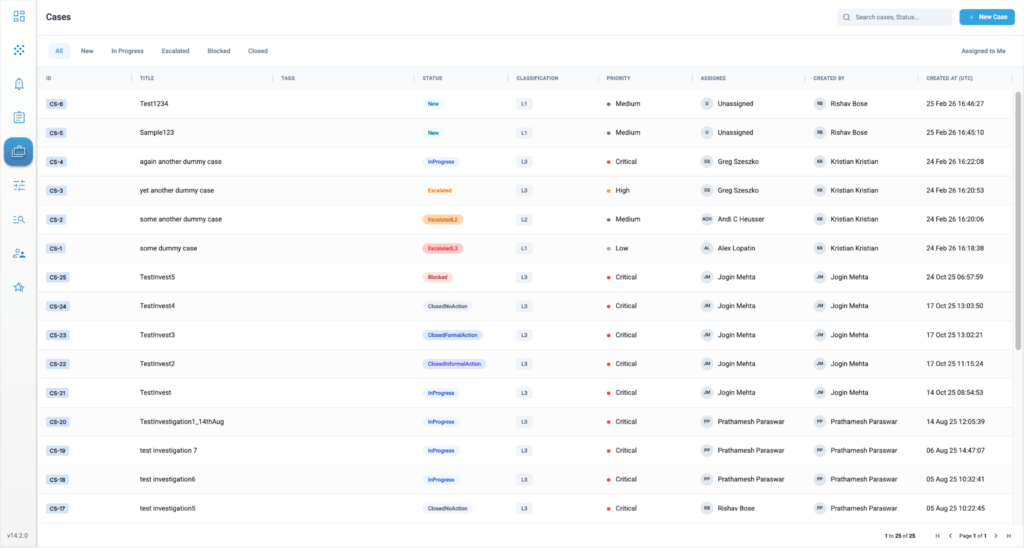
Here, users can view and manage their existing cases or even open new cases.
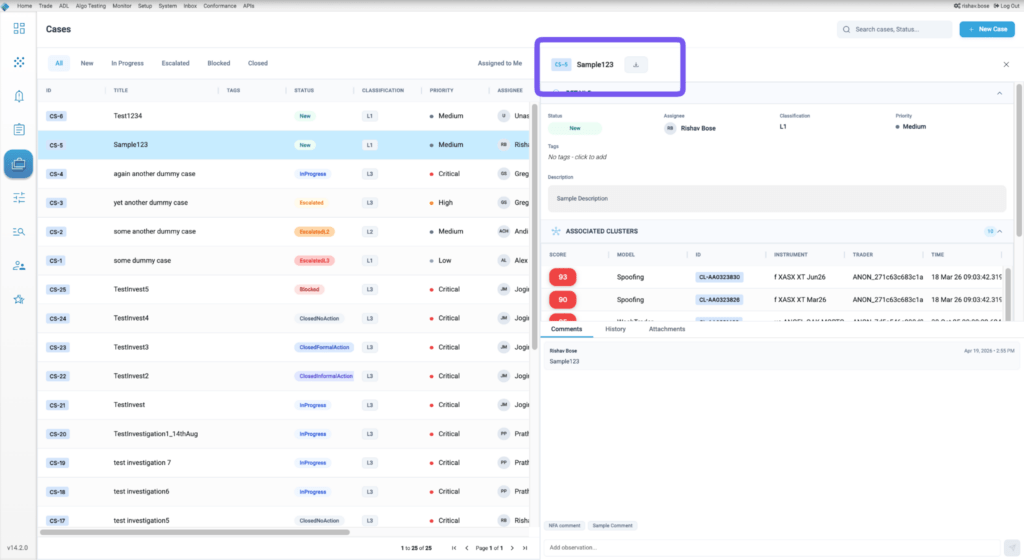
To view an existing case, simply click on the case row and this will open a side-panel with the details of that case:
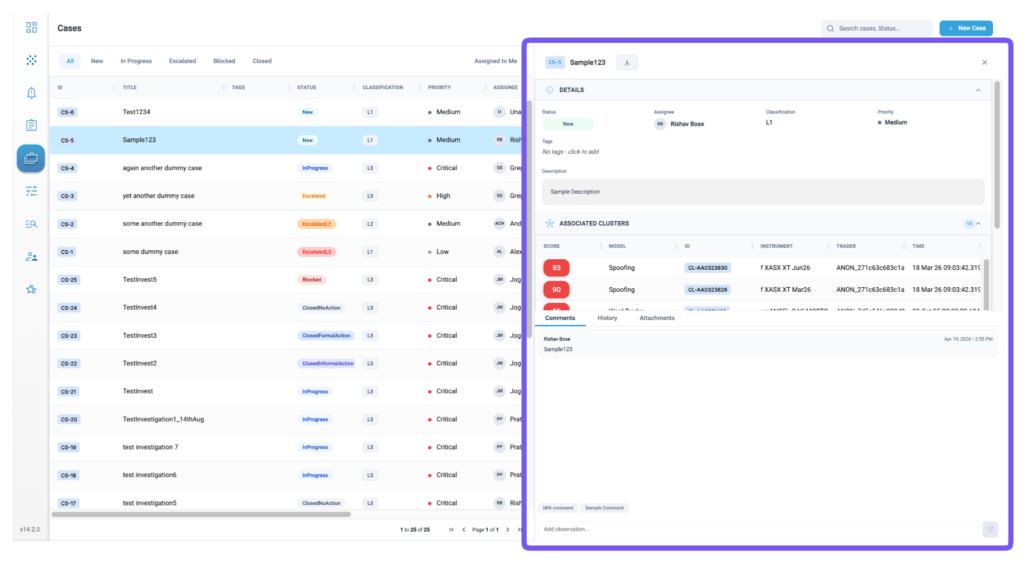
Users can view and manage all the attributes of the case such as Status, Assignee, Classification, Priority, Tags, and Description.
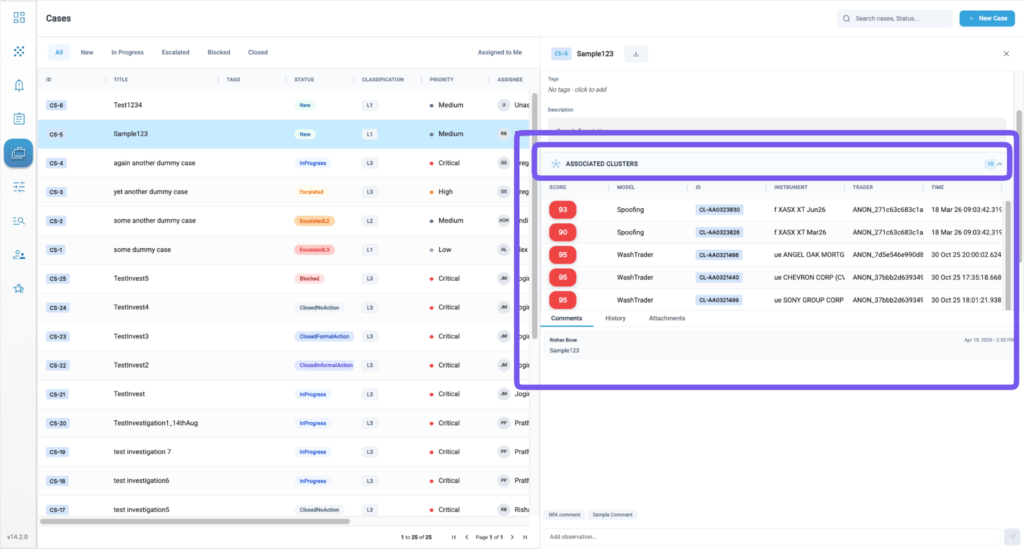
This side-panel also displays all the clusters that are part of this case including the total count of Associated clusters:
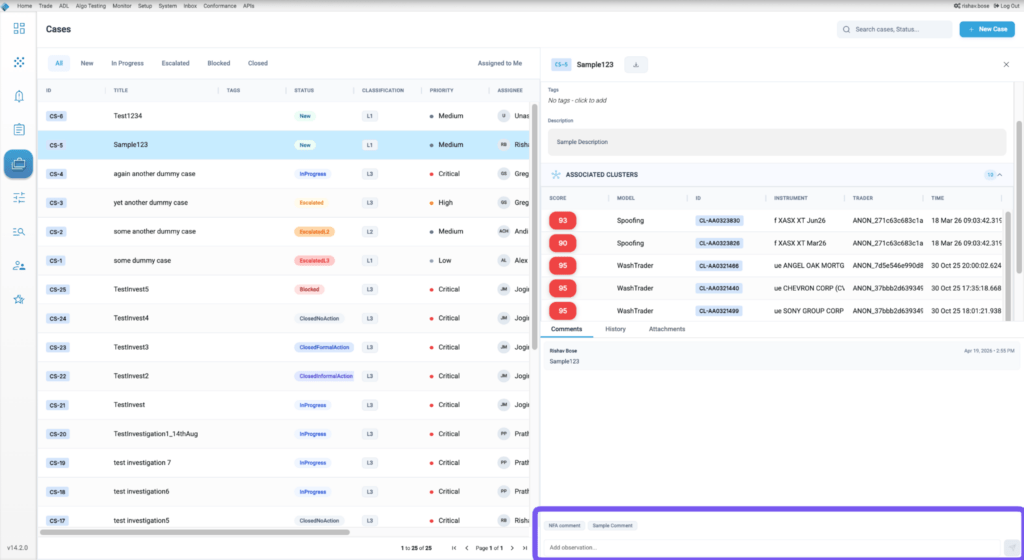
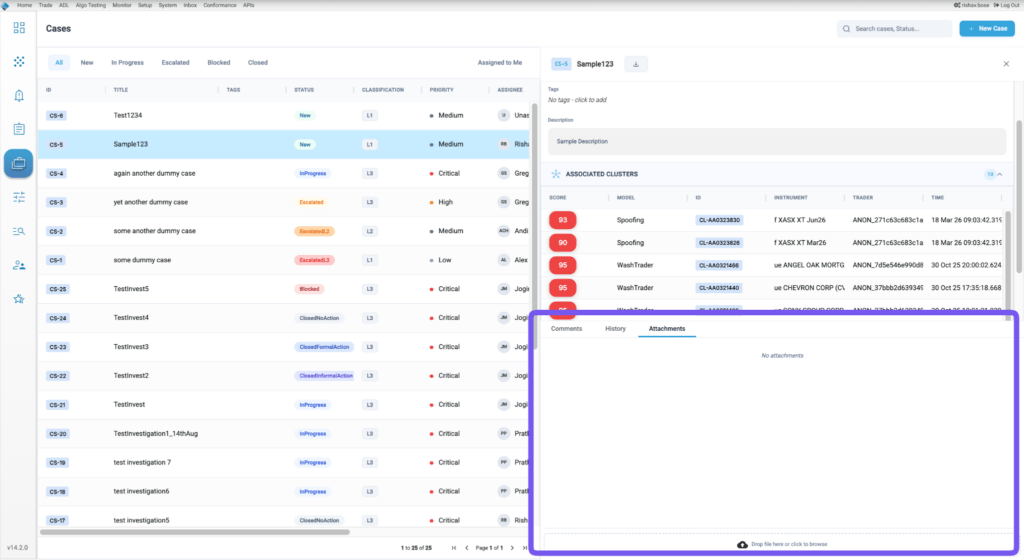
Users and also view and add comments or attachments directly to the case from here:
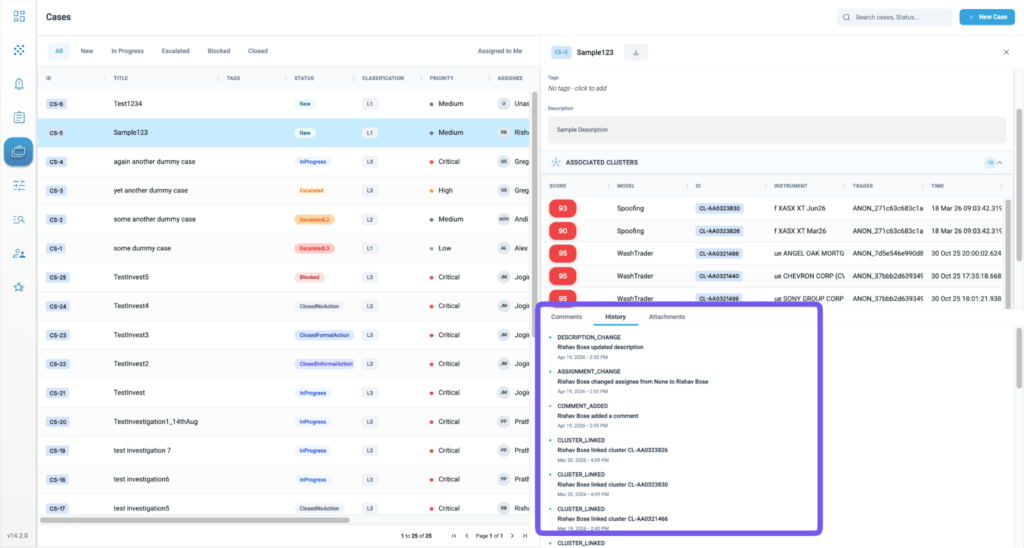
All actions taken are recorded in a forever audit trail which can be viewed under “History”:
Managing Cluster associations from within Cases
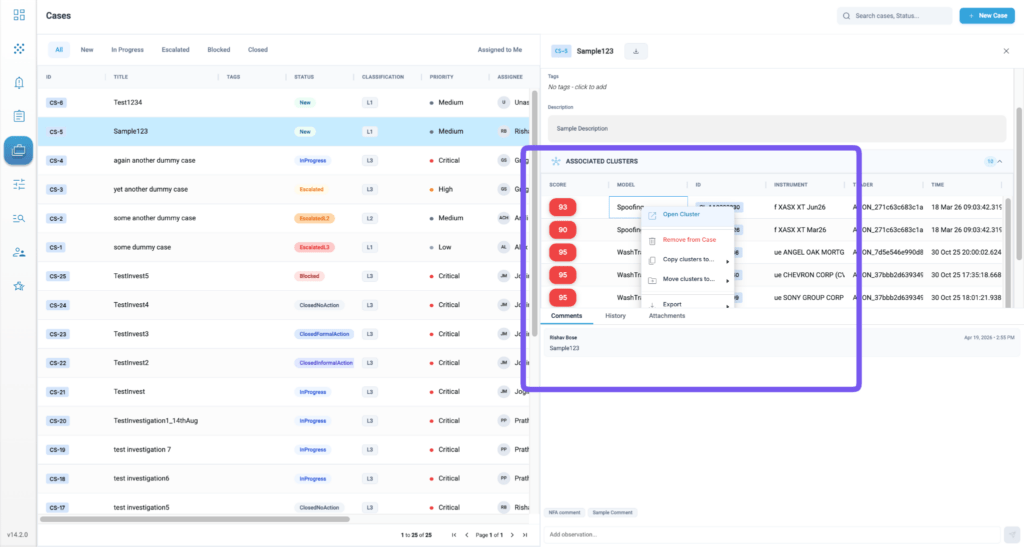
TT’s sophisticated case management system allows users to create and manage flexible case and cluster relationships. Users can link a single cluster to multiple investigations or even correct errors by removing clusters from a case.
Right-clicking on any associated cluster from within a case bring up a pop-up menu that allows users to:
- Open the cluster in a new window
- Remove the cluster from this case
- Copy the cluster to another case – allowing the cluster to be part of multiple cases
- Move the cluster to another case – this will disassociate the cluster from this case and add it to another case
Exporting Case Details
Users can now export the details of a case into a PDF. This will include all the attributes of the case such as Status, Assignee, Classification etc. as well as the list of all associated clusters. It will also include the full list of comments and the full audit history.