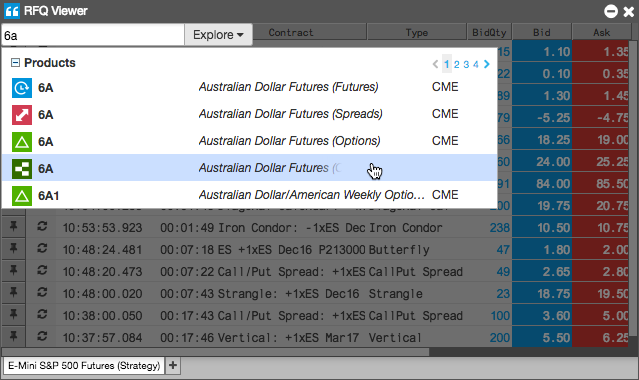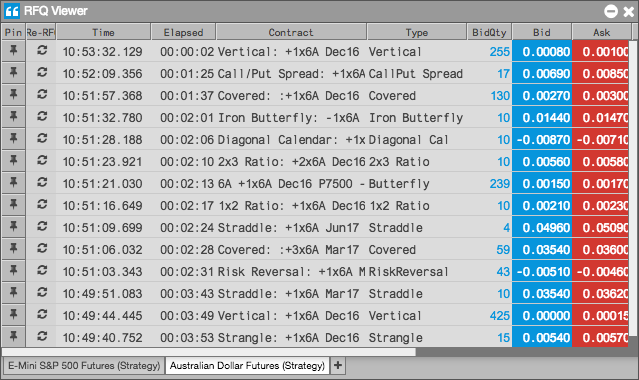

Opening Blocktrader from the RFQ Viewer
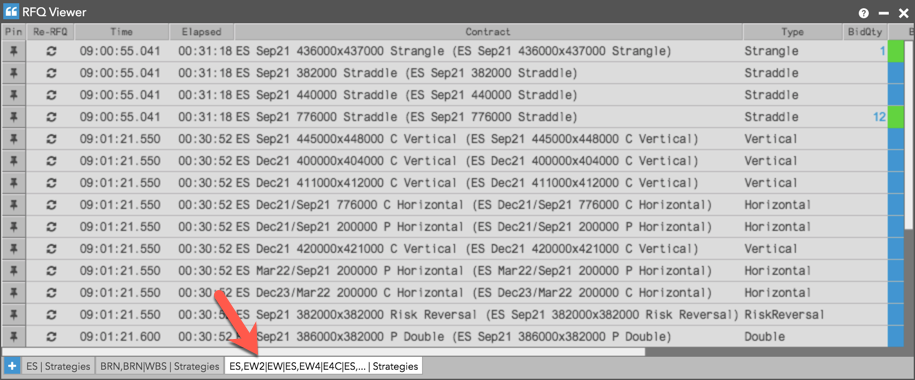
Note: Before opening Blocktrader, ensure that the BT column is shown in the RFQ Viewer. To show this column, right-click in the RFQ Viewer and select Settings | Set RFQ Viewer columns from the context menu.
To open Blocktrader from the RFQ Viewer:
- Select a row in the viewer and click the
 button in the BT column.
The Blocktrader widget opens seeded with the leg(s) and market data for the instrument in the row.

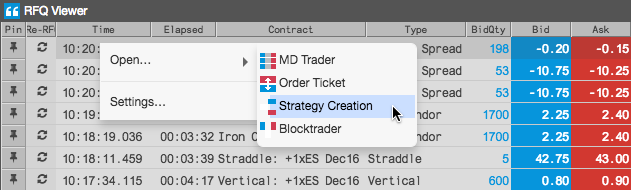
Optionally, you can also right-click a row in the viewer to open the context menu and click
Open | Blocktrader.
- Configure the block trade in the Blocktrader widget as needed and submit it to the
exchange.
 ボタンをクリックします。RFQ は再送信され、ビューアの一覧の最上部に限月が表示されます。

 ] ボタンをクリックして、一覧の最初に RFQ を移動させて固定します。
 をクリックします。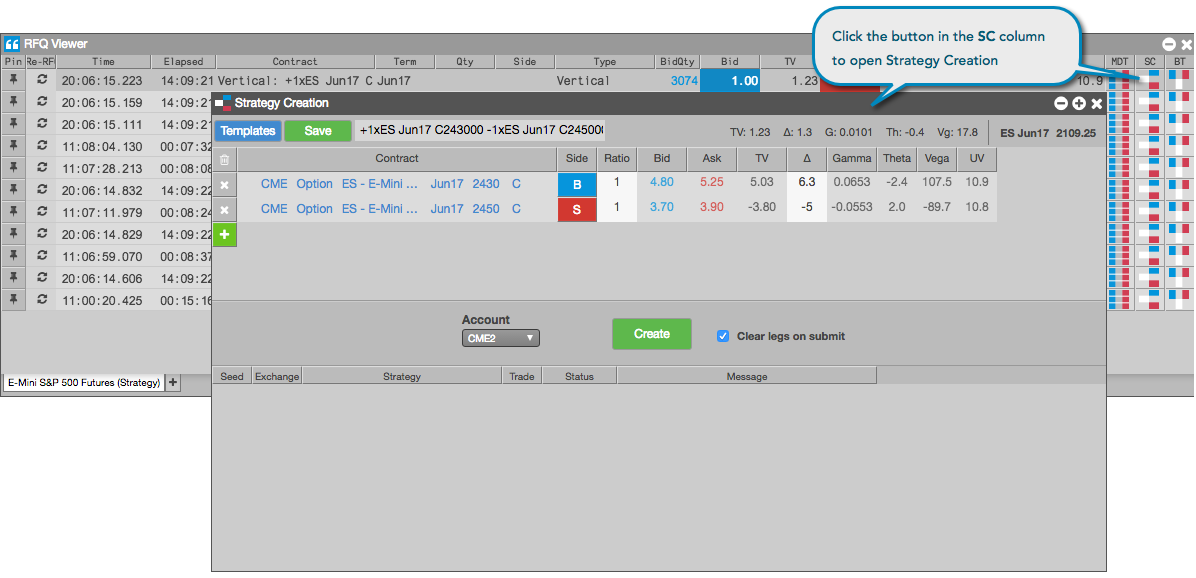
 ボタンをクリックして [MD Trader] を開きます。