








Creating a FIX Order Routing session
FIX client order-routing applications connect to TT FIX services through a FIX Order Routing session.
Use the FIX sessions window to add FIX sessions to your company and configure them for third-party
FIX client access.
To add and configure a FIX Order Routing session:
- Click More | FIX Sessions in the left navigation pane.
-
At the top of the FIX Sessions window, click +New Session.
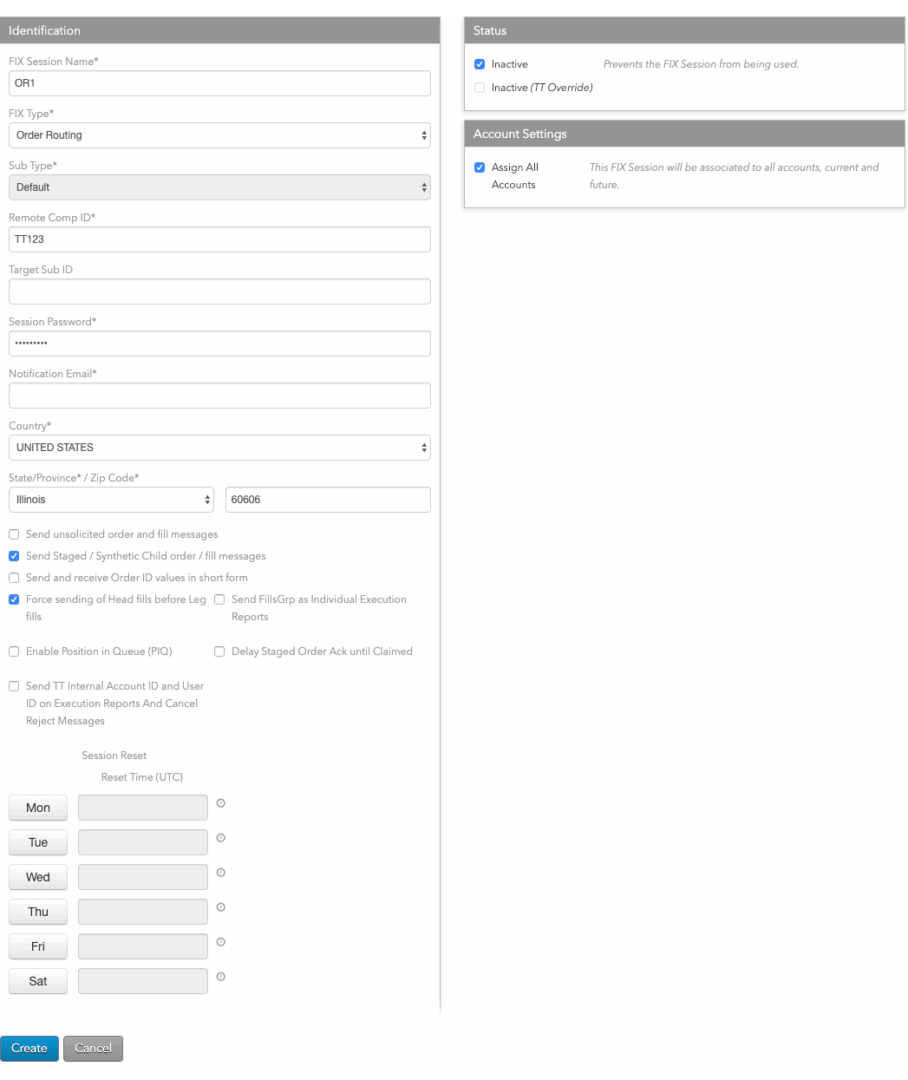
- For FIX Type, select FIX Order Routing.
- Configure the following settings:
- FIX Session Name — Sets the display name of the FIX server.
-
Remote Comp Id — Sets the FIX client ID. This FIX client ID value is sent in
FIX Tag 49 (SenderCompID) by a FIX client connecting to the FIX server. The ID is populated in FIX
Tag 56 (TargetCompID) for all messages sent by the FIX Server to the FIX client. -
Target Sub Id — Sets the receiver ID. This value is sent in FIX Tag 57
(TargetSubId) of the FIX client Logon (A) message.
Notes:If a value is specified for this setting:
- The combination of the Remote Comp Id and Target Sub Id
settings must be unique among all FIX sessions. - The FIX client connecting to this FIX session must supply the same value in tag 57.
Also, if FIX clients send Tag 57, which is optional, in the Logon (A) message, the value must be
supplied in this setting. - The combination of the Remote Comp Id and Target Sub Id
-
Session Password — The password associated with this FIX session and used to
authenticate FIX Servers. FIX Session passwords do not expire and are not subject to any TT account
password restrictions. It must be passed in Tag 96 (RawData) in the Logon (A) message. -
Notification email — Sets the email address company administrators can use to
receive notifications from TT for emergency maintenance, operational or product release information
that could impact the FIX session. -
Country — The country in which the FIX server machine is located.
Based on the country selected, you may also need to provide a State/Province and Zip Code.
-
Send unsolicited order and fill messages — Sets whether to send order and
fill messages to the FIX client for those orders that originated outside of TT. -
Send Staged / Synthetic Child order / fill messages — Sets whether to send
order and fill messages to the FIX client for child order of staged or synthetic parent orders. -
Force sending of Head fills before Leg fills — Sets whether to always send
Head fills (442=3) before sending the individual leg fills (442=2). This setting is supported only
for FIX 4.4 sessions. -
Send FillsGrp as Individual Execution Reports — Sets whether to send an
individual Execution Report (8) message for each entry in the FillsGrp and LegFillsGrp repeating
groups instead of in a group in a single Execution Report (8) message. -
Enable Position in Queue (PIQ) — Sets whether to enable position in queue
support for the FIX session. -
Delay Staged Order Ack until Claimed — Sets whether to delay staged order
acknowledgement until the order is claimed. -
Send TT Internal Account ID and User ID on Execution Reports And Cancel Reject
Messages — Sets whether to send the TT internal IDs for tag 1 (Account) and tag
129 (DeliverToSubId) in tags 18101 (AccountID) and 18102 (UserID), respectively, for Execution
Report (8) and Order Cancel/Replace Request (9) messages. -
Send Exchange Fill Updates as Trade Correction Execution Reports — Sets
whether to send exchange fill updates as Execution Report (8) messages instead of Trade Capture
Report (AE) messages for the following markets:- HKEX
- OSE
- SGX
- TOCOM
- NDAQ_EU
- NFI
-
(Session Reset) — Schedule for resetting the FIX Server connection..
To set the reset time:
- Click a day to enable the Reset Time (UTC) fields.
- Set the desired session reset time in UTC time.
-
In the Status section, choose whether to make the session active. The session is inactive
by default. - Click +Add in the Company Relationships section to share FIX
sessions with other companies (e.g., to brokers).This allows the FIX Session to be configured for
trading (assigned accounts, connections, etc.) by the shared company. - Click Save Changes.
-
Configure the connection
to the FIX session via TCP or Secured TCP (SSL).
FIX Order Routing Overview
TT FIX Order Routing Services enable traders with FIX-based client applications to:
- Route DMA orders to various exchanges via TT Order Connectors.
- Route TT Order Type orders that manage the submission and execution of child orders.
- Route Autospreader synthetic calendar, inter-product or inter-exchange spread orders.
- Launch algos built using ADL and TT Algo SDK.
- Stage orders to another trader or trading desk for customized handling and execution.
- Submitting Strategy Creation and Request for Quote (RFQ) request messages.
Getting Started
To begin creating an order routing client application using TT FIX, you will need to:
- Download the TT FIX 4.2 and 4.4 schemas. This schema summarizes the supported FIX messages and tags.
- Create a FIX Session in Setup. The FIX session is used by the client application to connect to the TT FIX Order Routing service.
- Configure client connectivity. Create and configure client connection to TT FIX Order Routing services via the Internet or Stunnel.
FIX Session Management
TT FIX Order Routing client applications require a FIX session to be created in Setup in order to connect to TT FIX servers. Client applications should be designed with the following session management considerations in mind:
FIX session reset schedules
TT FIX Order Routing sessions are persistent by default and reset on Saturdays
at 22:00 UTC.
Clients may optionally define a custom daily reset time when configuring a FIX
Order Routing session in Setup Setup.
On-demand sequence number resets
By default, message sequence numbers for FIX sessions are reset when TT resets all FIX sessions. Message sequence numbers can also be reset, when desired, by setting Tag 34 (MsgSeqNum) = 1 and Tag 141 (ResetSeqNumFlag) = Y when sending a Logon (A) message.
ClOrdID uniqueness
TT FIX will ensure ClOrdID (tag 11) uniqueness for:
For more information, refer to the ClOrdID tag description in the New Order Single (D) message.
Handling connection problems
If your FIX client application disconnects and subsequently reconnects, TT’s
FIX engine will perform an internal recovery process to query our cloud based
order book database and will deliver all unsent execution reports by applying
an incremental sequence number that picks up where we left off prior to the
disconnect. The session recovery process can be considered complete in all
cases with a News message [35=B].
This eliminates the requirement for your FIX client application to detect a
gap on the session level and request missed execution reports while
disconnected. This also allows FIX client applications to failover seamlessly
into a different datacenter without sequence number consideration.
Handling missed messages
If your FIX client application disconnects and was unable to process
executions prior to the disconnect, TT’s FIX engine supports the standard
message replay mechanism specified by the FIX Protocol by honoring Resend
Request [2] messages received from FIX client applications.
In extreme cases where your FIX client application unexpectedly disconnected
and required intervention on your side to reset sequence numbers that resulted
in a subsequent Logon with 141=Y and 34=1, TT’s FIX engine will still perform
a session recovery process that will query our cloud based order book database
for executions marked as undelivered and apply an incremental sequence number
to each message message. In this case, Logon [34=1], missed executions [34=2,
3, etc]. The session recovery process can be considered complete in all cases
with a News message [35=B].
In the scenario where although TT delivered all relevant execution reports to
your FIX client application, your internal system may have experienced an
issue and was unable to process the messaging. TT’s FIX Engine is aware of
sent messages, but we are unaware of your application’s success or failure to
process them. If your FIX client application also required a sequence number
reset and cannot request a Resend Request [2] message, executions can be
retrieved through our REST API [link to REST].
FIX Strategy Creation and RFQ Support
Overview
TT FIX Order Router supports submitting Security Definition Request (Tag 35=c) messages to create strategies and Quote Request (Tag 35=R) messages for Request for Quote (RFQ) functionality.
Strategy Creation
The Security Definition Request (Tag 35=c) defines a specific security at the exchange. You can define a multileg security made up of one or more instrument legs.
Once you submit the request, TT detects if the security already exists in the system and sends a Security Definition (Tag 35=d) message for the instrument. If the instrument does not exist, the FIX Order Routing service forwards the request and waits for a response from the exchange.
Strategy Creation – Success
When an instrument is created successfully, FIX Order Routing service responds with a Security Definition (Tag 35=d) message with the SecurityResponseType (Tag 323) set to either:
323=1: Accept Instrument proposal as-is
— or —
323=2: Accept Instrument proposal w/ changes indicated
Strategy Creation – Reject
If the instrument is not created successfully, the FIX Order Routing service responds with a Security Definition (Tag 35=d) message and SecurityResponseType (Tag 323) set to:
323=5: Reject Instrument Proposal
Security Definition Changes
The Security Definition Request (Tag 35=c) message has been updated to match the Instrument and InstrumentLeg components as defined on the Security Definition (Tag 35=d) message.
Request for Quote (RFQ)
The Quote Request (Tag 35=R) message is used to submit Request for Quotes (RFQs) from market makers and brokers in the marketplace prior placing an order. This occurs commonly for multileg strategies where there is insufficient liquidity to get the best price for the instrument.
Request for Quote – Success
For successful RFQ requests, the FIX Order Session sends a Quote Request Response (Tag 35=b) message with the following values:
QuoteAckStatus (Tag 16859): equals 0, “ok”.
Request for Quote – Reject
If the RFQ request is unsuccessful for any reason, the FIX Order Session sends a Quote Request Response (Tag 35=b) message with the following values:
QuoteReqID (Tag 131): equals the unique ID for the request.
QuoteRejectReason (Tag 300): equals the reason for the reject.
Quote Response Changes
Quote response messages (Quote Request (Tag 35=R)) are also sent via the FIX Market Data feed to both API and client applications. Quote responses are not sent over the FIX Order Routing session.
FIX Schema Changes
The following section highlights the specific FIX schema changes to support Strategy Creation and Request for Quote
(RFQ) functionality.
Message type (35=c) – SecurityDefinitionRequest
The Security Definition Request (35=c) message sent via the FIX Order Routing Service includes a number of tags to support strategy creation and request for quote functionality. These tags are only included with Order Routing Security Definition Request (35=c) messages and do not appear in the FIX Market Data service.
Message type (35=R) – Quote Request
New message type (35=b) – Quote Request Response
(ADDED)
TT FIX schema
System overview
The TT FIX service allows customers to receive real-time copies of all of their orders submitted through the TT platform, along with their corresponding fills. To use this service, customers must develop FIX clients capable of connecting to and communicating with the TT FIX.
TT FIX supports a subset of the FIX protocol (Version 4.2 with Errata 20010501 and Version 4.4) message types and tags within its message types. Refer to the website http://www.fixtradingcommunity.org/ for additional FIX tag descriptions and message definitions. Both production and UAT versions of the TT FIX schema are available for download at the following link:
https://library.tradingtechnologies.com/tt-fix/general/System_Overview.html#fix-schemas
The second line of each TT FIX schema file contains an XML comment that identifies the schema’s publication date and internal version information, similar to the following.
<!-- TT FIX Version: UAT 2025-08-01 Git:16bc4b86e3c94bef40c3dc55c5314c16df9c9930 MD5:998190c7d44e5636f42569d1279400ee -->