




Trade
Overview
TT Platform
Description
Task
Browser Access
Description
Task
Videos
TT Desktop
Description
Task
Videos
Reference
Workspace Windows
Description
Task
Videos
Widgets
Description
Task
Preferences
Description
Viewing Market Data
Time and Sales
Task
Reference
Description
Depth
Description
Task
Reference
Market Grid
Description
Task
Videos
Reference
Product Grid
Description
Task
Reference
Spread Matrix
Description
Task
Videos
Reference
Position in Queue (PIQ)
Basic Order Entry
TT Order Types
Description
Task
Videos
Reference
Case Studies
TT Premium Order Types
Description
Task
Reference
Order Ticket
Description
Task
Use Cases
Reference
MD Trader®
Description
Task
Videos
Reference
Order Profiles
Description
Task
Reference
Routing Rules
Description
Task
Blocktrader
Description
Task
Videos
Reference
Trading Crypto on TT
Description
Task
Videos
Reference
Trading on B3
Order Management
Order Book
Description
Task
Reference
Floating Order Book
Description
Task
Reference
Fills
Description
Task
Reference
Positions
Description
Task
Reference
Orders and Fills
Description
Task
Reference
Audit Trail
Description
Task
Reference
Audit Query
Description
Task
Reference
Account List
Description
Task
Videos
Reference
Position Manager
Description
Task
Reference
Alert Manager and Alert Viewer
Description
Task
Videos
Reference
Account & User Restrictions
Description
Task
Reference
Balances
Description
Task
Reference
TT® OMS
Care Orders
Description
Task
Videos
Reference
Lock and Release
Description
Task
Bulking
Description
Task
Videos
Stitching and Splitting
Description
Task
Combining
Description
Task
Order Passing
Description
Task
Use Cases
Order Exceptions
Description
Task
Options
Options Risk
Description
Task
Videos
Reference
QuikStrike
Description
Task
TT Uncovered 3.0
Description
Task
TT Uncovered 2.0
Description
Task
Volatility Calculator
Description
Task
Expiration Manager
Description
Task
Watchlist
Description
Task
Videos
Reference
Options Risk Matrix
Description
Task
Videos
Reference
Options on TT
Description
Videos
Strategy Creation
Description
Task
Use Cases
Reference
Counterparty Manager
Description
Task
RFQ with Counterparties
Description
Task
RFQ Viewer
Description
Task
Videos
Reference
Electronic Eye
Description
Task
Videos
Reference
Vol Curve Manager
Description
Task
Use Cases
Videos
Reference
Options Trade Monitor
Description
Task
Videos
Reference
Options Chain
Description
Task
Use Cases
Videos
Reference
Spread Trading
Autospreader
Description
Task
Use Cases
Videos
Reference
Autospreader Rules
Description
Task
Videos
Reference
Hedge Manager
Description
Task
Videos
Reference
Trading in Yield
Description
Task
Use Cases
Reference
Aggregator
Description
Task
Videos
Reference
Algo Trading
Algo Dashboard
Description
Task
Videos
Reference
Template Manager
Description
Task
Order Management Algos (OMAs)
Autotrader
Description
Task
Reference
Videos
Excel integration with TT
Description
Task
Videos
Reference
Market-Making Algos
Analytics
Charts
Description
Technical Indicators
Task
Videos
Reference
Trader Analytics
Description
Task
Reference
ADL
ADL Overview
Introduction to ADL
Description
Task
Videos
Reference
ADL Basic Concepts
Description
Task
Reference
Building your first algo
Lessons
Advanced concepts
Description
Task
Case Studies
Jump blocks
Group blocks
Virtualized blocks
Library blocks
Trading Blocks
Discrete blocks
Arithmetic blocks
Basic blocks
Logic blocks
Miscellaneous blocks
Setup
Setup Overview
Getting Started
Description
Task
Videos
Reference
Supported Order Types and TIFs
Company Administration
Connections
Description
Task
Videos
Reference
Accounts
Description
Task
Videos
Use Cases
Reference
Users
Description
Task
Videos
Reference
Company
Description
Task
Reference
Order Tag Defaults
Description
Task
Account Administrators
Description
Task
TT Premium Services
Description
Task
TT Access
Description
Task
Advanced Features
Description
Risk Management
Risk Administration
Description
Task
Risk Limits
Description
Task
Videos
Reference
Pre-Trade Portfolio Risk
Description
Task
Reference
Order Cross Prevention
Description
Task
Videos
KRM Limits
Description
Task
TT® OMS
TT OMS Administration
Description
Task
Use Cases
Reference
Exchanges: Americas
FMX
Description
Task
NFI
Task
Nodal
Description
Task
MX
Description
Task
MIAX_FUT_NY
Description
Task
MIAX_FUT_CH
Description
Task
MexDer
Description
Task
ICE
Description
Task
Goldman Sachs Commodity Blocks (GSCB)
Description
Task
Referece
FMX_USTF
Description
Task
B3
Description
Task
Fenics
Description
Task
EBS Market
Description
Task
EBS Direct
Description
Task
Dealerweb
Description
Task
CME
Description
Task
CFE
Description
Task
Cboe FX
Description
Task
Reference
CBOE
Description
Task
Exchanges: EMEA
ICE_L
Description
Task
WSE
Description
Task
Nord Pool
Description
Task
Reference
NASDAQ_NED
Description
Task
NDAQ_EU
Description
Task
MEFF
Description
Task
LSE
Description
Task
LME NTP
Description
Task
LME
Description
Task
JSE
Description
Task
ATHEX
Description
Task
GFO-X
Description
Task
Euronext
Description
Task
Eurex
Description
Task
Videos
Eris
Description
Task
EPEX SPOT
Description
Task
Reference
EEX
Description
Task
DGCX
Description
Task
BIST
Description
Task
Exchanges: Asia/Pacific
ABX
Description
Task
ASX
Description
Task
FEX
Description
Task
HKEx
Description
Task
JPX
Description
Task
NSE
Description
Task
NZX
Description
Task
SGX
Description
Task
SGX GIFT
Description
Task
TAIFEX
Description
Task
TFEX
Description
Task
TFX
Description
Task
CoinFLEX
Task
Exchanges: Crypto
Coinbase
Description
Task
Kraken
Description
Task
FIX Support
FIX Ruleset
Description
Task
FIX Sessions
Description
Task
Secondary Accounts
Description
Task
Monitor
TT Mobile
TT Backtesting
APIs
TT REST API 2.0
Getting Started
API Reference
TT REST API 2.0 (UAT)
Getting Started
API Reference
TT .NET SDK
Getting started with TT .NET SDK
Creating the application framework
Working with instruments
Subscribing for market data
More about prices
An in-depth look at the Price class
Working with orders and fills
Handling trade subscriptions
Working with trade subscriptions
Working with Algos
Algo Server
TT Order Types
TT Premium Order Types
Advanced Concepts and Options
Appendix
TT CORE SDK
Getting Started with TT Core SDK
Creating Application Framework
Working With Instruments
Subscribing for Market Data
Working with Orders and Fills
Creating a TT Application Server
Appendix
TT Trade Surveillance
Overview
Using TT Trade Surveillance
Cluster View
Core Models
Market Abuse Models
Cross Product Models
Spoofing Models
Improperly Matched Trade Models
Market Rate Models
Trading Behaviors Models
Miscellaneous Models
Configurable Models
Reports
Reference
TT FIX Services
TT FIX General
Getting Started
FIX Message Structure
Session messages
TT FIX Order Routing
Overview
TT FIX message conversations
Supported application messages
TT FIX Market Data
Overview
TT FIX message conversations
Supported application messages
TT FIX Drop Copy Out
Overview
TT FIX Message Conversations
Supported application messages
Compliance Feed messages
TT FIX Drop Copy In
Overview
Supported application messages
TT FIX Gateway
Getting Started
FIX Message Structure
Components
Session messages
Price Gateway Messages
Order Gateway Messages
TT FIX Recovery
Overview
FIX Recovery Methods
Supported application messages
Compliance Feed Messages
MiFID II Support

Trading Coinbase on TT Mobile iOS

TT Mobile iOS supports trading on Coinbase, which is a regulated, U.S. based exchange for trading cryptocurrencies like Bitcoin and Ethereum. You can view market data for Coinbase instruments in MD Trader and submit orders using MD Trader or the Order Ticket.

Coinbase Market Data on TT Mobile iOS

When viewing Coinbase market data in MD Trader, consider the following:

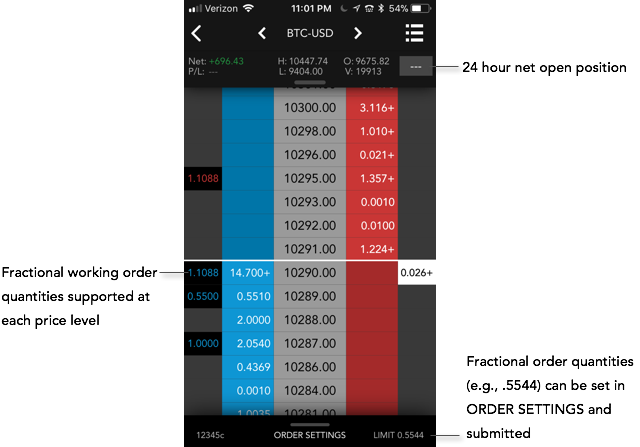
  • Fractional working order quantities are supported in the Bids and Asks columns. LTQ is also supports fractional quantities.
  • Empty price levels can be hidden to show only available prices.
  • Prices can be displayed with a custom tick interval per
    price level.
  • Quantities are displayed with three decimal places of precision with a “+” displayed in the fourth decimal place when there is additional quantity available.
  • Market data is displayed in a continuous 24 hour cycle and not daily or per trading session as follows:
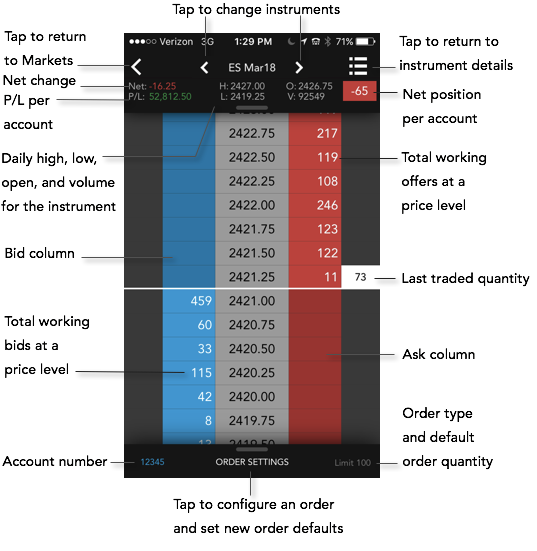
    • Net change — Shows the net change in price of the instrument in the last 24 hours.
    • H (High) — Shows the highest price for the instrument in the last 24 hours.
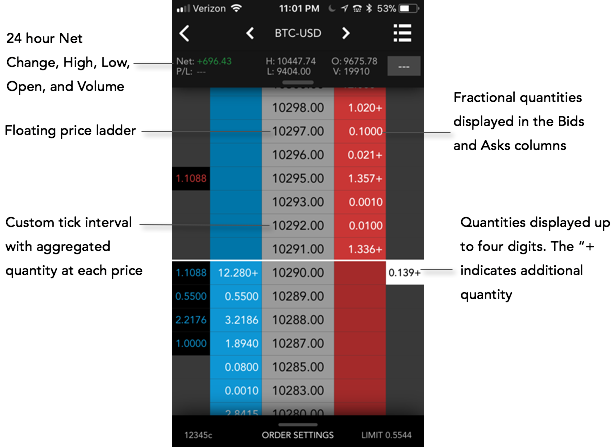
    • L (Low) — Shows the lowest price for the instrument in the last 24 hours.
    • O (Open) — Shows the open price for the instrument in the last 24 hours.

Floating price ladder

Empty price levels can be hidden to show only available prices at each price level by configuring the Order Settings | ONLY SHOW AVAILABLE PRICES setting in the MD Trader
widget.
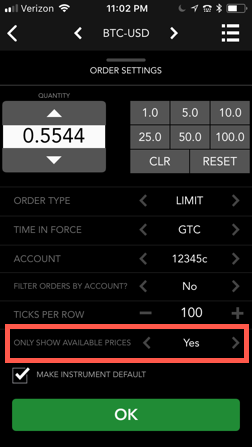
When set to “Yes”, only price levels with available liquidity are shown.
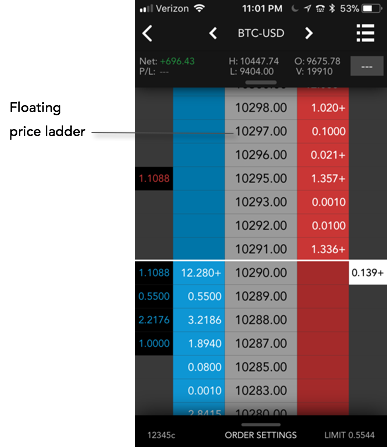
Note: This setting removes the static aspect of the ladder, which may result in orders being submitted at a price level different than the one you tapped if prices move while submitting the order.

Price consolidation

You can consolidate prices at specific tick intervals by configuring the Order Settings | TICKS PER ROW setting in MD Trader.

When configured, aggregate order quantities between each tick interval are displayed at each price level. For example, a tick interval of “100” entered for BTC-USD results in prices ticking in 1.00 increments.

Quantity display

By default, quantities are displayed with up to four decimals of precision. If a quantity is larger than four decimal places, a “+” is shown as the fourth decimal to indicate additional quantity (e.g., 1.357+).

If the quantity is a whole number (e.g., 0.4369) or if the remaining digits are “0” (e.g., .0100), only four decimals will be displayed.

The following fields display quantities with up to four decimal places: MD Trader working order cells and LTQ, as well as net positions in MD Trader and the NET column in the Positions widget.

Submitting Coinbase orders on TT Mobile iOS

On TT Mobile iOS, you can submit orders for all Coinbase instruments using MD Trader or the Order Ticket.

MD Trader

When submitting orders for Coinbase instruments using MD Trader, consider the
following:

  • Fractional order quantities can be entered in Order Settings and displayed when you tap a price level to submit an order. Fractional order quantities are displayed in the working Bids and Asks columns and net open position field.
  • The net open position field shows your total position for a continuous 24 hour cycle.

    Note: On TT, positions will reset at 5pm CST and an SOD will be created for the next 24 hour trading cycle.

  • Market orders are submitted as quantities and not prices.
  • The following native Coinbase order types and TIFs are supported:
    Limit, Market, GTC, IOC, FOK.
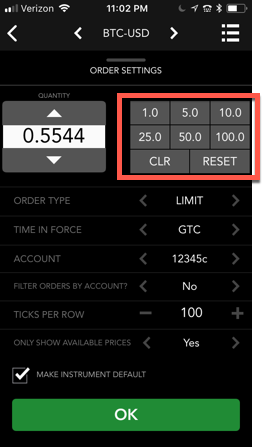
Number pads in Order Settings also support entering fractional order quantities.
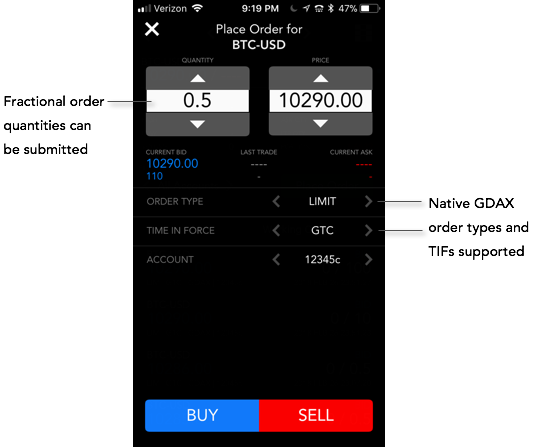
Order Ticket

When submitting orders for Coinbase instruments using the Order Ticket, consider the
following:

  • Number pads in the Order Ticket support fractional order quantities.
  • Market orders are submitted as quantities and not prices.
  • The following native Coinbase order types and TIFs are supported:
    Limit, Market, GTC, IOC, FOK.
TT Mobile iOS 用 MD Trader

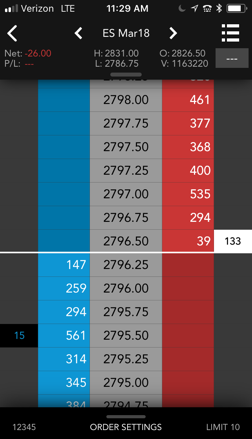
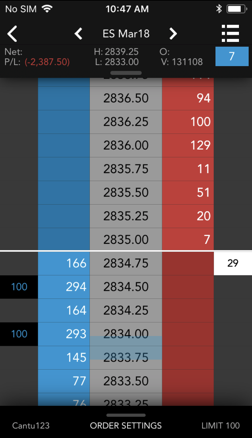
MD Trader では、いずれかのマーケット方向で買注文または売注文を発注するための垂直の板情報が表示されます。限月の現在のマーケット データも表示されます。

TT Mobile iOS 用 MD Trader では、以下の配色インジケータも提供しています。

  • [Last Traded Quantity] (直近枚数) の背景色が変化し、同じ価格や高値 (緑色)、安値 (赤色) で取引された枚数が示されます。
  • [Net Change] (前日比) は、直近値と直前のセッションの清算値を示しています。前日比は、差が正の値の場合は緑色で、差が負の値の場合は緑色に表示され。
  • [Net Position] (ネット ポジション) の背景色は、ロングの場合は青色、ショートの場合は赤色で表示されます。

MD Trader の起動

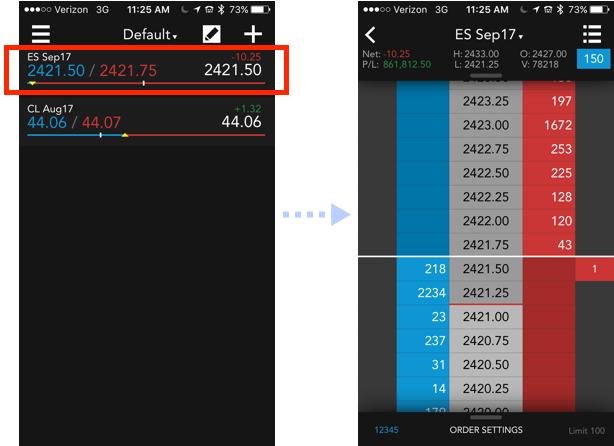
[Markets] (相場状況) で選択した銘柄をタップして MD Trader を開きます。

注文の発注

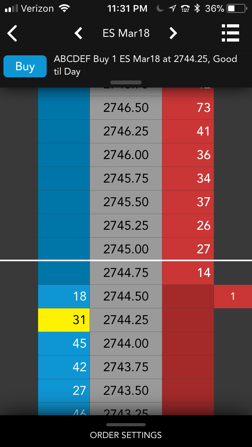
  1. 買値列または売値列の価格レベルをタップし、既定の注文数量と口座を使用して、注文を発注します。

    : 板情報を 2 回タップすると、必要に応じてマーケットを再センタリングできます。

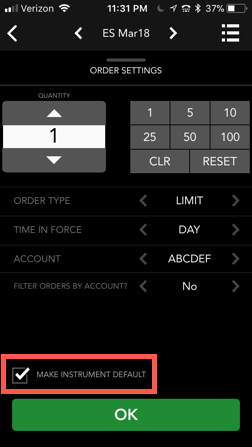
    オプションで、[Order Settings] をタップし、注文を設定して、[MAKE INSTRUMENT DEFAULT] をオンにして、限月に対して既定の注文設定を行います。[OK] をタップして、買値列または売値列の価格帯をタップし、注文を発注できます。

    買値列や売値列では、買値や売値が黄色に強調表示されます。

  2. 画面上部の [Buy] または [Sell] をタップして、注文を確認して送信します。

MD Trader の注文

MD Trader の注文管理は以下で構成されています。

  • 板情報で別の価格帯に個々の約定待ち注文を移動。
  • 1 約定待ち注文の削除
  • 限月のすべての約定待ち買注文と売注文の削除
  • 限月のすべての約定待ち注文の削除

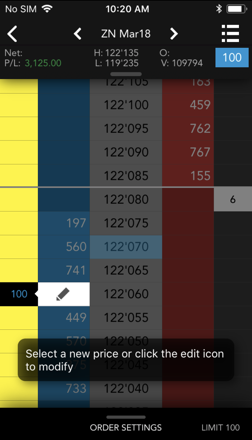
別の価格帯への注文の移動

  1. 画面で注文に触れて保留し、解放します。

    取引している側の約定待ち枚数欄が強調表示されます。

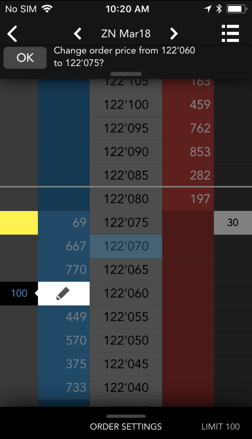
  2. 約定待ち列の新規の価格帯をタップします。
  3. [OK] をタップして注文の変更を確認します。

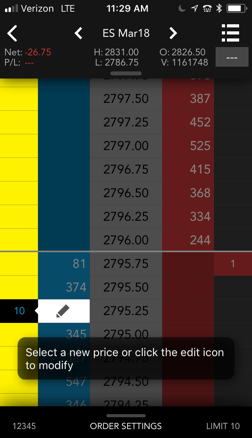
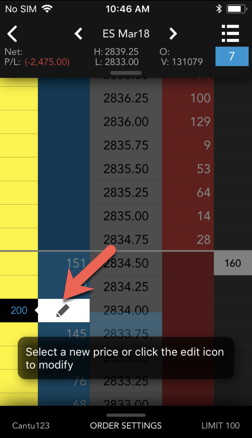
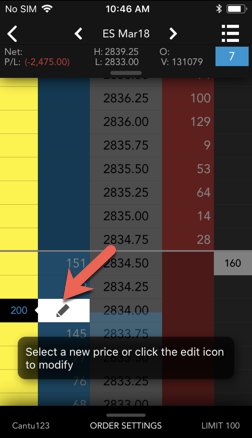
約定待ち注文の価格と枚数の変更

[Edit] (編集) 愛子を使って、約定待ち注文の価格と枚数を変更できます。

  1. 画面で注文にタッチして保留し、解放します。

    取引している側の約定待ち枚数欄が強調表示されます。

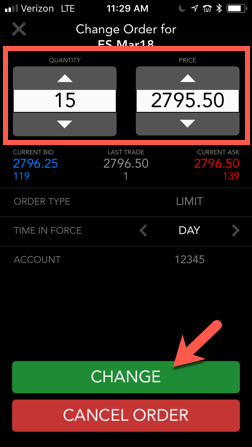
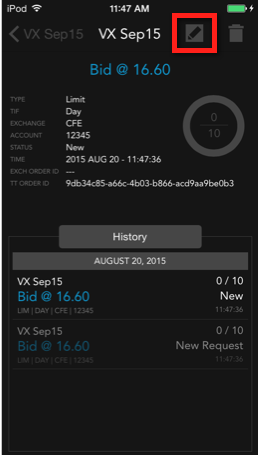
  2. [Edit] アイコンをタップして注文チケットを開きます。

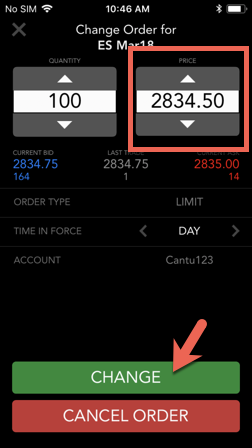
  3. 注文チケットにて、新規の価格帯または枚数を入力して [Change] をタップします。

  4. 変更を確認して [Send] をタップします。

    注文の価格または枚数が変化します (例: 15 @ 2795.50)。

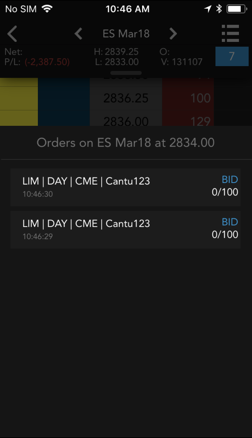
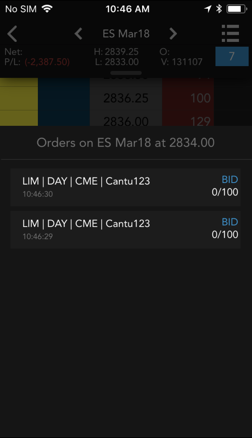
同じ価格帯の個々の注文の価格または枚数の変更

  1. 画面で注文に触れて保留し、解放します。

    取引している側の約定待ち枚数欄が強調表示されます。

  2. 編集アイコンをタップします。

  3. 変更する注文を選択します。

    編集アイコンをクリックした際同じ価格帯で複数の注文が約定待ちしている場合、各注文が各ライン項目に一覧されます。

  4. 注文チケットにて、変更する注文を選択した後、新規の価格帯または枚数を入力して [Change] をタップします。

  5. 変更を確認して [Send] をタップします。

    合計注文枚数の一部が新しい価格帯に移動します (2834.00 → 2834.50)。

MD Trader での注文の削除

  1. 価格帯とマーケットの側で注文をタップします。
  2. ウィジェットの上部で削除を確認します。

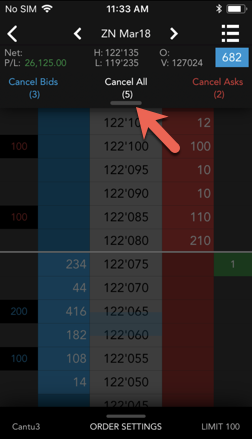
MD Trader での全注文、買注文、売注文の削除

  1. [MD Trader] 板情報の上部のバーをタップします。

  2. [Cancel Bids]、[Cancel All]、[Cancel Asks] のいずれかをタップします。

    各オプションの下に約定待ち注文の合計枚数が表示されます。

    板情報をタップして注文取消オプションを閉じます。

合計注文枚数部分の削除

  1. 注文をタップして保留し、解放します。

    取引している側の約定待ち枚数欄が強調表示されます。

  2. 一覧アイコンをタップします。

  3. 削除する買または売を選択して [Delete] をタップします。アプリにより、削除された注文を確認するプロンプトが表示されます。

口座の損益とポジションの表示

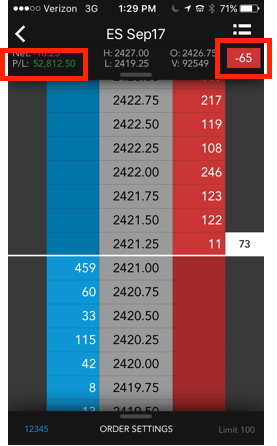
MD Trader にて口座の注文をフィルターして、選択した口座の損益とポジションを表示できます。

: 口座ごとに注文をフィルターしない場合は、損益とポジションの表示は空白となります。

口座の損益とポジションを表示するには

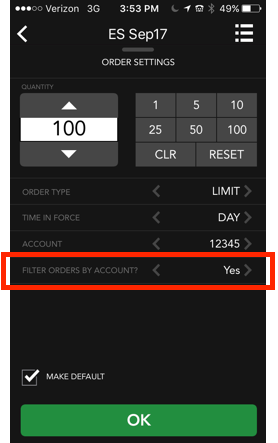
  1. MD Trader 画面の下部の [Order Settings] (注文設定) をタップします。

    [Order Settings] (注文設定) 画面が表示されます。

  2. [Filter Orders by Account?] をタップして [Yes] を選択します。

  3. [OK] をタップします。

    口座の損益とポジションが MD Trader の上部に表示されます。

注文チケット

注文の送信

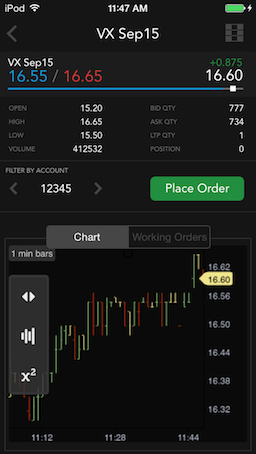
  1. [Markets] にて、選択した限月をタップして 限月の詳細を表示します。

  2. [Place Order] をタップして注文チケットを開きます。

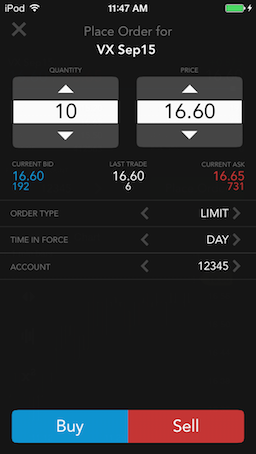
  3. 注文設定を指定して、[Buy] (買) または [Sell] (売) をタップして注文を発注します。

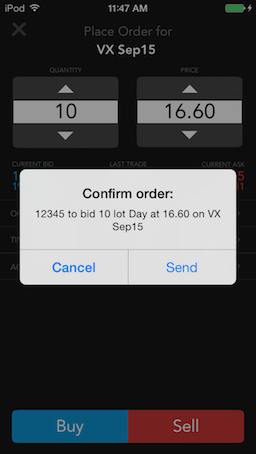
  4. [Send] をタップして新規の注文を発注します。

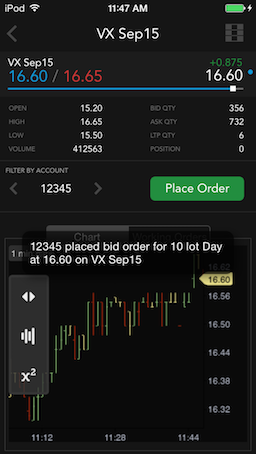
    注文は [Working Orders] 画面に追加されます。

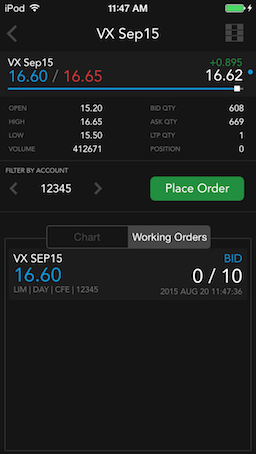
  5. [Working Orders] をタップすると、新規注文を表示できます。

限月の詳細の注文

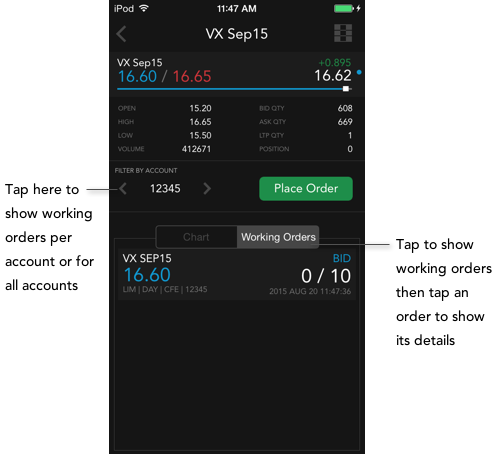
選択限月の銘柄詳細にて、[Working Orders] をタップして注文を表示または変更できます。必要に応じて、口座ごとに約定待ち注文をフィルターします。

銘柄詳細での注文の変更

  1. [Markets] にて限月を選択して [Working Orders] をタップします。

    これにはすべての口座の約定待ち注文の一覧が表示されます。または 1 つの口座の約定待ち注文をフィルターできます。

  2. 約定待ち注文をタップして選択します。
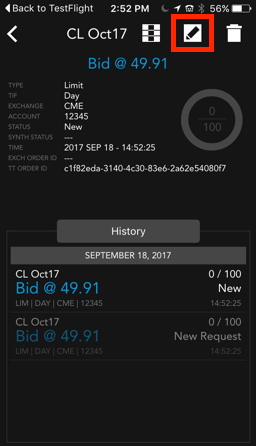
  3. 注文の詳細の上部にある [Edit] アイコンをタップします。

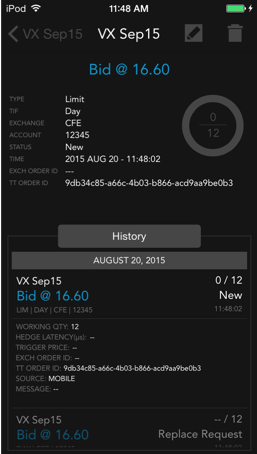
  4. 注文価格や枚数、口座、注文タイプを変更します。完了したら、[Change] をタップします。
  5. 送信する前に、注文を確認します。

注文の履歴詳細の表示

約定待ち注文のすべての操作を表示するには、順序をタップします。この場合、注文の変更も含め、最初の新規注文の要求や確認を表示することができます。一覧のいずれかの項目をタップし、さらに詳細を表示できます。

  1. 選択限月の銘柄詳細にて、約定待ち注文をタップします。この限月の注文詳細が表示されます。
  2. [History] セクションにて、約定待ち注文をタップして詳細を表示します。

銘柄詳細での注文の削除

  1. 選択銘柄の [Markets] ビューにて約定待ち注文をタップします。
  2. 注文をタップして選択します。
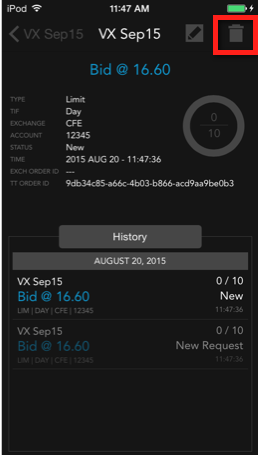
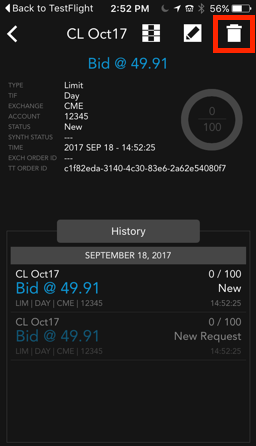
  3. 注文詳細の上部にある [Delete] アイコンをタップして注文を削除します。アプリにより、削除された注文を確認するプロンプトが表示されます。


注文の発注

TT Mobile では、ライブ取引で注文を発注できる機能と、デモ取引で取引の練習ができる機能を提供しています。注文の発注には 2 つの主要なインターフェイスがあります。[Markets] では、特定の限月を選択して、従来の注文チケットか TT の業界標準の [MD Trader] の板情報のいずれかを使って注文を発注します。[Order Book] ですべての注文を表示して管理できます。

: TT Mobile を使用したすべての注文の発注には確認が必要です。

注文一覧

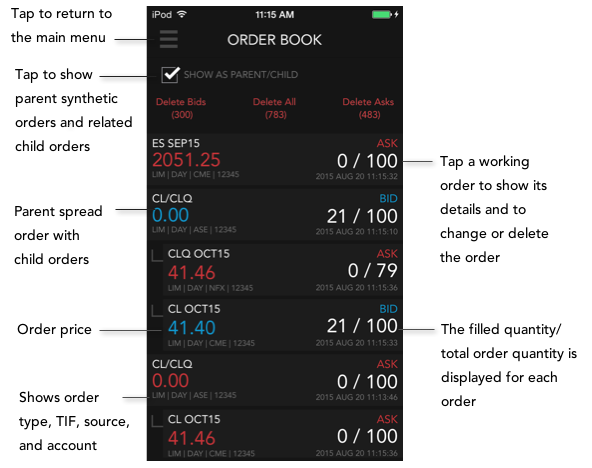
[Order Book] (注文一覧) には、すべての約定待ち注文が表示されます。注文をタップして詳細を表示します。[Order Book] から約定待ち注文を変更して再発注することもできます。

注文一覧での注文の変更

  1. メイン メニューから [Order Book] (注文一覧) をタップして、[SHOW AS PARENT/CHILD] チェック ボックスタップすると、すべての親・子注文関係を表示できます。
  2. 約定待ち注文をタップして選択します。
  3. 注文詳細の上部にある [Edit] アイコンをタップします。

  4. 注文価格や枚数、口座、注文タイプを変更します。完了したら、[Change] をタップします。
  5. 送信する前に、注文を確認します。

注文一覧での注文の削除

  1. [Order Book] を開き、注文をタップして選択します。
  2. 注文詳細の上部にある [Delete] アイコンをタップして注文を削除します。

    すべての注文や買注文、売注文を削除するには、[Order Book] の上部にある削除オプションをタップします。注文を削除するかどうかを確認するプロンプトがアプリに表示されます。

注文一覧からの MD Trader の起動

  1. [Order Book] を開き、注文をタップして選択します。
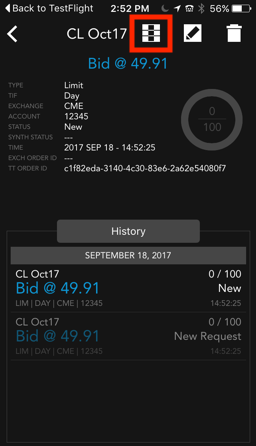
  2. 注文詳細の上部にある [MD Trader] アイコンをタップして、限月の MD Trader を開きます。

Privacy Overview

This website uses cookies so that we can provide you with the best user experience possible. Cookie information is stored in your browser and performs functions such as recognising you when you return to our website and helping our team to understand which sections of the website you find most interesting and useful.

Strictly Necessary Cookies

Strictly Necessary Cookie should be enabled at all times so that we can save your preferences for cookie settings.

Analytics

This website uses Google Analytics to collect anonymous information such as the number of visitors to the site, and the most popular pages.

Keeping this cookie enabled helps us to improve our website.

Marketing

This website uses the following additional cookies:

(List the cookies that you are using on the website here.)