
Generating a Case List Export
To generate a Case List Export report:










To generate a Case List Export report:
The Cluster List Export exports all or a subset of the clusters.
Note: You can also generate Scheduled Cluster List Export reports.
To generate a Cluster List Export report:
The processing statistics report shows the quantity and type of data processed by TT Trade Surveillance over a selected period of time for your company. Processing data can be included per surveillance model, trader, account, instrument, and TT source.
To generate a Processing Statistics report:
To generate a Records Summary Stats report:
Using the Reports tab, you can generate an interactive report that displays trends in suspect trading activity in your company. The Risk Trend report is similar to the summary stats report, but it also provides a trend analysis of the specified time period for your entire company grouped by model, trader, account or instrument.
To generate a Risk Trend report:
The summary stats report contains statistics for your entire company, as well as statistical data sorted by surveillance model per trader, account, or instrument.
To generate a Summary Stats report:
The Audit Trail Report, found on the Audit Trail Download tab, allows you to download a comprehensive record of all events sent to TT and verify which data is used in Trade Surveillance processing. This functionality is particularly useful for conducting self-audits to confirm that all expected data is included in Trade Surveillance processing, regardless of the method used to transmit the data to TT (e.g., drop copies, flat files).
A single day can be selected for which a zip folder will be created and available for download. The folder contains 24 CSV files, with each file representing one hour of trading. The data will include every event, even those that are not considered in Trade Surveillance processing, such as implieds/legs of exchange spreads.
The “valid record” column denotes whether an event was included in Trade Surveillance processing. Possible values are:
For events not considered in Trade Surveillance processing (valid record = 0), the “invalid reason” column provides an explanation.
Administrators are advised to utilize this report regularly to ensure that all data intended for surveillance is successfully reaching TT. This can identify potential issues, such as misconfigured accounts not included in drop copies, which might not be detectable within the TT environment.
To generate an Audit Trail Report:
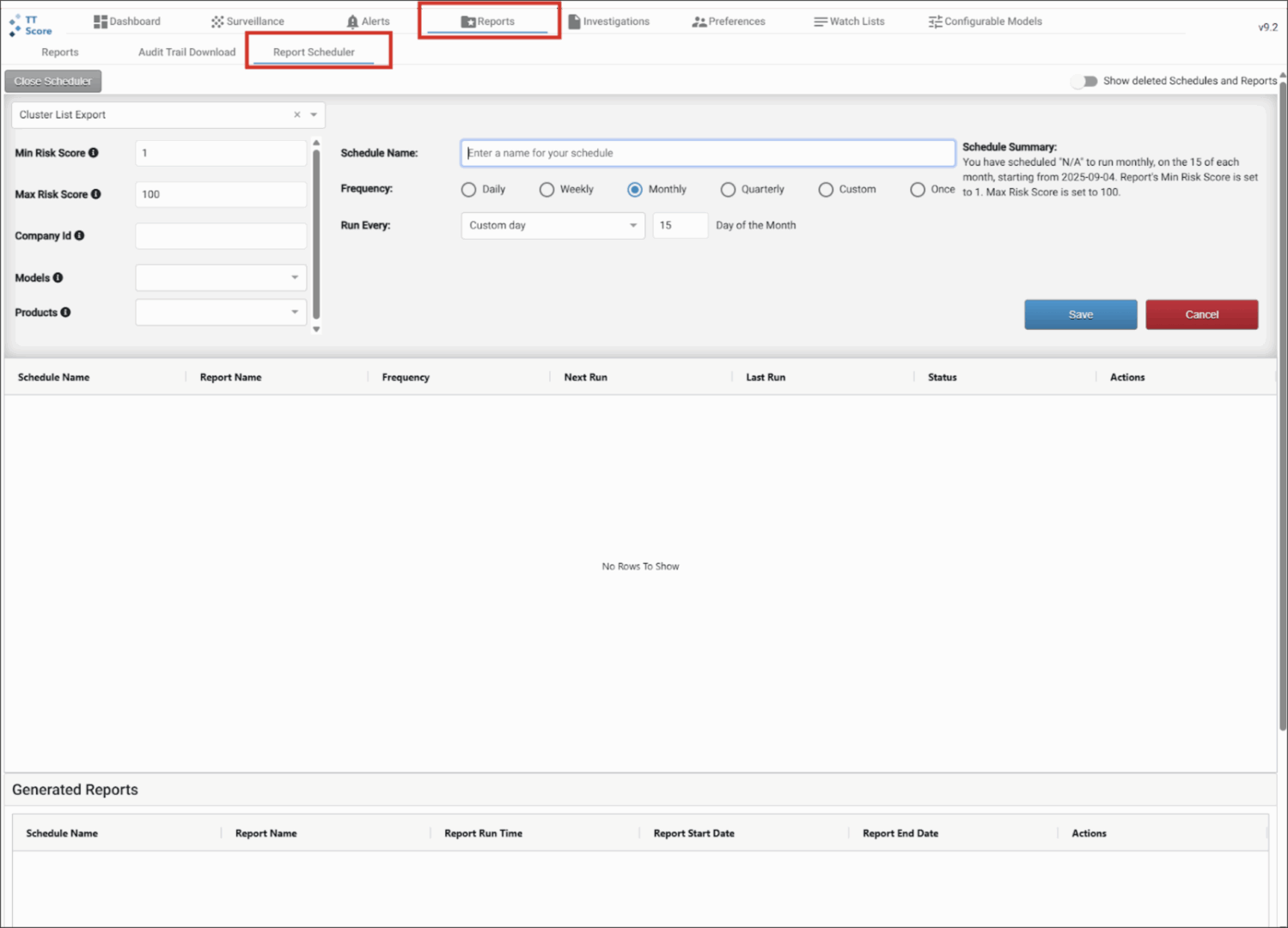
The Report Scheduler, found on the Reports tab, allows you to automatically generate reports in CSV format that run on a user-defined schedule.
Note: Due to differences in time zones, market data delivery and processing times, TT recommends that any report that is designed to cover a specific start and end time be set to run slightly after the end of the desired period so that all data for that period would have arrived. For example, running a monthly report the morning of the 1st may exclude data coming in from the evening of the 31st. Generating the report on the 2nd or 3rd of the month would ensure the entirety of the previous month is captured.
To schedule a report using the Report Scheduler:




The schedule is displayed in the list below the Report Scheduler parameters.
All automatically generated reports will be available in CSV format in the Generated Reports section near the bottom of the page.
You can toggle the Show deleted Schedules and Reports option.
As a Trade Surveillance administrator, you can generate compliance reports that quantify cluster statistics for your entire company and for individual traders. Reports can be generated from the “Reports” tab on the Trade Surveillance dashboard. Existing compliance reports can also be viewed on this tab.
The following types of reports can be generated in TT Trade Surveillance:
After generating a report, you can select which statistics to display and download each set of data from the report as needed.
Note: You must have administrator permissions in Setup in order to generate reports. As a TT Trade Surveillance administrator, you can generate reports for your company and view data for all accounts that your users have access to, including accounts shared with your company. As a TT Trade Surveillance account administrator, you can generate reports only for the accounts assigned to you.
To view a generated report in Trade Surveillance, select the Reports tab on the Trade Surveillance dashboard and click anywhere in the report’s row.
The selected report is displayed on the screen. The Report Configuration panel is displayed on the right side of the screen.
Tip: Hover on the “i” by the report title to view more details about the report.
To export data from the report, right-click anywhere in the report to open the context menu. In the menu, hover over Export then select the format (CSV or Excel). The data will be exported to the “downloads” folder on your workstation or laptop.
Reports can be deleted one at a time or in bulk. To delete one or more reports, enable the checkbox next to each report then press the Delete button.