





Trade
Overview
TT Platform
Description
Task
Browser Access
Description
Task
Videos
TT Desktop
Description
Task
Videos
Reference
Workspace Windows
Description
Task
Videos
Widgets
Description
Task
Preferences
Description
Viewing Market Data
Time and Sales
Task
Reference
Description
Depth
Description
Task
Reference
Market Grid
Description
Task
Videos
Reference
Product Grid
Description
Task
Reference
Spread Matrix
Description
Task
Videos
Reference
Position in Queue (PIQ)
Basic Order Entry
TT Order Types
Description
Task
Videos
Reference
Case Studies
TT Premium Order Types
Description
Task
Reference
Order Ticket
Description
Task
Use Cases
Reference
MD Trader®
Description
Task
Videos
Reference
Order Profiles
Description
Task
Reference
Routing Rules
Description
Task
Blocktrader
Description
Task
Videos
Reference
Trading Crypto on TT
Description
Task
Videos
Reference
Trading on B3
Order Management
Order Book
Description
Task
Reference
Floating Order Book
Description
Task
Reference
Fills
Description
Task
Reference
Positions
Description
Task
Reference
Orders and Fills
Description
Task
Reference
Audit Trail
Description
Task
Reference
Audit Query
Description
Task
Reference
Account List
Description
Task
Videos
Reference
Position Manager
Description
Task
Reference
Alert Manager and Alert Viewer
Description
Task
Videos
Reference
Account & User Restrictions
Description
Task
Reference
Balances
Description
Task
Reference
TT® OMS
Care Orders
Description
Task
Videos
Reference
Lock and Release
Description
Task
Bulking
Description
Task
Videos
Stitching and Splitting
Description
Task
Combining
Description
Task
Order Passing
Description
Task
Use Cases
Order Exceptions
Description
Task
Options
Options Risk
Description
Task
Videos
Reference
QuikStrike
Description
Task
TT Uncovered 3.0
Description
Task
TT Uncovered 2.0
Description
Task
Volatility Calculator
Description
Task
Expiration Manager
Description
Task
Watchlist
Description
Task
Videos
Reference
Options Risk Matrix
Description
Task
Videos
Reference
Options on TT
Description
Videos
Strategy Creation
Description
Task
Use Cases
Reference
Counterparty Manager
Description
Task
RFQ with Counterparties
Description
Task
RFQ Viewer
Description
Task
Videos
Reference
Electronic Eye
Description
Task
Videos
Reference
Vol Curve Manager
Description
Task
Use Cases
Videos
Reference
Options Trade Monitor
Description
Task
Videos
Reference
Options Chain
Description
Task
Use Cases
Videos
Reference
Spread Trading
Autospreader
Description
Task
Use Cases
Videos
Reference
Autospreader Rules
Description
Task
Videos
Reference
Hedge Manager
Description
Task
Videos
Reference
Trading in Yield
Description
Task
Use Cases
Reference
Aggregator
Description
Task
Videos
Reference
Algo Trading
Algo Dashboard
Description
Task
Videos
Reference
Template Manager
Description
Task
Order Management Algos (OMAs)
Autotrader
Description
Task
Reference
Videos
Excel integration with TT
Description
Task
Videos
Reference
Market-Making Algos
Analytics
Charts
Description
Technical Indicators
Task
Videos
Reference
Trader Analytics
Description
Task
Reference
ADL
ADL Overview
Introduction to ADL
Description
Task
Videos
Reference
ADL Basic Concepts
Description
Task
Reference
Building your first algo
Lessons
Advanced concepts
Description
Task
Case Studies
Jump blocks
Group blocks
Virtualized blocks
Library blocks
Trading Blocks
Discrete blocks
Arithmetic blocks
Basic blocks
Logic blocks
Miscellaneous blocks
Setup
Setup Overview
Getting Started
Description
Task
Videos
Reference
Supported Order Types and TIFs
Company Administration
Connections
Description
Task
Videos
Reference
Accounts
Description
Task
Videos
Use Cases
Reference
Users
Description
Task
Videos
Reference
Company
Description
Task
Reference
Order Tag Defaults
Description
Task
Account Administrators
Description
Task
TT Premium Services
Description
Task
TT Access
Description
Task
Advanced Features
Description
Risk Management
Risk Administration
Description
Task
Risk Limits
Description
Task
Videos
Reference
Pre-Trade Portfolio Risk
Description
Task
Reference
Order Cross Prevention
Description
Task
Videos
KRM Limits
Description
Task
TT® OMS
TT OMS Administration
Description
Task
Use Cases
Reference
Exchanges: Americas
FMX
Description
Task
NFI
Task
Nodal
Description
Task
MX
Description
Task
MIAX_FUT_NY
Description
Task
MIAX_FUT_CH
Description
Task
MexDer
Description
Task
ICE
Description
Task
Goldman Sachs Commodity Blocks (GSCB)
Description
Task
Referece
FMX_USTF
Description
Task
B3
Description
Task
Fenics
Description
Task
EBS Market
Description
Task
EBS Direct
Description
Task
Dealerweb
Description
Task
CME
Description
Task
CFE
Description
Task
Cboe FX
Description
Task
Reference
CBOE
Description
Task
Exchanges: EMEA
ICE_L
Description
Task
WSE
Description
Task
Nord Pool
Description
Task
Reference
NASDAQ_NED
Description
Task
NDAQ_EU
Description
Task
MEFF
Description
Task
LSE
Description
Task
LME NTP
Description
Task
LME
Description
Task
JSE
Description
Task
ATHEX
Description
Task
GFO-X
Description
Task
Euronext
Description
Task
Eurex
Description
Task
Videos
Eris
Description
Task
EPEX SPOT
Description
Task
Reference
EEX
Description
Task
DGCX
Description
Task
BIST
Description
Task
Exchanges: Asia/Pacific
ABX
Description
Task
ASX
Description
Task
FEX
Description
Task
HKEx
Description
Task
JPX
Description
Task
NSE
Description
Task
NZX
Description
Task
SGX
Description
Task
SGX GIFT
Description
Task
TAIFEX
Description
Task
TFEX
Description
Task
TFX
Description
Task
CoinFLEX
Task
Exchanges: Crypto
Coinbase
Description
Task
Kraken
Description
Task
FIX Support
FIX Ruleset
Description
Task
FIX Sessions
Description
Task
Secondary Accounts
Description
Task
Monitor
TT Mobile
TT Backtesting
APIs
TT REST API 2.0
Getting Started
API Reference
TT REST API 2.0 (UAT)
Getting Started
API Reference
TT .NET SDK
Getting started with TT .NET SDK
Creating the application framework
Working with instruments
Subscribing for market data
More about prices
An in-depth look at the Price class
Working with orders and fills
Handling trade subscriptions
Working with trade subscriptions
Working with Algos
Algo Server
TT Order Types
TT Premium Order Types
Advanced Concepts and Options
Appendix
TT CORE SDK
Getting Started with TT Core SDK
Creating Application Framework
Working With Instruments
Subscribing for Market Data
Working with Orders and Fills
Creating a TT Application Server
Appendix
TT Trade Surveillance
Overview
Using TT Trade Surveillance
Cluster View
Core Models
Market Abuse Models
Cross Product Models
Spoofing Models
Improperly Matched Trade Models
Market Rate Models
Trading Behaviors Models
Miscellaneous Models
Configurable Models
Reports
Reference
TT FIX Services
TT FIX General
Getting Started
FIX Message Structure
Session messages
TT FIX Order Routing
Overview
TT FIX message conversations
Supported application messages
TT FIX Market Data
Overview
TT FIX message conversations
Supported application messages
TT FIX Drop Copy Out
Overview
TT FIX Message Conversations
Supported application messages
Compliance Feed messages
TT FIX Drop Copy In
Overview
Supported application messages
TT FIX Gateway
Getting Started
FIX Message Structure
Components
Session messages
Price Gateway Messages
Order Gateway Messages
TT FIX Recovery
Overview
FIX Recovery Methods
Supported application messages
Compliance Feed Messages
MiFID II Support

2 段階認証の設定

2段階認証についての概要 (2FA)

お客様を保護しつつ最も安全な方法で TT プラットフォームのコンポーネントを提供させて頂くためにも、2すべての TT プラットフォームのユーザーに対して 2段階認証 (2FA) の有効化を義務付けることを予定しています。

現在、2段階認証を設定する方法は以下の通りです (優先順位の高い順に紹介します)。

  • 以下に示す設定の方法のうち1つを選択してください (Google Authenticator 等)。他にサポートされている認証アプリとして、Duo、Microsoft Authenticator、Authy、Apple、Dashlane などがありますが、これ以外にもあります。

  • 電子メール

  • SMS (SMS には弱点があるため推奨していません)

2段階認証を有効にしていないユーザーは、TT 取引画面と関連の TT コンポーネントを含む TT プラットフォームの実動環境にアクセスできなくなります。

2 段階認証を設定するには

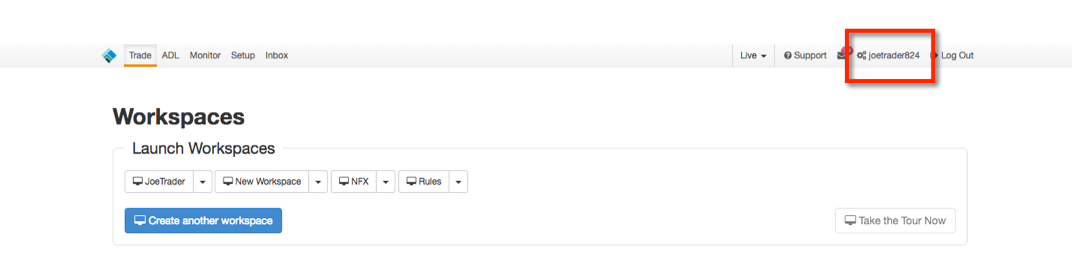
  1. タイトルバーの口座ユーザー名をクリックして、[Account Settings] (口座設定) ページを開きます。

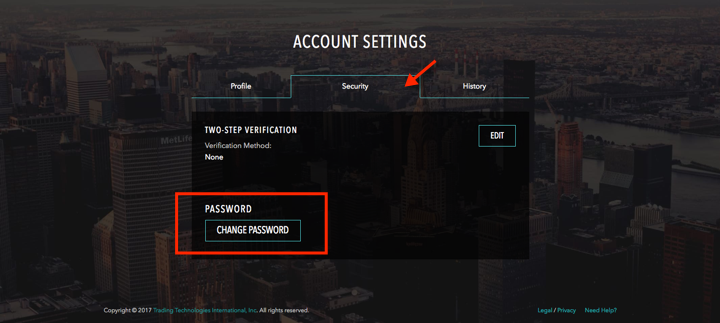
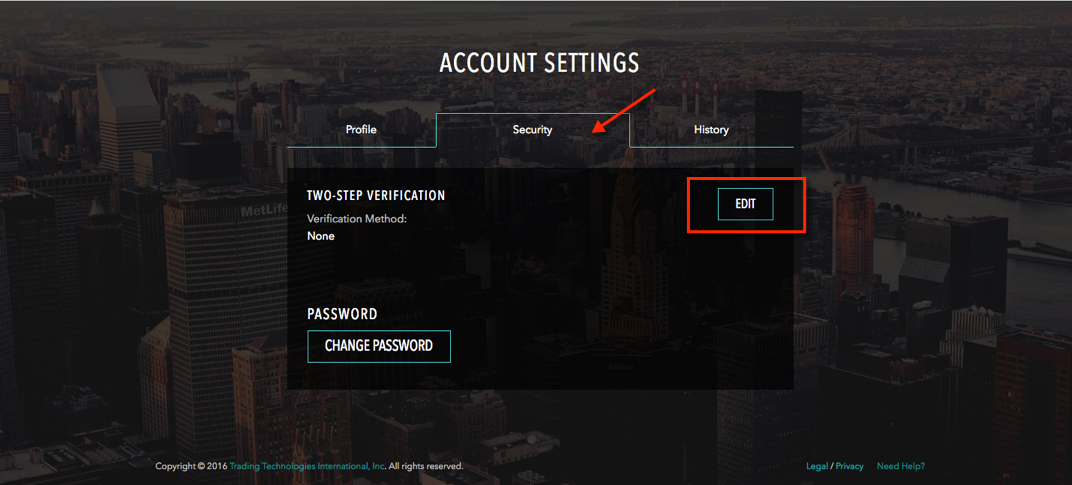
  2. [Account Settings] (口座設定) ページで、[Security] (セキュリティ) タブをクリックし、[Edit] (編集) をクリックします。
  3. 認証方法を選択します。SMS を選択する場合は、主要な電話番号を入力してください。TT は、お客様が入力した携帯電話番号に確認のテキスト メッセージを送信します。
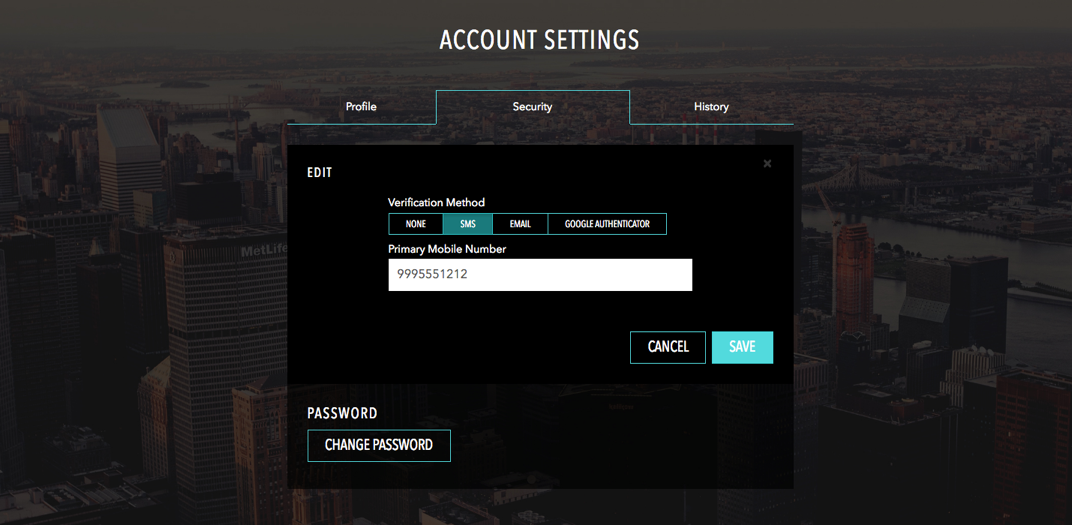
  4. [Save] (保存) をクリックします。

Accessing Support

Before you Begin

This quick start guide gives you an introduction into the Trading Technologies Support Portal.

Accessing the TT Support Portal

To login to the TT Service Portal:

  1. In your browser, navigate to https://tradingtechnologies.service-now.com/csm, or click My open tickets on the TT Customer Portal Home page.

  2. Press the Login button in the top right corner of the titlebar menu.

  3. The TTID login page opens. Enter your TTID credentials to access the support portal.

Opening a New Case (Incident or Request)

To open a new case:

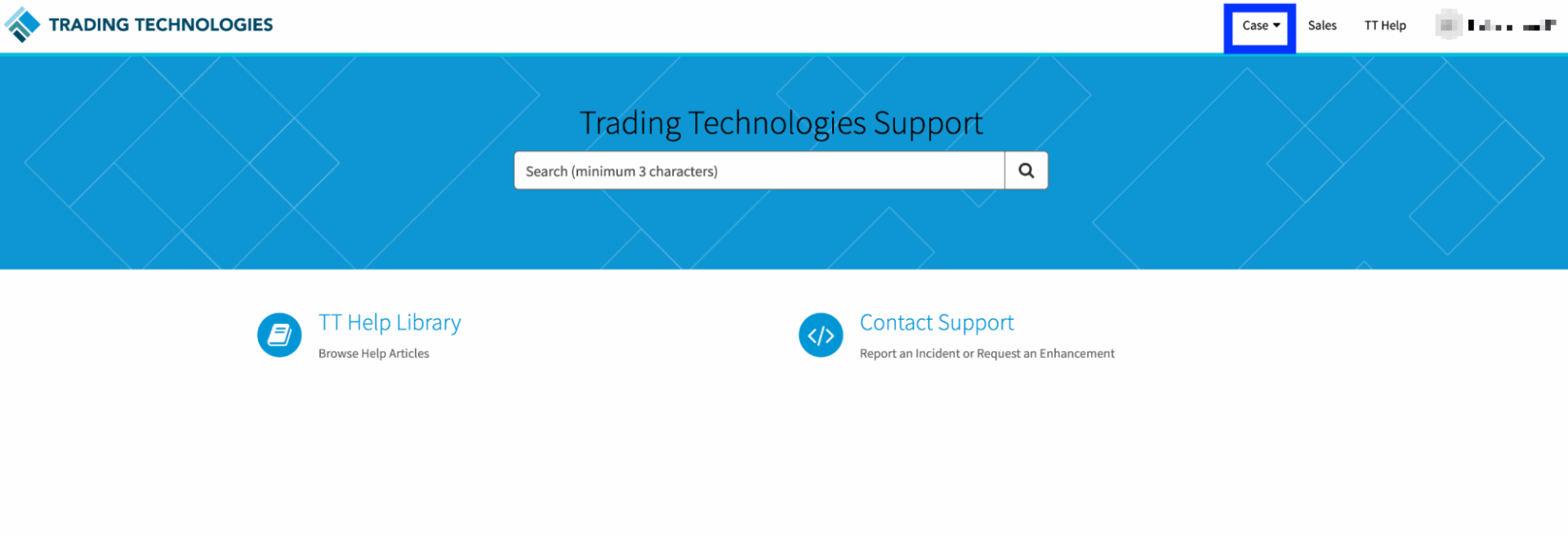
  1. Press the Case button in the top right corner of the titlebar menu.

  2. In the dropdown menu that appears, select Create Case. The Support window appears.

  3. You have the option of reporting an Incident or submitting a request.

    • Incident : use the Incident option to report an issue related to unexpected
      behavior within the TT platform.

    • Request : use the Request option to submit a request for information related to
      billing, training, or to submit suggestions for software enhancements.

  4. Populate the required fields. You can optionally use the Attachment button to add files, screenshots, or
    any additional items to your inquiry.

  5. When complete, press the Submit button to send in your request.

Viewing Cases

To view existing Incidents:

  1. Press the Case button in the top right corner of the titlebar menu.

  2. In the dropdown menu that appears, select My Cases.

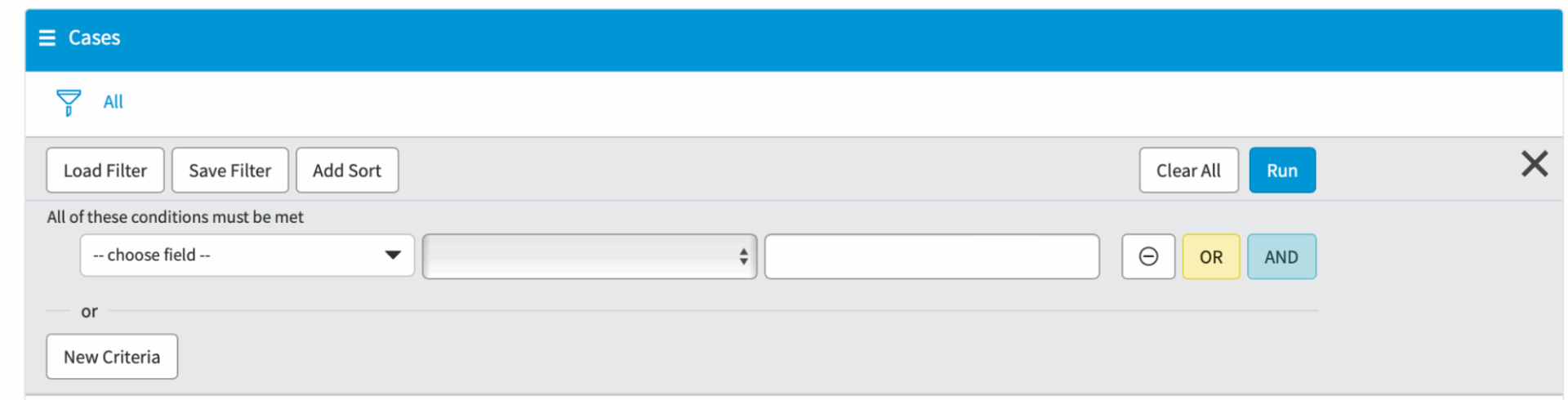
  3. The Cases window appears. The Cases window includes an optional filter to drill down to specific cases.

Exporting Cases

You can optionally export the information related to your cases from the Cases window.

To export your case data:

  1. From the Cases window, press the ‘hamburger menu’ next to Cases.

  2. Select the option to export case data, select the format. You can export case data as either a pdf, Excel, or .csv document.

Filtering Cases

You can optionally use the filter to find the specific case data you would like to view or export.

To filter the list of Cases:

  1. From the Cases window, press the Filter button to open the Filter menu.

  2. In the filter menu, you can populate the conditions of the filter or use the Load Filter button to use an existing filter.

TT 口座の作成

TT プラットフォーム取引環境へのアクセスの最初の手順は、TT 口座を作成することです (TT ID)。

TT 口座を作成するには

  1. Http://www.trade.tt を開いてログインします。
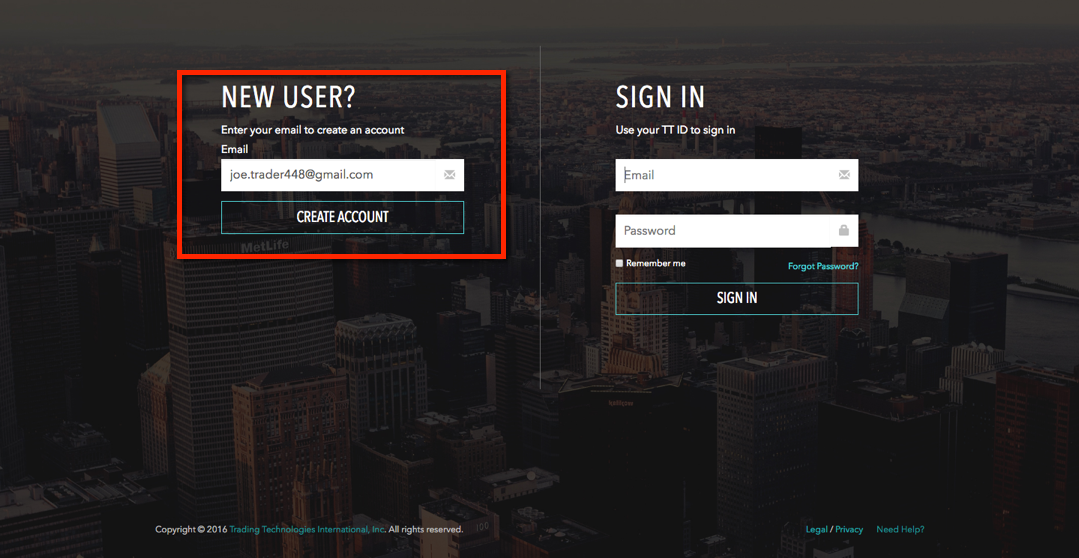
  2. [THE TT PLATFORM] ページの [NEW USER?] セクションにて、電子メール アドレスを入力して [CREATE ACCOUNT] (口座の作成) をクリックします。

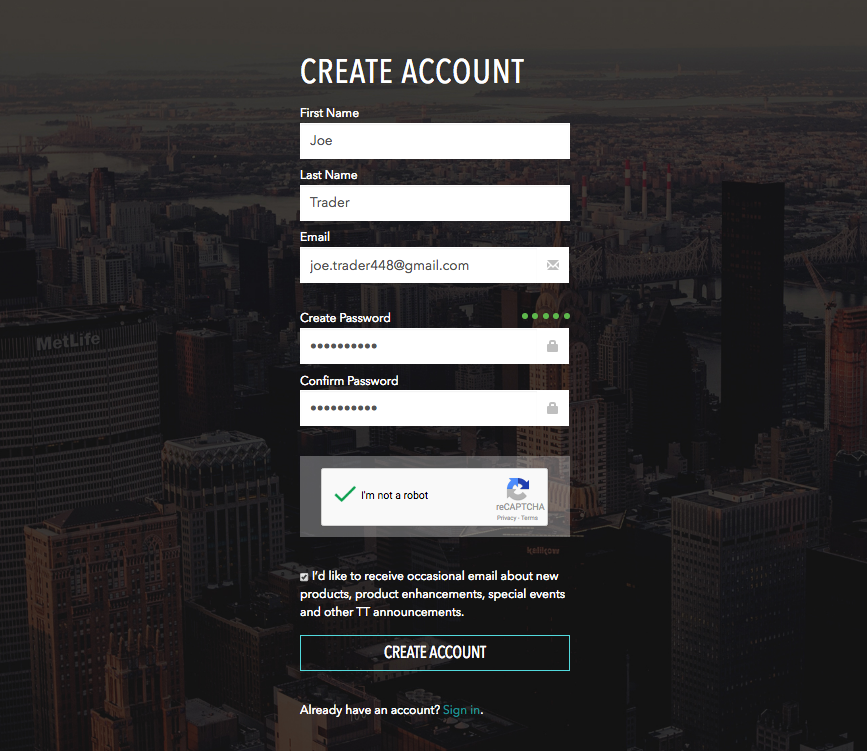
  3. 口座の作成フォームを入力して [CREATE ACCOUNT] (口座の作成) をクリックします。

    パスワードは、最小12文字である必要があり、以下の3つの文字を含んでいる必要があります。

    • 小文字
    • 大文字
    • 数字
    • 特殊文字

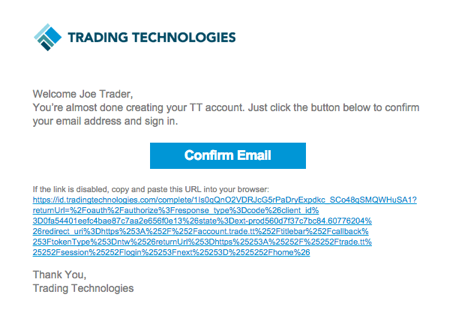
    口座を作成した後、「電子メール確認」リクエストのメールを受信します。電子メールをすぐに受け取れなかった場合は、スパム メールや迷惑メールのフォルダを確認してください。

  4. 受信した登録メールにて、[Confirm Email] (電子メールの確認) をクリックします。

  5. サービス同意書を読んで承認します。
  6. 新規の口座名 (TTID) とパスワードを使って trade.tt にログインしてください。

パスワードの変更

パスワードを変更するには

  1. タイトルバーの口座名をクリックして、[Account Settings] (口座設定) ページを開きます。

  2. [Account Settings] ページにて、[Security] (セキュリティ) タブをクリックして [Change Password] をクリックします。

  3. 現在のパスワードと新規パスワードを入力し、[SAVE] をクリックします。

会社への参加

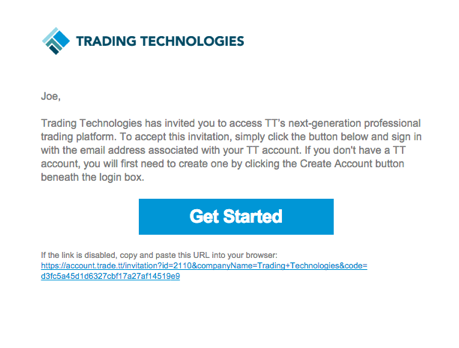
ライブ環境で取引するには、TT システムで「会社」に参加することで、取引または清算会社で TT 口座を登録する必要があります。会社への参加の手続きを開始するには、会社の管理者に問い合わせると、電子メールで招待状が送信されます。招待状が送信されると、「Get Started」に電子メールを受信します。

会社に参加するには

  1. 受信した電子メールで [Get Started] ボタンをクリックします。

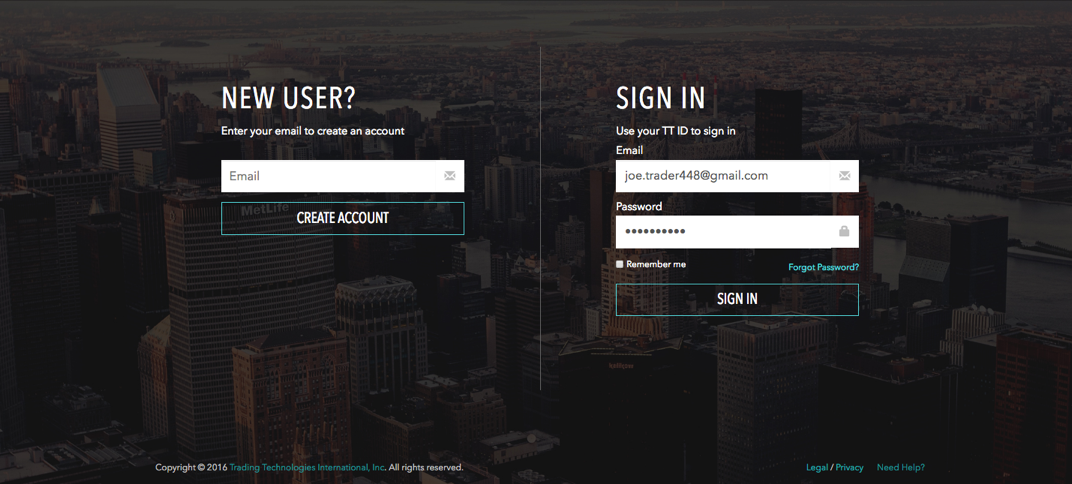
  2. 表示された TT プラットフォーム ログイン画面にて、[SIGN IN] セクションでログインとパスワード情報を入力します。

    : TT にログインする際、ログインを5回試行した後は口座はロックされます。

    ヒント: TT 口座をまだ作成していない場合は、電子メールアドレスを入力して [Create Account] をクリックします。

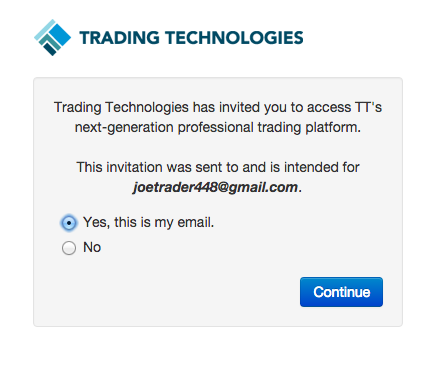
  3. 招待状を承認する前に、確認画面を表示して、招待状が正しい電子メールアドレスに送信されることを確認して、[Continue] をクリックします。

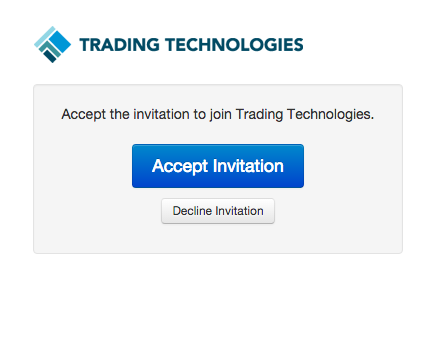
  4. [Accept Invitation] をクリックして手順を完了します。

    : 会社に参加の招待状を受信した際、TT デモ環境へのアクセスは失われます。

Privacy Overview

This website uses cookies so that we can provide you with the best user experience possible. Cookie information is stored in your browser and performs functions such as recognising you when you return to our website and helping our team to understand which sections of the website you find most interesting and useful.

Strictly Necessary Cookies

Strictly Necessary Cookie should be enabled at all times so that we can save your preferences for cookie settings.

Analytics

This website uses Google Analytics to collect anonymous information such as the number of visitors to the site, and the most popular pages.

Keeping this cookie enabled helps us to improve our website.

Marketing

This website uses the following additional cookies:

(List the cookies that you are using on the website here.)